Google Essentials
Gmail, Google Drive, Docs, Sheets, Slides, Google Meet, and account help.
- Sign in to your ISB Google account
- Use two Google accounts at the same time
- Chrome profiles
- Start or join a Google Meet
- Chrome - Clear Cache
- Chrome - Enable Spell Check
- Take Your Google Data With You - for Teachers and Staff
- Take Your Google Data With You - for Students
- How To Change Your Google Account Picture
Sign in to your ISB Google account
ISB Google services are protected by Microsoft single sign-on (SSO). You use your ISB Microsoft account to authenticate before accessing Gmail, Drive, Docs, Sheets, Slides, Google Meet, and other school services.
Steps
- Open Google or the ISB-provided Google service link.
- Select Sign in.
- Enter your ISB email address.
- When redirected to Microsoft, sign in with your ISB Microsoft account.
- Complete Microsoft verification or MFA if requested.
- Wait for Google to complete the sign-in.
If you cannot sign in
- Check that you are using your ISB account, not a personal Google account.
- Check that you are using your ISB email address.
- Check your Microsoft sign-in details and keyboard language.
- Try an incognito/private browser window.
- If you recently changed your Microsoft password, sign out and sign in again.
- Contact ISB IT if Microsoft SSO, MFA, or your account is locked.
Audience: Everyone
Last reviewed: [23 July 2026]
Owner: ISB IT
Use two Google accounts at the same time
Chrome profiles are the safest way to keep your ISB account and personal Google account separate.
Recommended method: Chrome profiles
- Open Chrome.
- Select your profile picture in the top-right corner.
- Select Add or Add new profile.
- Sign in with your ISB Google account.
- Give the profile a clear name, such as ISB.
Use the ISB profile for school Gmail, Drive, Docs, Sheets, Slides, and Google Meet.
Important
- Check the profile picture before creating or sharing a file.
- Do not store school documents in a personal Drive.
- Do not share confidential school information with a personal account.
Audience: Everyone
Last reviewed: [23 July 2026]
Owner: ISB IT
Chrome profiles
Create a Chrome profile for your ISB account
Chrome profiles keep school browsing, bookmarks, history, and sign-in sessions separate from personal browsing.
Steps
- Open Chrome.
- Select the profile picture in the top-right corner.
- Select Add.
- Choose Sign in if prompted.
- Sign in with your ISB Google account.
- Name the profile ISB and choose a recognizable color.
Good practice
- Use the ISB profile for school work.
- Check the active profile before uploading or sharing files.
- Do not enable sync for a personal account on a shared school computer.
Audience: Everyone
Last reviewed: [23 July 2026]
Owner: ISB IT
Start or join a Google Meet
Google Meet is used for online meetings, lessons, interviews, and collaboration.
Join a meeting
- Open the Meet link from your ISB email, Calendar event, Classroom, or message.
- Check your camera and microphone before joining.
- Select Join now or Ask to join.
- Keep your microphone muted when you are not speaking.
Start a meeting
- Open Google Meet with your ISB account.
- Select New meeting.
- Choose the available meeting option.
- Share the meeting link only with the intended participants.
During the meeting
- Use the microphone button to mute or unmute.
- Use the camera button to turn video on or off.
- Use Present now to share your screen or a window.
- Use captions when helpful.
- Leave the meeting when finished.
Audience: Everyone
Last reviewed: [23 july 2026]
Owner: ISB IT
Chrome - Clear Cache
If Chrome displays a page incorrectly or it fails to sign you in, clear the cache and try again.
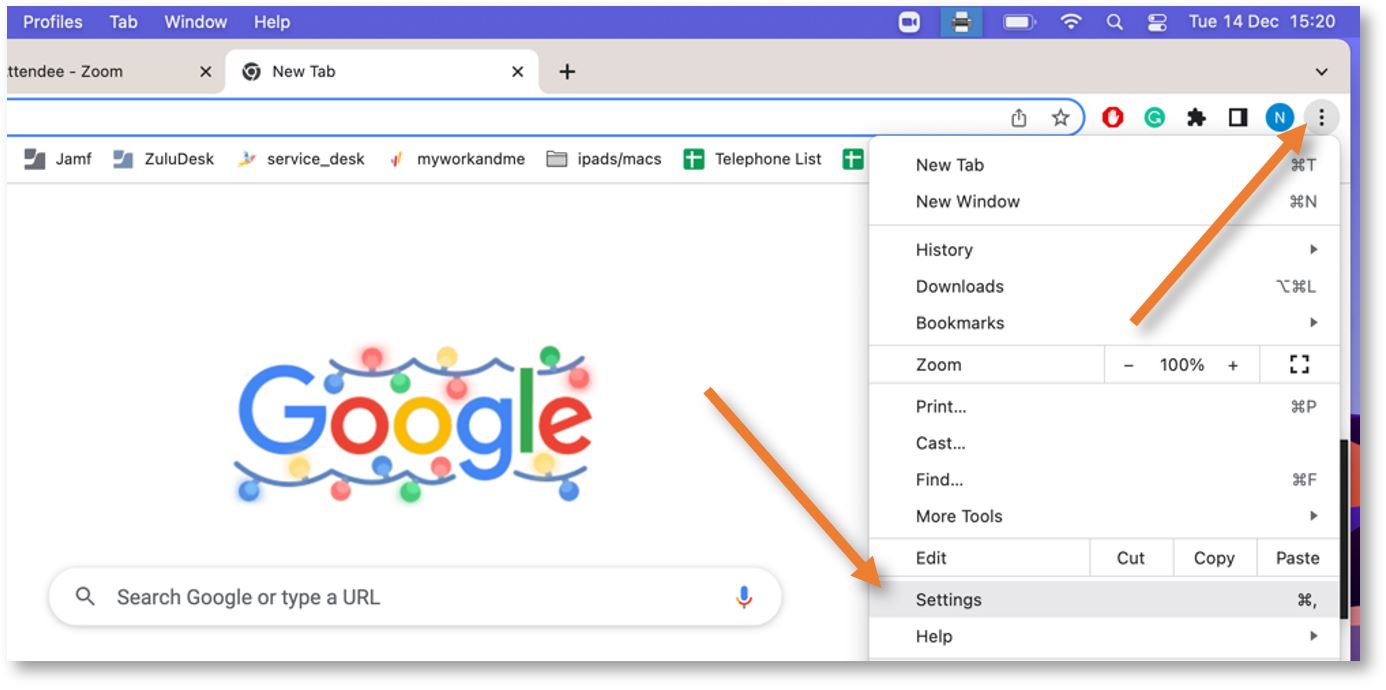
Click the 3 vertical dots from the upper-right corner and select Settings.
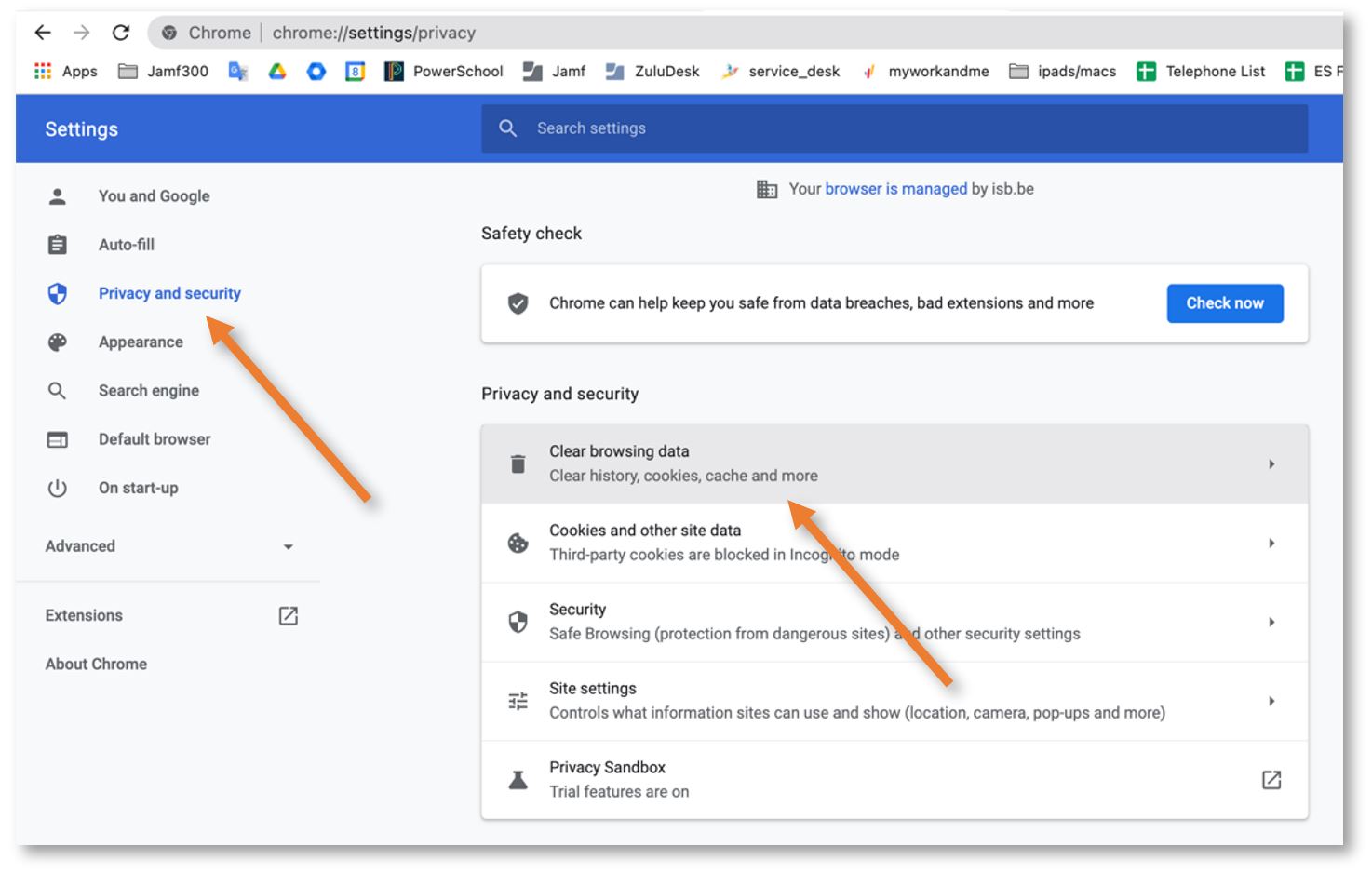
Click on Privacy and security in the left panel and select Clear browsing data.
Uncheck Browsing history, choose All Time under Time range, and click Clear Data.
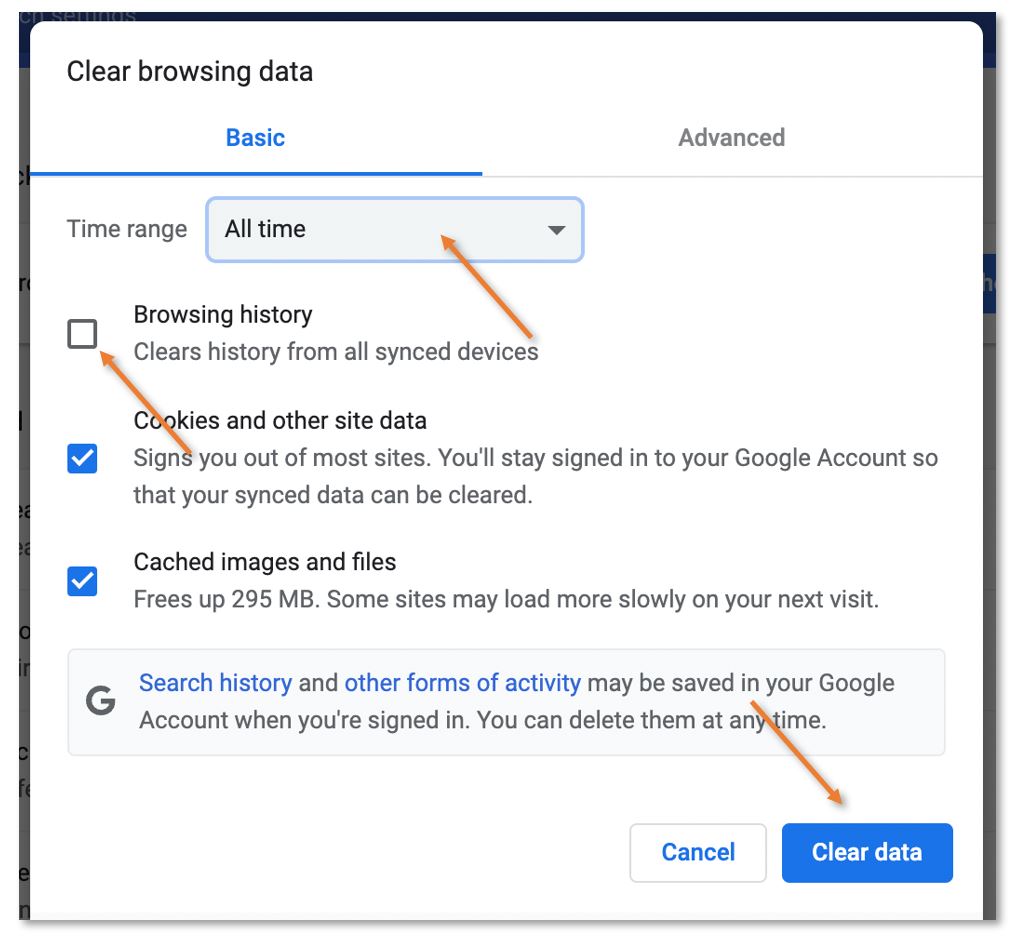
Reload the page and try again.
For other browsers, you can find instructions here
Chrome - Enable Spell Check
To activate the spellcheck in Chrome, please open the Customize Menu (1) and click on Settings (2). Under You and Google (3) select Sync and Google services (4), scroll down and activate Enhanced spell check (5). 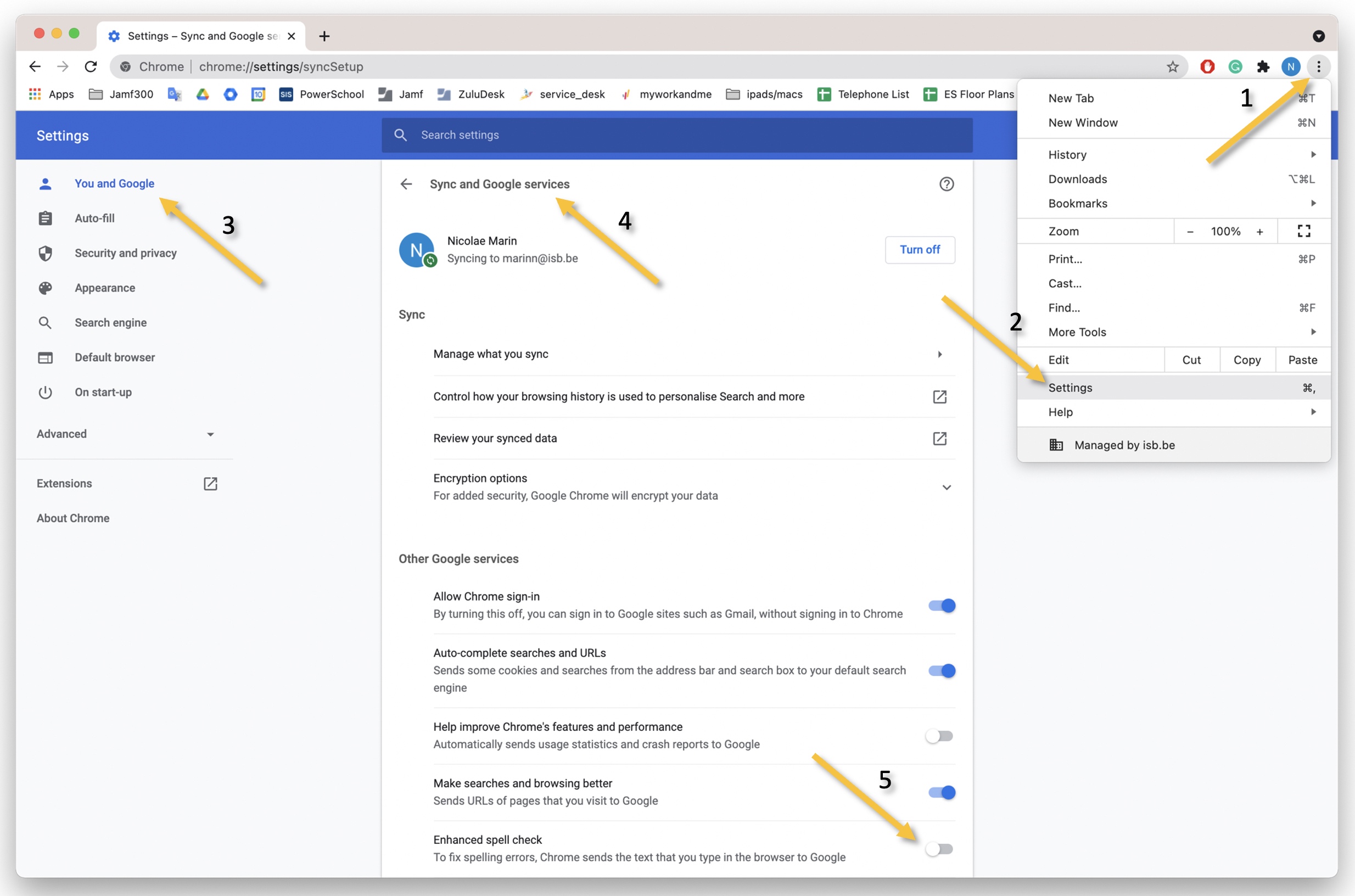
Take Your Google Data With You - for Teachers and Staff
Google Data
If needed, it is possible to export all of your Google data. Your ISB account will be deactivated in December after you leave. Your content will be deleted. We cannot help you recover data once you have departed from ISB.
Before you begin, please become familiar with these guidelines on removing sensitive information.
There are two ways to export your data; please read the Option's intro and choose what works for you.
Option 1 - Copy to new drive
If you would like to copy your data from your ISB Google Drive to a personal Google Drive, the process outlined below is recommended. But first... please make sure that you have enough space on your personal drive which is limited to 15GB by default.
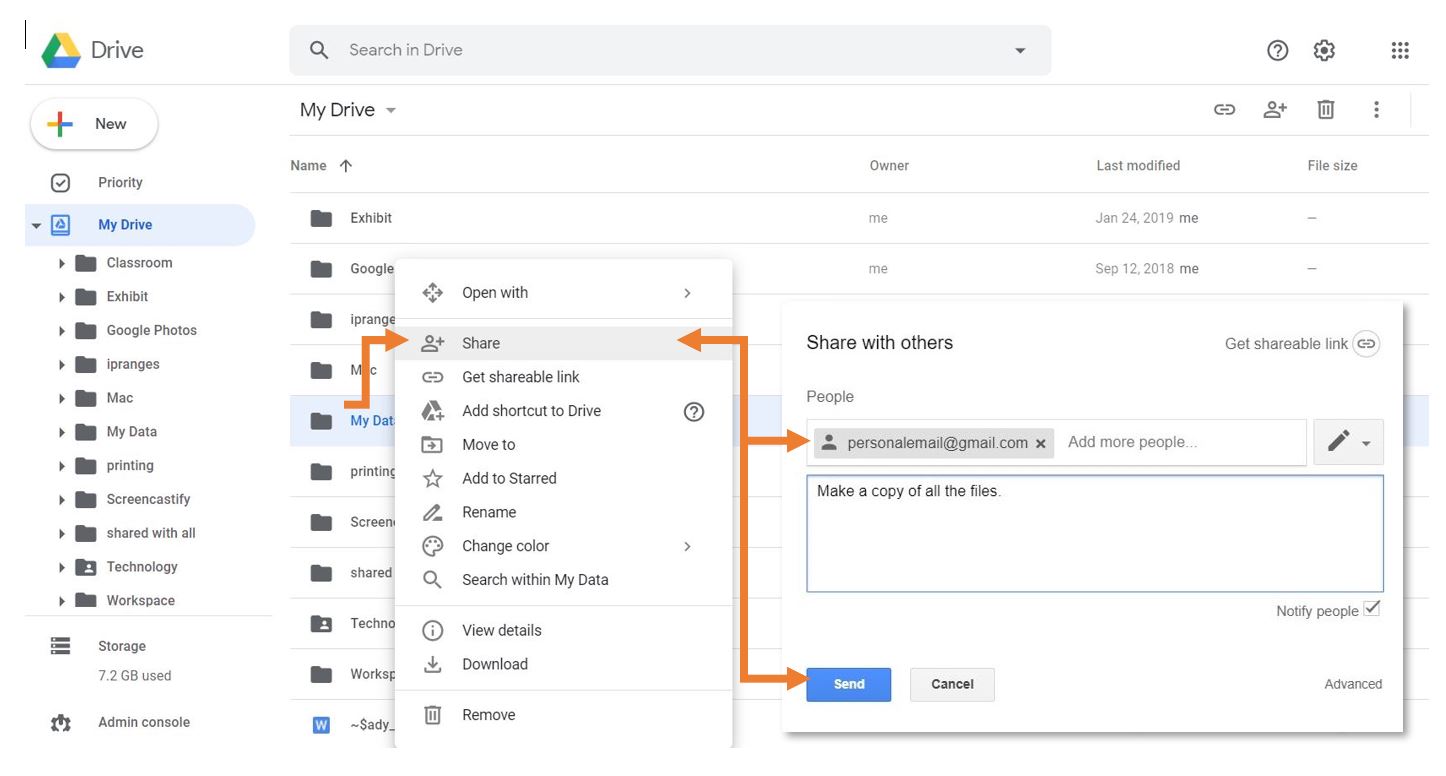
In your ISB Google Drive:
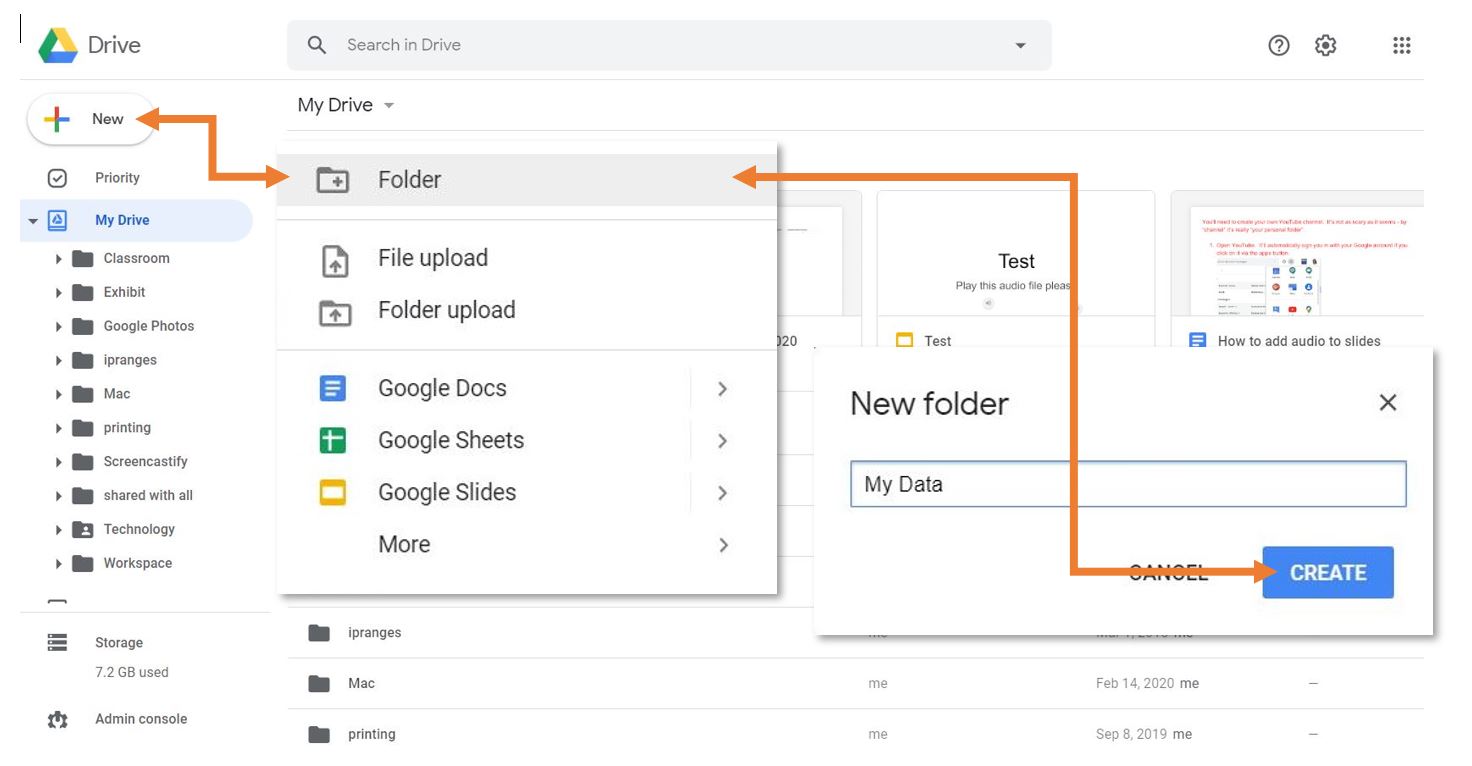
- Create a folder where you will place all the files you would like to move.

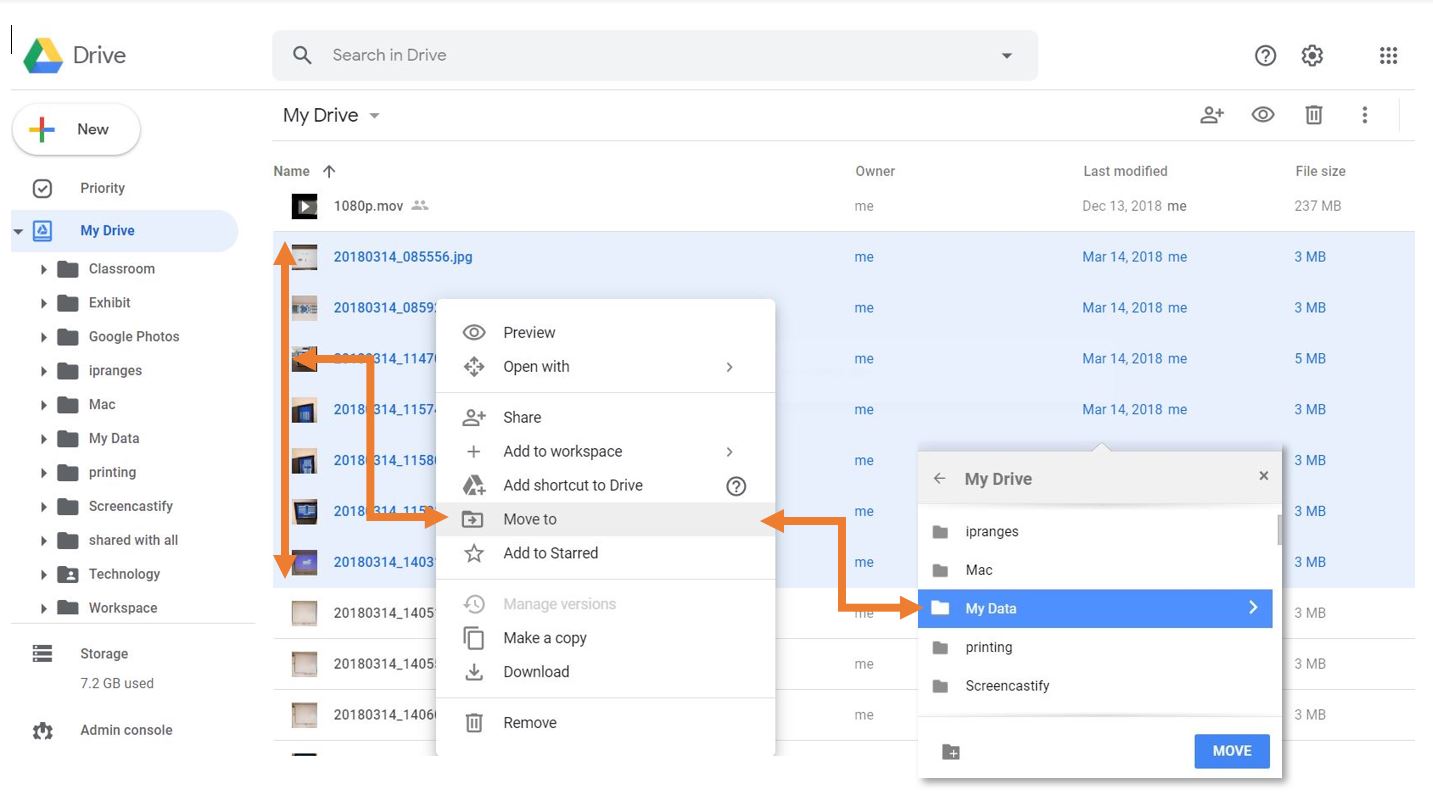
- Move the files you want to keep into the new folder. You can add folders as well, but that might make the next steps more tedious.

- Share the folder you created with your personal account.

In your personal Google Drive:
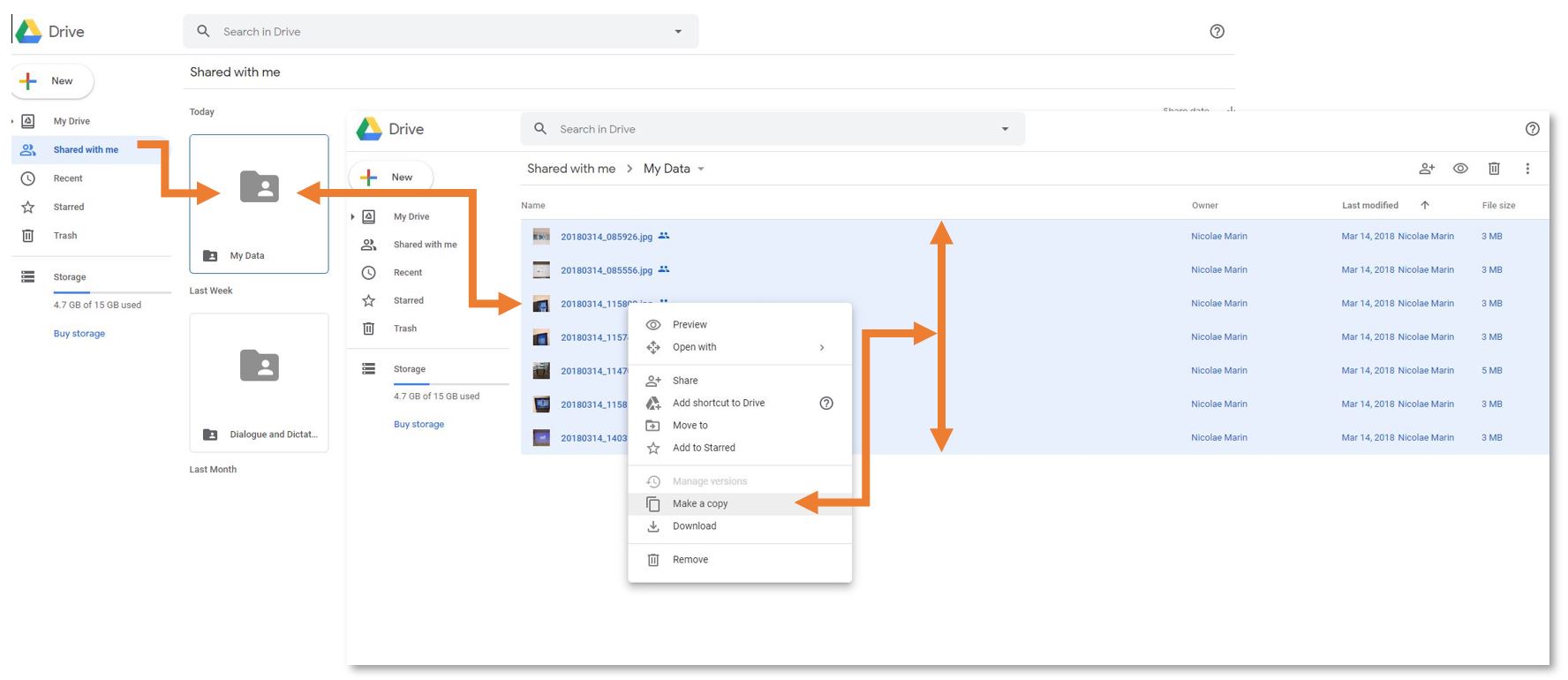
- Open the folder that you shared with your personal account.
- Select all the files inside the folder (Ctrl+A (select all) OR Shift+left click) *FILES ONLY, NOT FOLDERS*
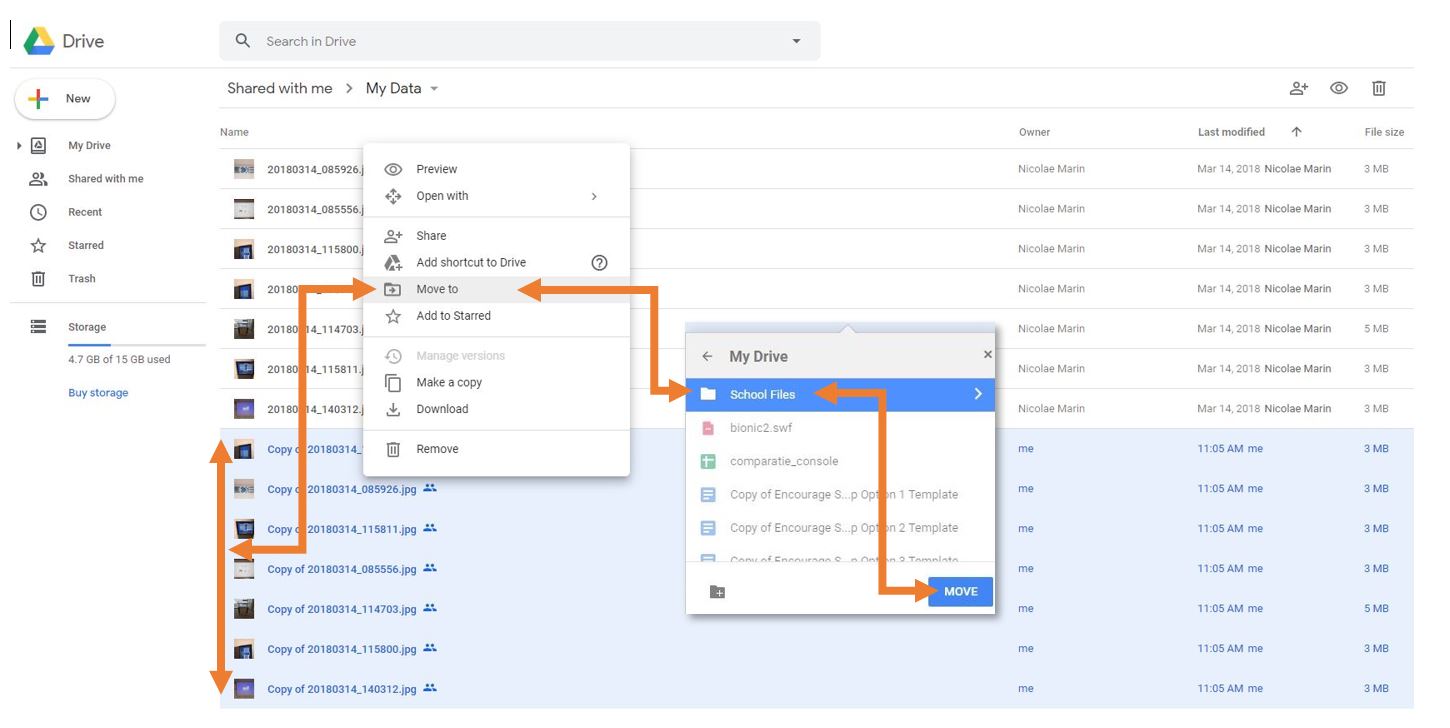
- Right-click on one of the files you selected and choose “Make a copy.” This will create a copy of all the files. Your personal account will be the owner of the copies. The copies will have the name “Copy of…”

- Move the files with the name “Copy of…” to another location on your personal Google Drive.

Option 2 - Download your Data:
You can choose to download an archive of your files as well. This process is easier than the copy method, but Google Apps documents (docs, sheets, slides…) will be converted to Microsoft-compatible files (Word, Excel, PowerPoint…).
- In your ISB Google Drive, right-click on a file or folder that you would like to download.
- Select “Download” from the list of options.
- Save the downloaded archive to an external hard drive or a personal cloud storage service (a personal Google Drive, Dropbox, etc.).
Take Your Google Data With You - for Students
Google Data
In December, after you leave, your ISB account will be deactivated. Your content will be deleted. We cannot help you recover your data once you have departed from ISB.
You can 'copy' your data to your personal Google Drive, or download it to a storage device or service.
Option 1 - Copy to new drive
If you would like to copy your data from your ISB Google Drive to a personal Google Drive, the process outlined below is recommended. But first... please make sure that you have enough space on your personal drive. Your personal drive is limited to 15GB by default.
In your ISB Google Drive:
- Create a folder where you will place all the files you would like to move.
- Move the files you want to keep into the new folder. You can add folders as well, but that might make the next steps more tedious.
- Share the folder you created with your personal account.
In your personal Google Drive:
- Open the folder that you shared with your personal account.
- Select all the files inside the folder (Ctrl+A (select all) OR Shift+left click) *FILES ONLY, NOT FOLDERS*
- Right-click on one of the files you selected and choose “Make a copy.” This will create a copy of all the files. Your personal account will be the owner of the copies. The copies will have the name “Copy of…”
- Move the files with the name “Copy of…” to another location on your personal Google Drive.
Option 2 - Download your Data
You can choose to download an archive of your files as well. This process is easier than the copy method, but Google Apps documents (docs, sheets, slides…) will be converted to Microsoft-compatible files (Word, Excel, PowerPoint…).
- In your ISB Google Drive, right-click on a file or folder that you would like to download.
- Select “Download” from the list of options.
- Save the downloaded archive to an external hard drive or a personal cloud storage service (a personal Google Drive, Dropbox, etc.).
How To Change Your Google Account Picture
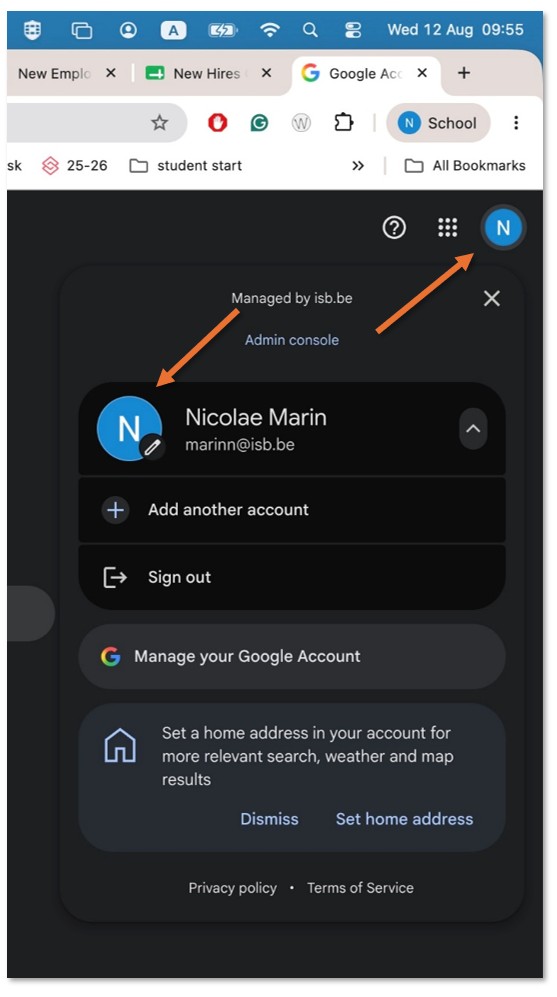
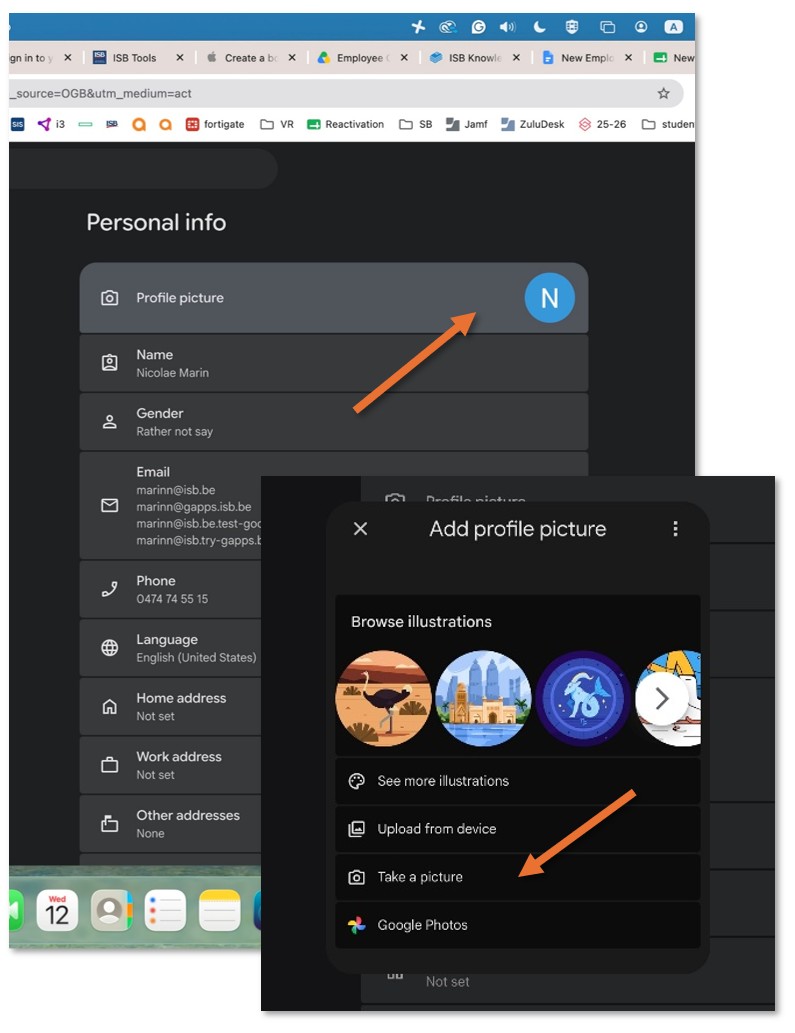
Open a new tab in Chrome, or any Google page if you are using a different browser, and click the bubble with your initial in the upper-right corner. Then, in the menu that pops up, click on the bubble again.