Backup Your Data
How to save everything before changing the hardware that you use or before you depart with ISB.
- Take Your Google Data With You - for Teachers and Staff
- Take Your Google Data With You - for Students
- Transfer Your Browser Bookmarks
Take Your Google Data With You - for Teachers and Staff
Google Data
After you leave, your ISB account will be deactivated. Your content will be deleted. We cannot help you recover your data once you have departed from ISB.
Before you begin, please become familiar with these guidelines on removing sensitive information.
There are two ways to export your data; please read the Option's intro and choose what works for you.
Option 1 - Copy to new drive
If you would like to 'move' your data from your ISB Google Drive to a personal Google Drive, the process outlined below is recommended. But first... please make sure that you have enough space on your personal drive. Your personal drive is limited to 15GB by default.
In your ISB Google Drive:
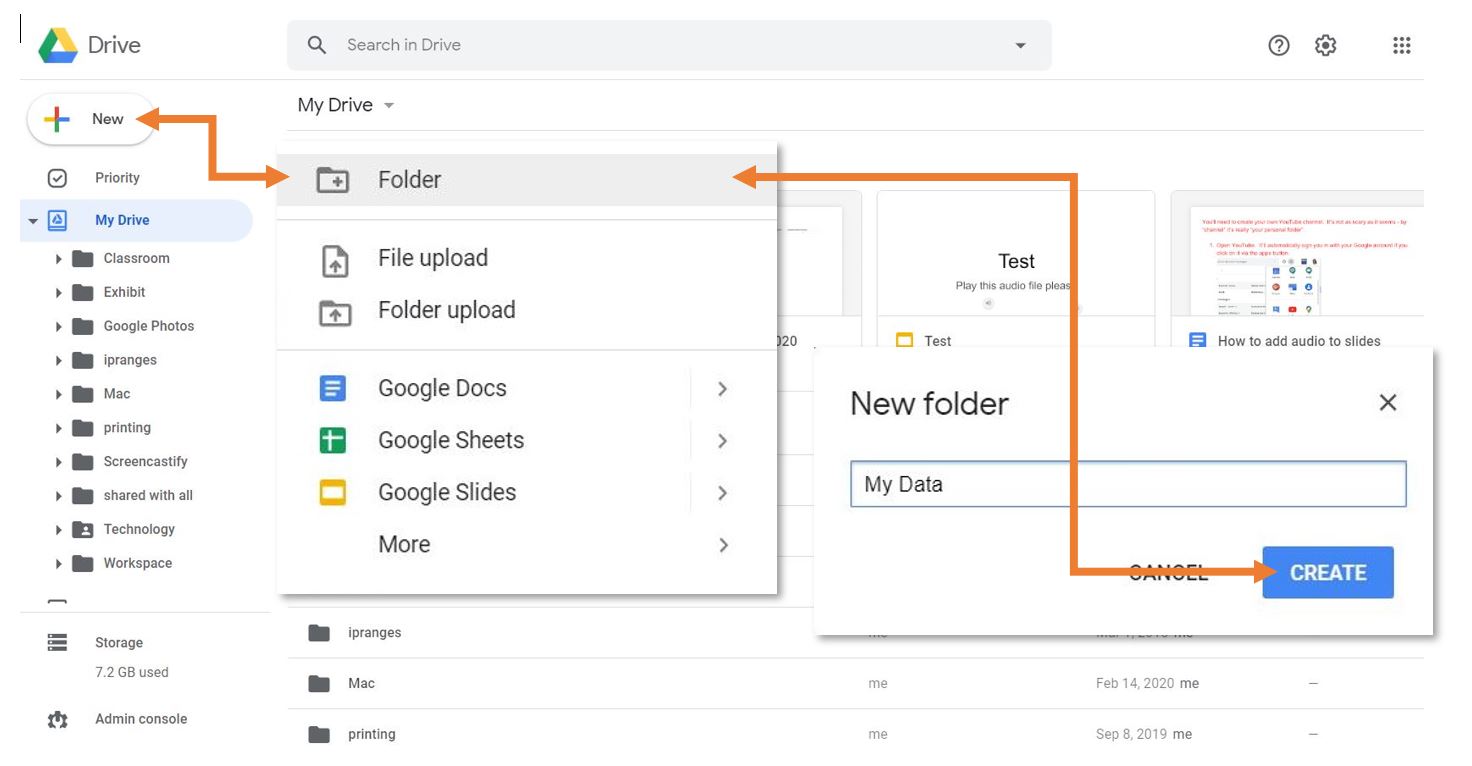
- Create a folder where you will place all the files you would like to keep.

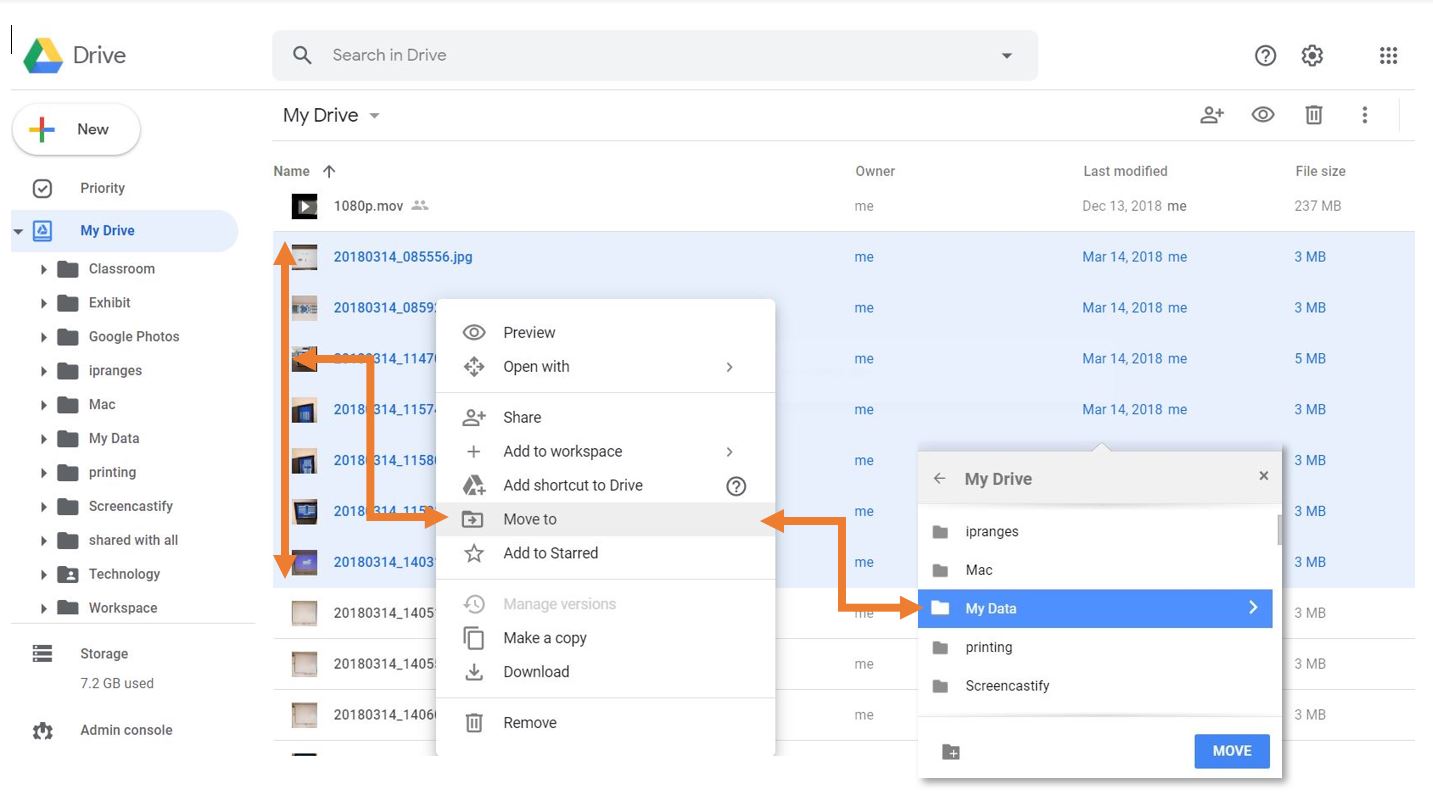
- Move the files and folders that you want to keep into the new folder.Share the folder you created with your personal account.

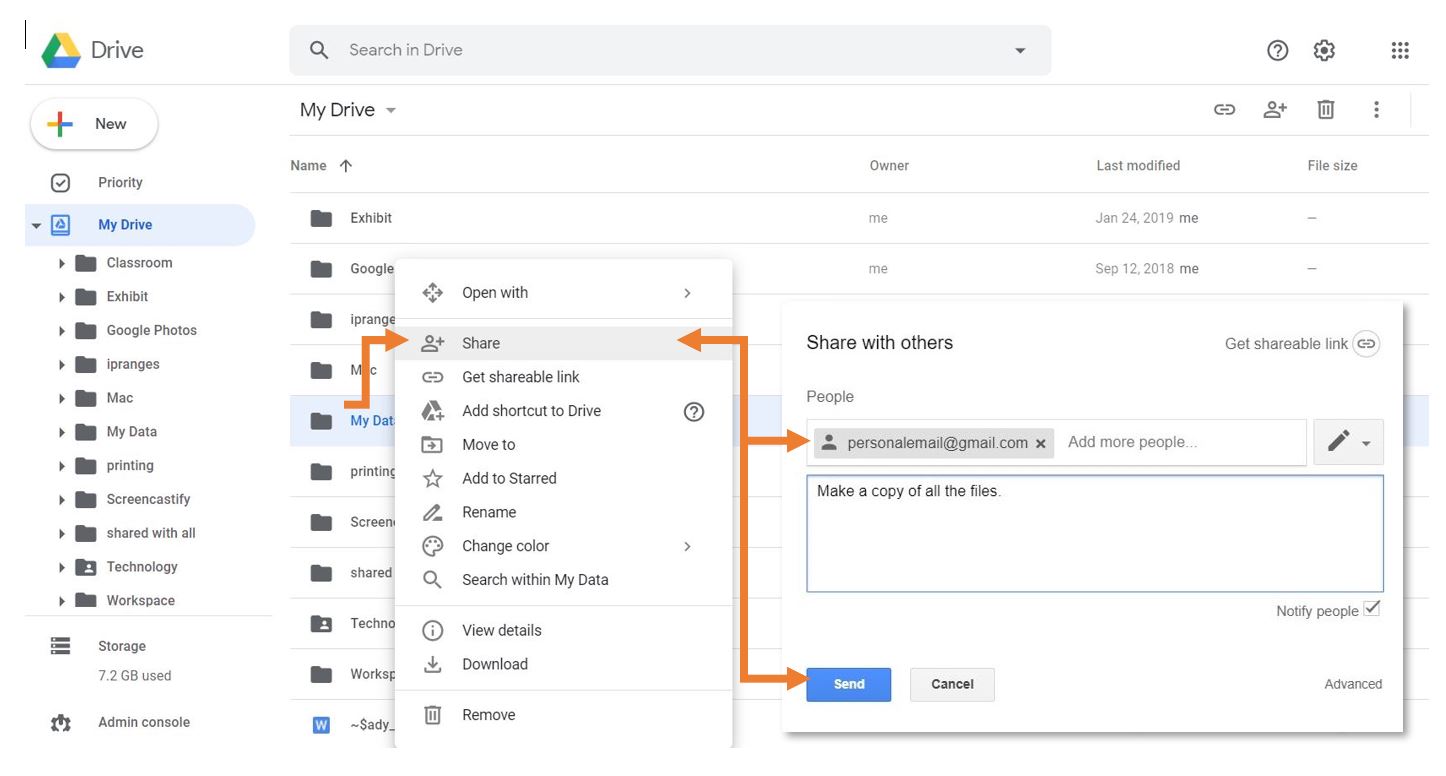
- Share the folder you created with your personal account.

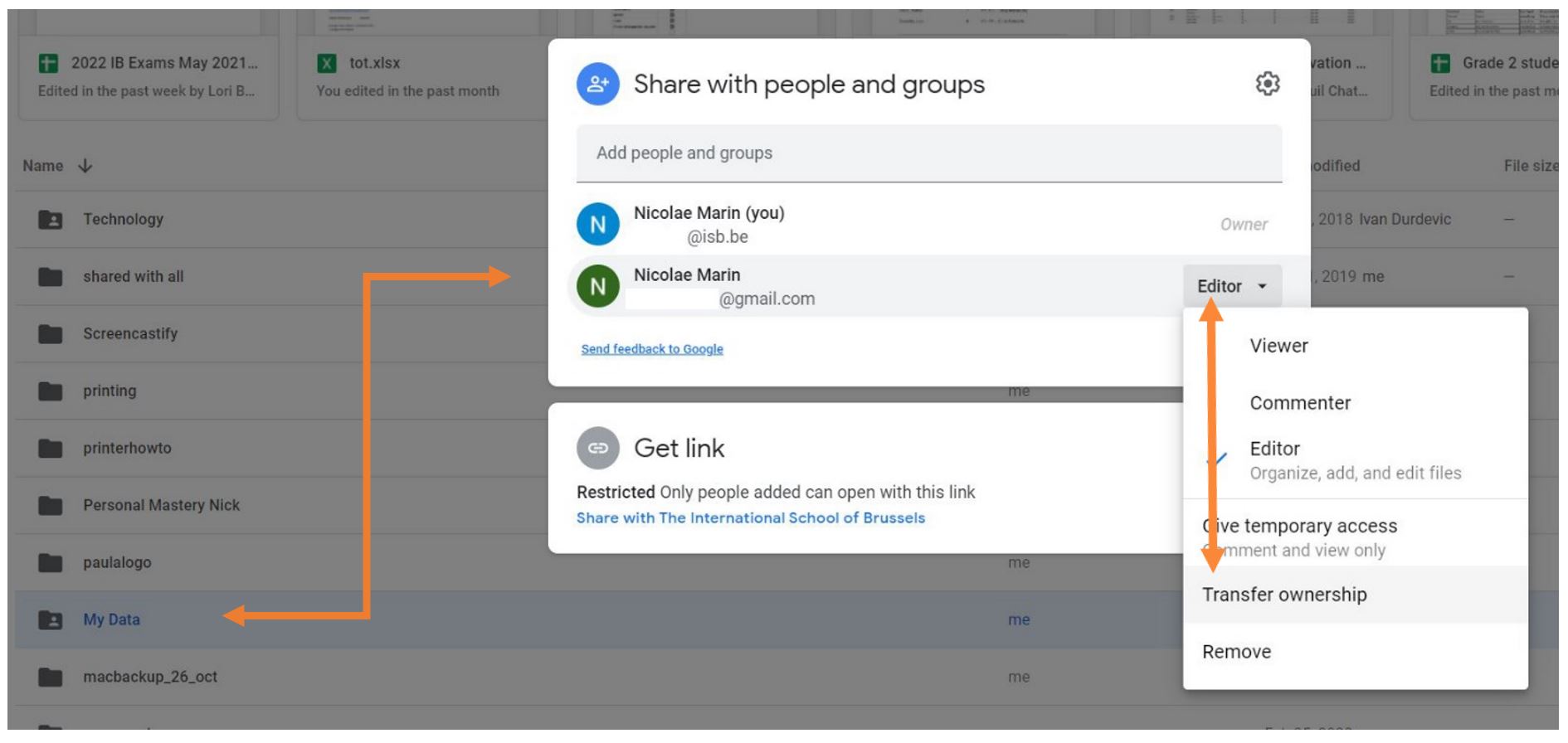
- Transfer the ownership of your newly shared folder to your personal account (right-click the newly created folder and select Share one more time, expand the Editor submenu, and select Transfer ownership.)

Option 2 - Download your Data:
You can choose to download an archive of your files as well. This process is easier than the copy method, but Google Apps documents (docs, sheets, slides…) will be converted to Microsoft-compatible files (Word, Excel, PowerPoint…).
- In your ISB Google Drive, right-click on a file or folder that you would like to download.
- Select “Download” from the list of options.
- Save the downloaded archive to an external hard drive or a personal cloud storage service (a personal Google Drive, Dropbox, etc.).
Take Your Google Data With You - for Students
Google Data
In December, after you leave, your ISB account will be deactivated. Your data will remain for the next 5 years past deactivation at which point it will be deleted. Please note that you may contact IT beyond the month of December in order to have your account reactivated for a short duration.
Additionally, any account made on other platforms using your ISB Email will likely encounter problems as a result of your gmail being deactivated. Please make sure to transfer those accounts to personal ones as well.
There are two ways to export your data; please read the Option's intro and choose what works for you.
Option 1 - Copy to new drive
If you would like to copy your data from your ISB Google Drive to a personal Google Drive, the process outlined below is recommended. But first... please make sure that you have enough space on your personal drive. Your personal drive is limited to 15GB by default.
In your ISB Google Drive:
- Create a folder where you will place all the files you would like to move.
- Move the files you want to keep into the new folder. You can add folders as well, but that might make the next steps more tedious.
- Share the folder you created with your personal account.
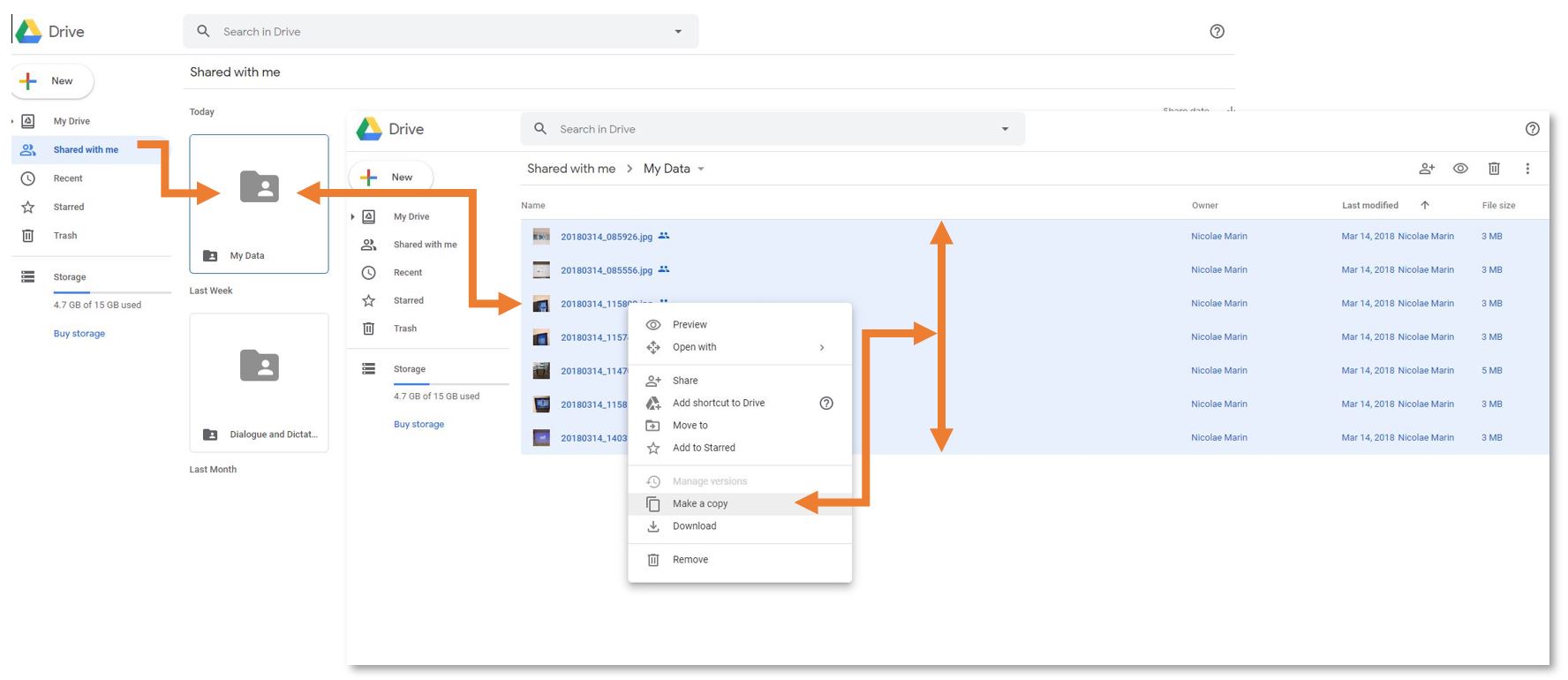
In your personal Google Drive:
- Open the folder that you shared with your personal account.
- Select all the files inside the folder (Ctrl+A (select all) OR Shift+left click) *FILES ONLY, NOT FOLDERS*
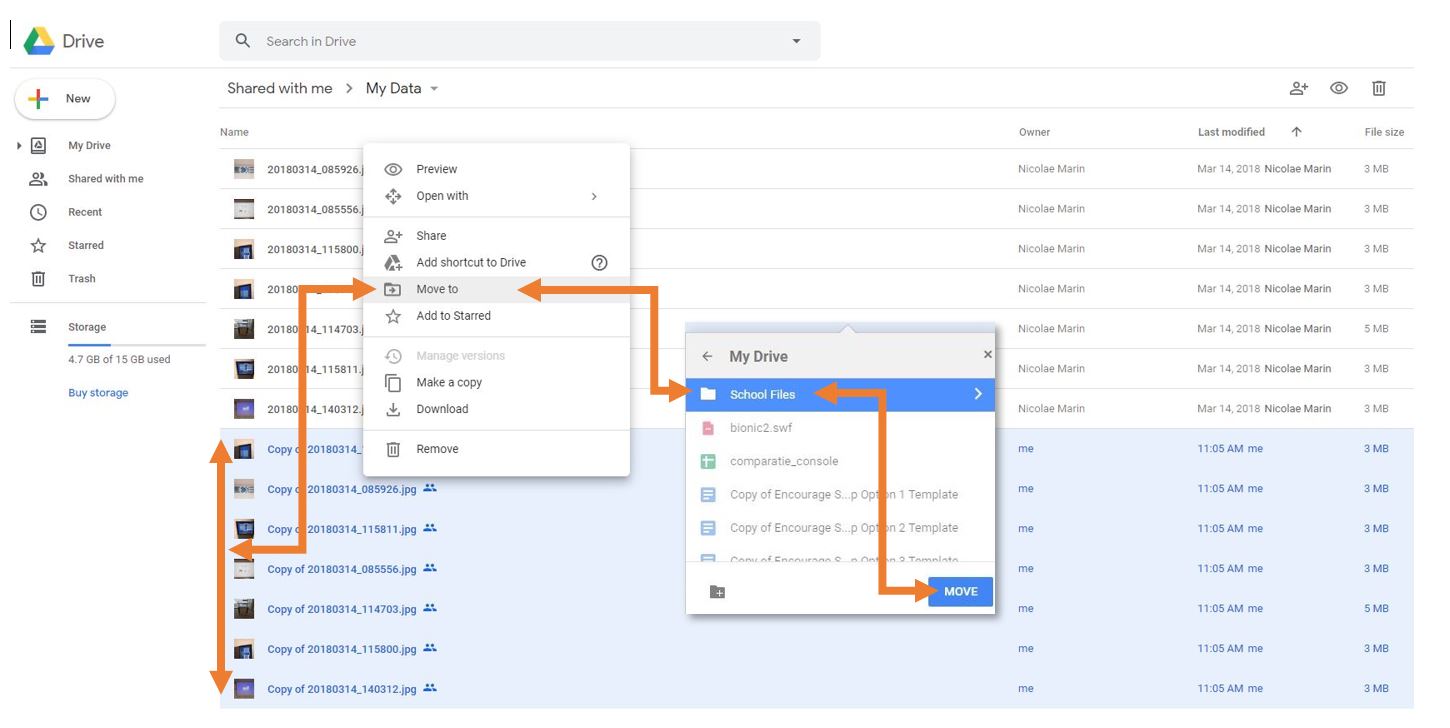
- Right-click on one of the files you selected and choose “Make a copy.” This will create a copy of all the files. Your personal account will be the owner of the copies. The copies will have the name “Copy of…”

- Move the files with the name “Copy of…” to another location on your personal Google Drive.

Option 2 - Download your Data
You can choose to download an archive of your files as well. This process is easier than the copy method, but Google Apps documents (docs, sheets, slides…) will be converted to Microsoft-compatible files (Word, Excel, PowerPoint…).
- In your ISB Google Drive, right-click on a file or folder that you would like to download.
- Select “Download” from the list of options.
- Save the downloaded archive to an external hard drive or a personal cloud storage service (a personal Google Drive, Dropbox, etc.).
Transfer Your Browser Bookmarks
Chrome
The easiest option for Chrome is to sign in and sync. This will sync your bookmarks as well as your history. If you've already signed in, please make sure you are syncing your bookmarks:

If you have not yet signed into Chrome:
- Open Chrome.
- In the top right, click the button with your name or People
.
- Click Sign in to Chrome.
- Sign in with your ISB Credential I
- f you want to sync your info across all your devices, click Turn on sync
Turn on.
- To customize your sync settings, click More
Settings
Firefox
To export bookmarks from Firefox, follow the instructions linked here.