# Powerschool
# Powerschool v21.11 - New Features
## ADMIN
### New Top Navbar, Manage Profile and Quick Data
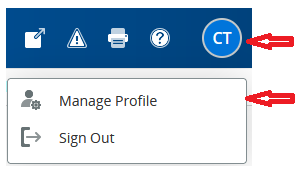
The top Navbar icons have changed slightly but still do the same thing (
eg. Print )
The Personalize menu item has been removed, instead use **Manage
Profile** from the User icon at the top right. This is used to view your
profile details and set the initial student screen and various Interface
and Smart Search options.
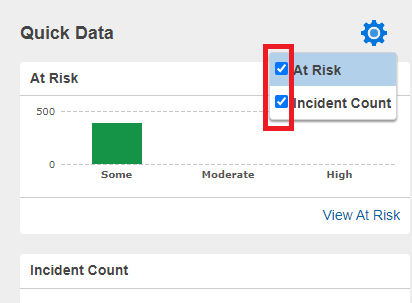
 Users can personally disable the Quick Data boxes on right by clicking
the cog and unticking the two checkboxes
Users can personally disable the Quick Data boxes on right by clicking
the cog and unticking the two checkboxes
 ### New Search
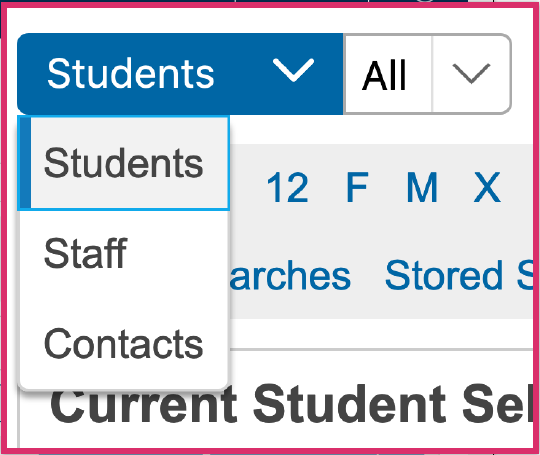
**Student / Staff / Parents** tabs replaced by a single drop-down menu.
### New Search
**Student / Staff / Parents** tabs replaced by a single drop-down menu.
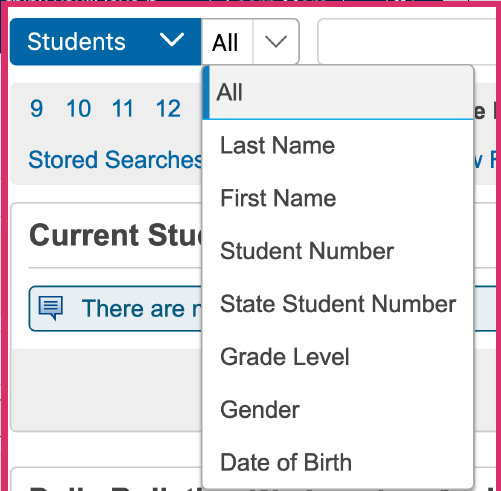
 **Direct field search** on commonly used fields
 **Search term building** - search terms build as you enter them and can
be removed individually or a new search started with Clear All.
**Search term building** - search terms build as you enter them and can
be removed individually or a new search started with Clear All.
 NOTE: this makes the search more like spreadsheet filtering than the
previous search behaviour, where a new search would be performed.
**Quick Search alphabet** is turned off by default - users can enable it
personally via **Manage Profile**
NOTE: this makes the search more like spreadsheet filtering than the
previous search behaviour, where a new search would be performed.
**Quick Search alphabet** is turned off by default - users can enable it
personally via **Manage Profile**
 **Live Smart Search** - as you type, provides all possible solutions
which you can add individually to the current selection or select all by clicking Return
**Live Smart Search** - as you type, provides all possible solutions
which you can add individually to the current selection or select all by clicking Return
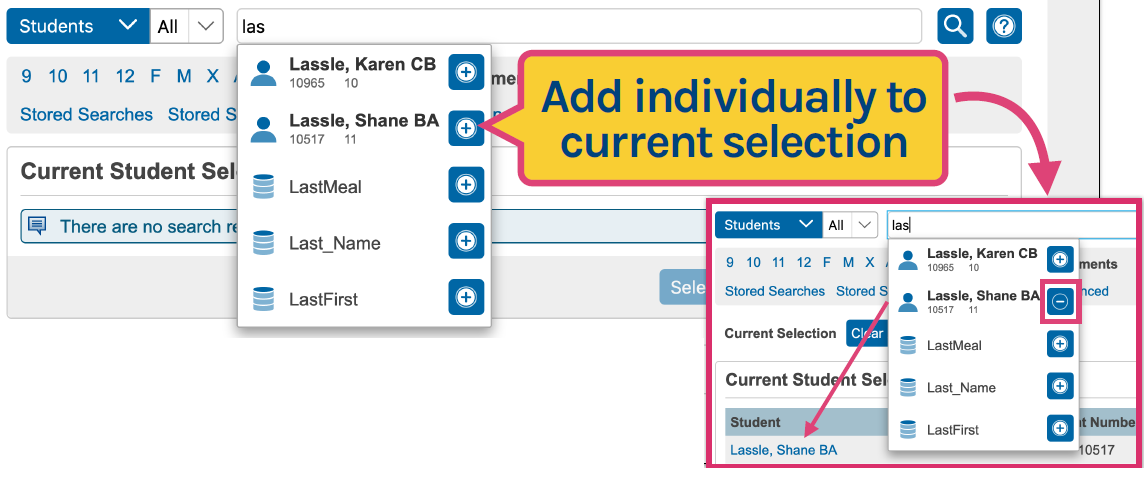 Note: Smart Search is enabled by default - a user can disable it via
Manage Profile
**Advanced Search** moved to drawer on right to separate it and make it
easier to see the impact on the current selection
For more information, click the Help ? icon to the right of the search
bar.
### Parents -\> Contacts
Instead of each student having mother/father information ( repeated for
each sibling ), parent Contacts are now their own entity. They also have
their own Portal accounts ( rather than sharing between a family ), but
only if they have specified a valid email address. SSO will be
implemented for these Parent Contacts during the summer of 2022.
Now to view the parents of a student, Admin users should not use the
Parents pages, but should instead use the Contacts
screen. This displays the name, email, relationship, main phone number,
address and whether or not the child lives with them ( main/secondary
family ). If the Contact has a Portal account associated with them, Data
Access will be ticked.
[](https://docs.isb.be/uploads/images/gallery/2022-06/Ceav5h4jk9rA7BR3-image8.png)
## POWERTEACHER
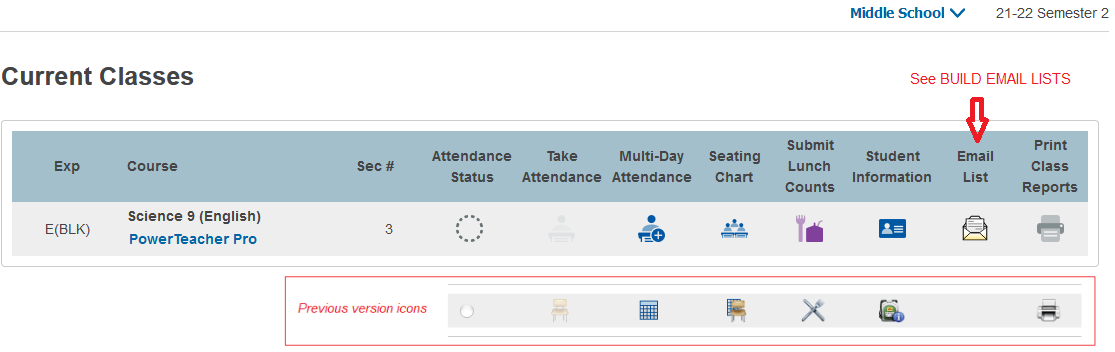
Changes in PowerTeacher are just cosmetic and there are no changes in
PowerTeacher Pro
### Start Page icons
[](https://docs.isb.be/uploads/images/gallery/2022-06/DWn0HjvXEK5a58N2-image7.png)
### Manage Profile
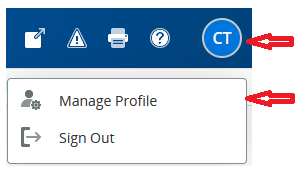
The Personalize menu item has been removed, instead use Manage Profile
from the User icon at the top right. This is used to view your profile
details and set the initial student screen.
Note: Smart Search is enabled by default - a user can disable it via
Manage Profile
**Advanced Search** moved to drawer on right to separate it and make it
easier to see the impact on the current selection
For more information, click the Help ? icon to the right of the search
bar.
### Parents -\> Contacts
Instead of each student having mother/father information ( repeated for
each sibling ), parent Contacts are now their own entity. They also have
their own Portal accounts ( rather than sharing between a family ), but
only if they have specified a valid email address. SSO will be
implemented for these Parent Contacts during the summer of 2022.
Now to view the parents of a student, Admin users should not use the
Parents pages, but should instead use the Contacts
screen. This displays the name, email, relationship, main phone number,
address and whether or not the child lives with them ( main/secondary
family ). If the Contact has a Portal account associated with them, Data
Access will be ticked.
[](https://docs.isb.be/uploads/images/gallery/2022-06/Ceav5h4jk9rA7BR3-image8.png)
## POWERTEACHER
Changes in PowerTeacher are just cosmetic and there are no changes in
PowerTeacher Pro
### Start Page icons
[](https://docs.isb.be/uploads/images/gallery/2022-06/DWn0HjvXEK5a58N2-image7.png)
### Manage Profile
The Personalize menu item has been removed, instead use Manage Profile
from the User icon at the top right. This is used to view your profile
details and set the initial student screen.
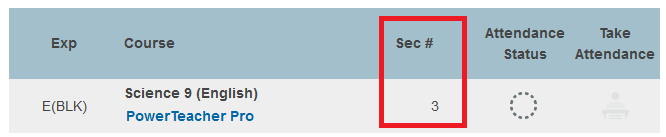
 There is a new option in Manage Profile to show the course section
number on the Start Page
[](https://docs.isb.be/uploads/images/gallery/2022-06/r1TAQyDwiEYjUx1U-image6.png)
If set to yes, the section number column appears in the Current Classes
list
There is a new option in Manage Profile to show the course section
number on the Start Page
[](https://docs.isb.be/uploads/images/gallery/2022-06/r1TAQyDwiEYjUx1U-image6.png)
If set to yes, the section number column appears in the Current Classes
list
 ## BUILD EMAIL LISTS
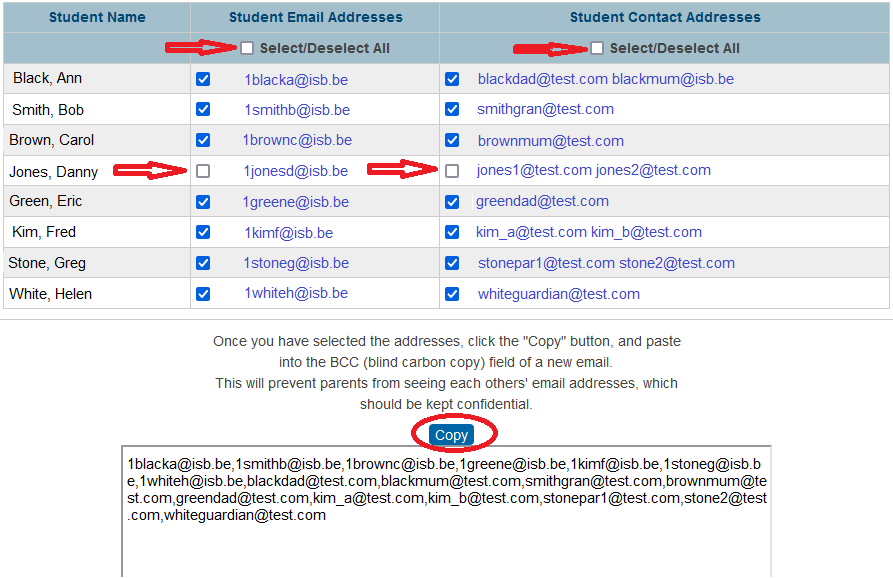
There is a slight change to the way you can build email lists of
students and/or parents to copy/paste into an email.
[](https://docs.isb.be/uploads/images/gallery/2022-06/DCYo2ax95EWJB2yR-image12.png)
First use the Select/Deselect toggle to select all students and/or
Student Contact Addresses (parents). Optionally, you can then remove any
single email items you don't require in the list. The list at the bottom
will change dynamically depending on your selections. Once complete,
click the Copy button to copy to your clipboard for pasting into your
email.
In the Admin Portal, this can be invoked as before, using group function
Build Email Lists.
In the Teacher Portal, it can be invoked directly from the new Email
List icon on the Start Page - all students in all your classes will be
available to select from. Alternatively you can select Student
Information for a single class and select the Email Addresses menu link.
It is not currently possible to generate these email lists from
PowerTeacher Pro.
## BUILD EMAIL LISTS
There is a slight change to the way you can build email lists of
students and/or parents to copy/paste into an email.
[](https://docs.isb.be/uploads/images/gallery/2022-06/DCYo2ax95EWJB2yR-image12.png)
First use the Select/Deselect toggle to select all students and/or
Student Contact Addresses (parents). Optionally, you can then remove any
single email items you don't require in the list. The list at the bottom
will change dynamically depending on your selections. Once complete,
click the Copy button to copy to your clipboard for pasting into your
email.
In the Admin Portal, this can be invoked as before, using group function
Build Email Lists.
In the Teacher Portal, it can be invoked directly from the new Email
List icon on the Start Page - all students in all your classes will be
available to select from. Alternatively you can select Student
Information for a single class and select the Email Addresses menu link.
It is not currently possible to generate these email lists from
PowerTeacher Pro.