Teams
- Install Teams and log in (Mac)
- Install the Google Teams add-on
- Schedule a Teams meeting
- Teams Meeting Options
Install Teams and log in (Mac)
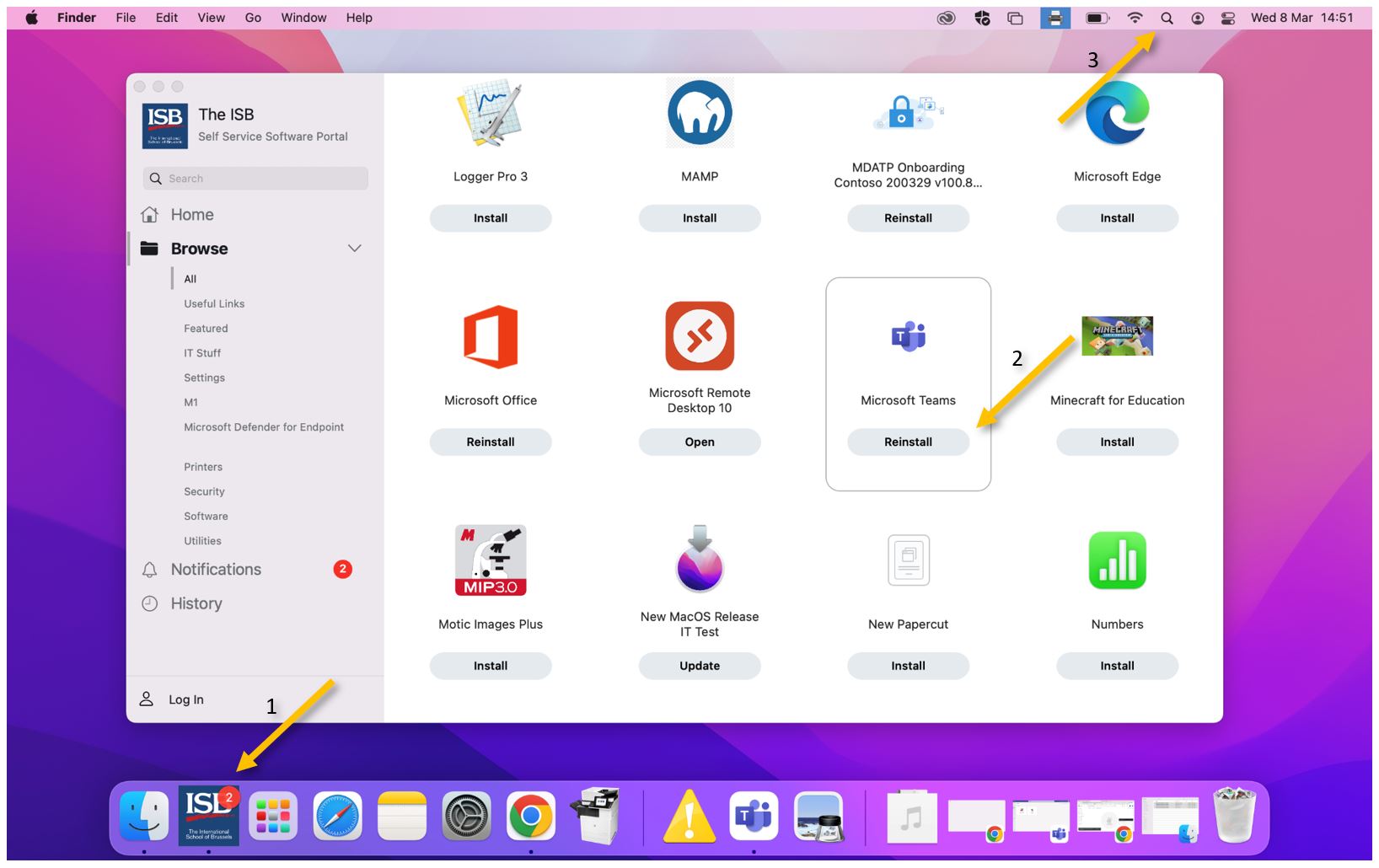
If Teams is not already installed on your computer, you can use Self Service to install it:
- Open Self Service
- Find Microsoft Teams in the list and click on Install
- when the Install button changes to Done or Reinstall, the app is Installed
- Find Teams using the Spotlight and open it
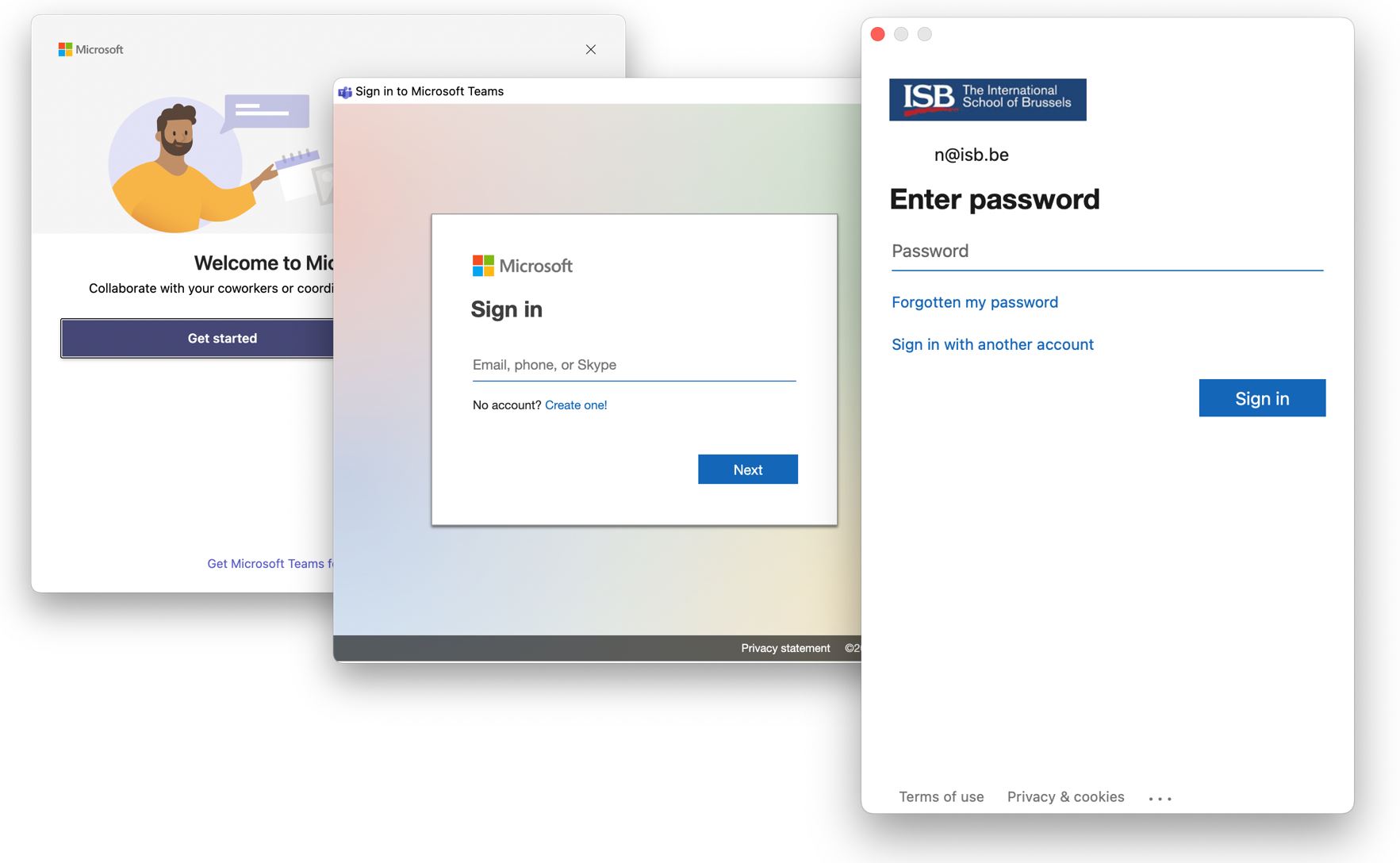
Open teams and use your ISB email and password to Sign in.
Install the Google Teams add-on
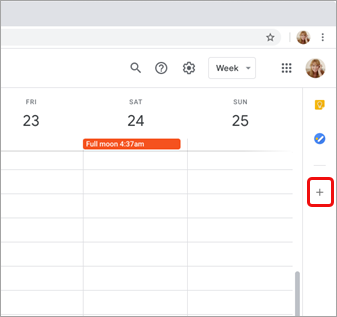
In your Google calendar, open the right panel and select the plus sign.
If the panel is hidden, click on the chevron (<) in the lower-right corner to make the panel appear.
The Google Workspace Marketplace opens.
Enter teams in the search field and select the Microsoft Teams meeting add-on.
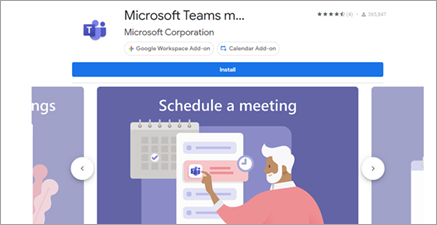
Select Install and then select Continue on the permission screen.
Select a Google account on the next screen.
The Teams meeting add-on appears in the sidebar.
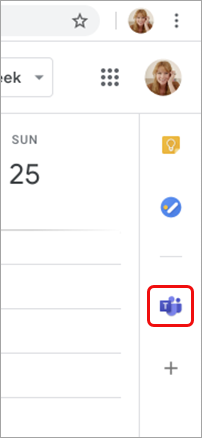
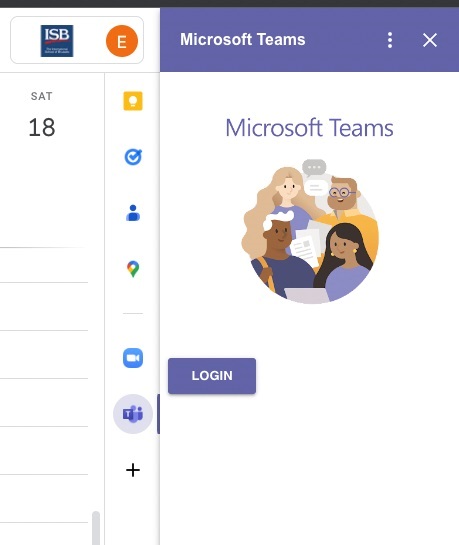
Log in to the Teams add-on.
Select Log in, use your ISB email and password if asked, and then select Authorize Access.
Schedule a Teams meeting
If you are here for a refresher, please click here to jump directly to the Google-Teams calendar schedule options. If this is your first time scheduling a meeting, please continue reading.
Initial checks before scheduling.
In your Google calendar, please ensure the Teams add-on is present in the right panel.
If the panel is hidden, select the chevron at the bottom of the screen to show it.
If you have never used the Teams add-on before, please click on it, log in, and Authorize Access.
Refresh the webpage if needed.
If you can't find the Teams add-on on the right panel, please follow this how-to to install it.
Schedule a Teams meeting from Google Calendar.
You can: Begin with the meeting time, Begin with the participants, or View, edit, and join your meetings
If you chose to:
Begin with the meeting time:
-
Select a meeting time directly in your Google calendar.
-
In the pop-up, add a meeting title and then select Add conferencing > Teams meeting.

- In the Add guests space, enter the people you invite to the meeting.
You can also add a location, meeting description and change the date and time.
-
Select More options if you want to add more info, such as whether guests can invite other people or when you wish to receive meeting notifications.
-
When you're done, select Save.
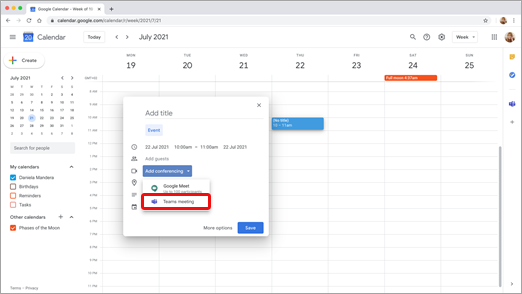
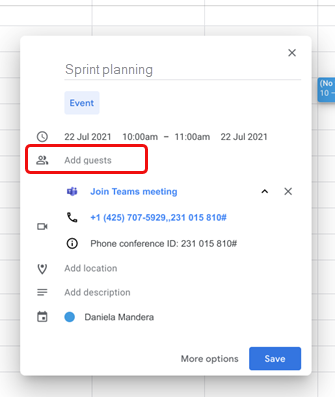
The meeting now appears in your Google calendar.
Begin with the participants:
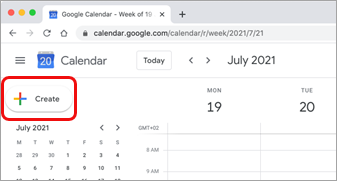
- On the left side of your Google calendar, select Create.

-
At the bottom of the box that opens, select More Options.
-
Select Add conferencing > Microsoft Teams meeting.

- Give your meeting a title, and in the Add guests space, enter the people you're inviting to the meeting.

-
Under the title, select a day and time for the meeting. You can also select Find a Time (under Doesn't repeat) to help determine a time.
-
Enter any other details you want, such as whether guests can invite other people or when you wish to receive meeting notifications.
-
Select Save.
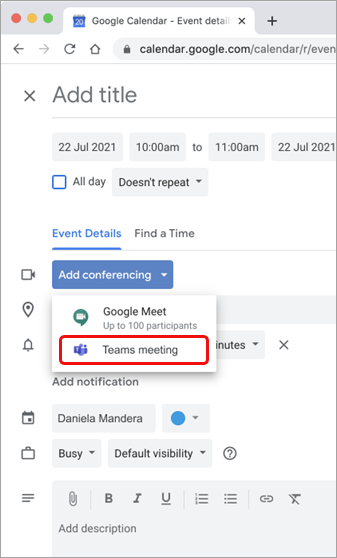
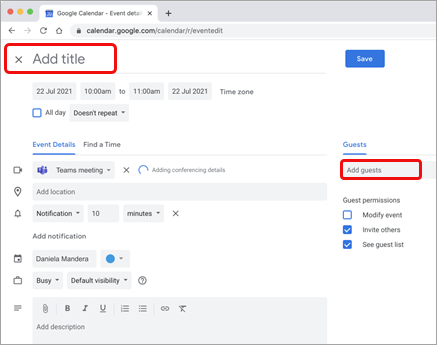
The meeting now appears in your Google calendar.
View, edit, and join your meetings:
To view today's and tomorrow's Teams meetings, open the right panel in Google Calendar and select the Teams add-on.
If the panel is hidden, select the chevron at the bottom of the screen to show it.
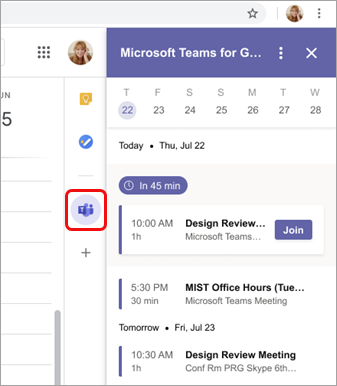
Select Join to join a meeting.
To view or edit meeting details, double-click the meeting in the calendar.
The details view opens.
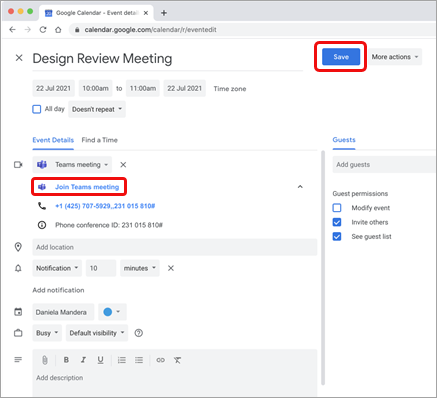
You can make any changes here. When you finish, select Save. If it's meeting time, select Join Teams meeting.
Teams Meeting Options
How to: change the Lobby settings; Co-organizers (Co-teachers); Who can present; Allow mic or camera; Record automatically; ETC.
Find the Team meeting in your Google Calendar, click on it, and select Meeting Options from the pop-up. You may have to click on the ^ symbol to make the options link visible.
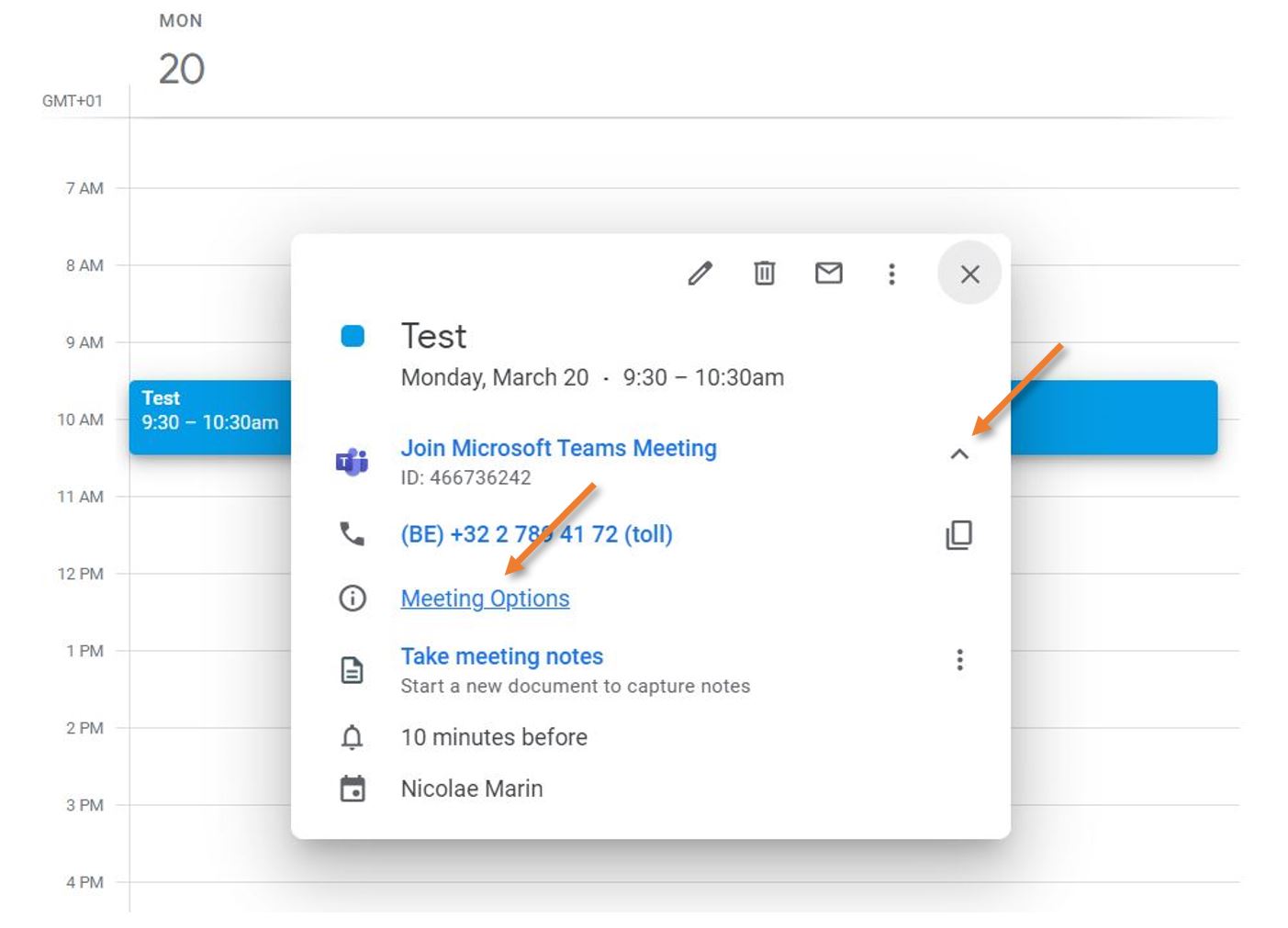
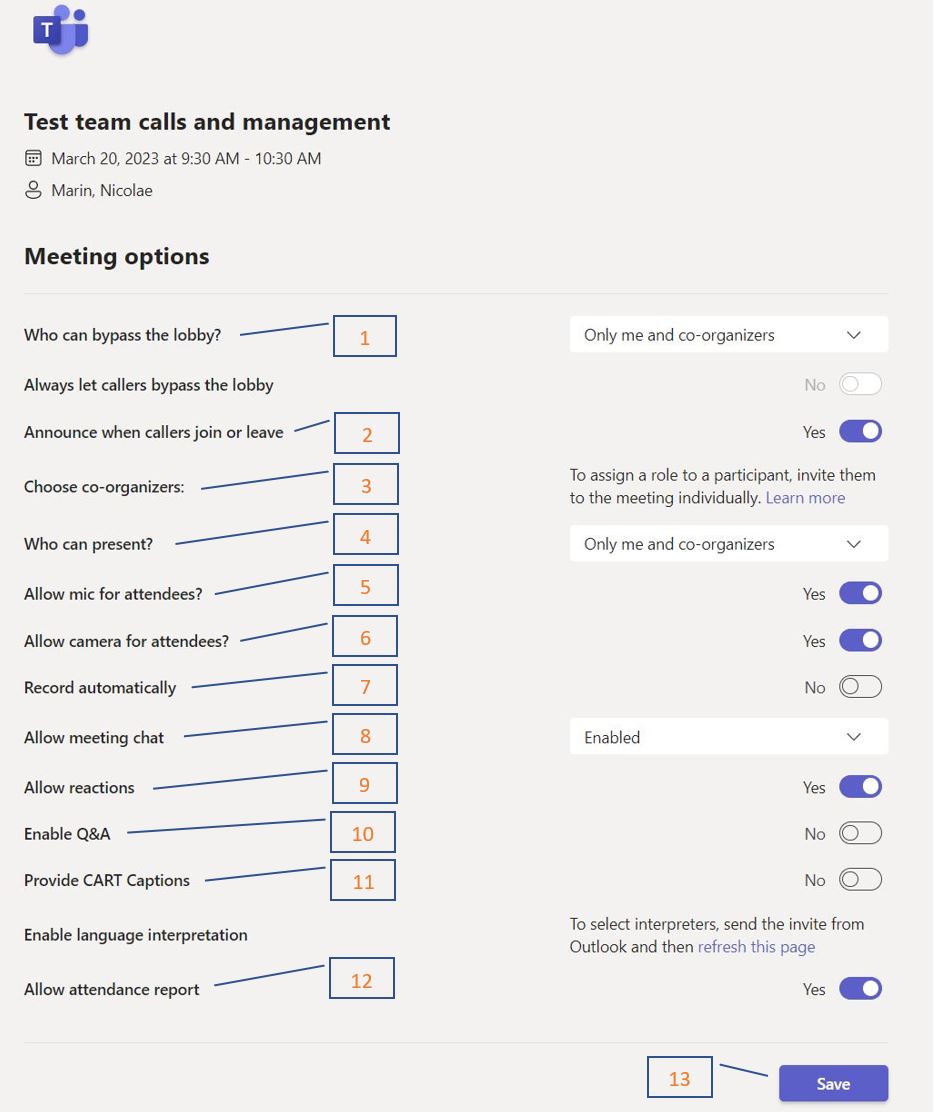
The Options page will open separately (see an example underneath); from here, you can:
- Change who can bypass the lobby.
You can decide who gets into meetings directly and who should wait to be let in. If you choose to have people wait, you (and anyone else allowed to admit people) will see a list of people in the lobby. From there, you can choose whether to accept or deny them. - Get notified when callers join or leave.
You may want to receive an alert when someone calling in by phone joins or leaves your meeting. - Read a reminder on how to add co-organizers (co-teachers), assign roles (presenter, attendee), and what their capabilities will be after the meeting starts.
- Change who can present.
See Roles in a Teams meeting for details about selecting presenters and changing someone's role before and during a meeting. - Allow mic for attendees.
Prevent attendees from unmuting themselves. - Allow camera for attendees.
Prevent attendees from sharing their cameras. - Decide to record automatically.
If you turn on this option, a recording and transcription of your meeting will begin as soon as the meeting starts. - Allow meeting chat.
In general, people invited to the meeting can participate in a meeting chat before, during, and after the meeting.
If you select Disabled for this option, there will be no meeting chat.
If you select In-meeting only, the meeting chat will be unavailable before and after the meeting.
- Allow reactions.
You can choose whether people can use live reactions in a meeting. If you don't, they can still raise their hand. - Enable the Q&A module.
Use Q&A to allow attendees to post, reply, and react to questions in real-time during a meeting. - Provide CART Captions.
Communication access real-time translation (CART) captions are human-generated captions in which a trained CART captioner listens to speech during a meeting and translates it to text. - Allow attendance report.
Enable attendance reports in Teams meetings to view and download details about who attended your meeting, how long they attended, and more. - Do not forget to Save if you change any of the options.