# Wildix Phones
# Wildix Chrome Extension and Portal Login
To access, set up, and manage the extra capabilities of our phone system, please start by installing **the [Wildix Collaboration Chrome Extension](https://chrome.google.com/webstore/detail/wildix-collaboration/lobgohpoobpijgfegnlhdnppegdbomkn)**[ ](https://chrome.google.com/webstore/detail/wildix-collaboration/lobgohpoobpijgfegnlhdnppegdbomkn)and log in.
(While logged in, you can answer all your extension calls from your PC.)
**[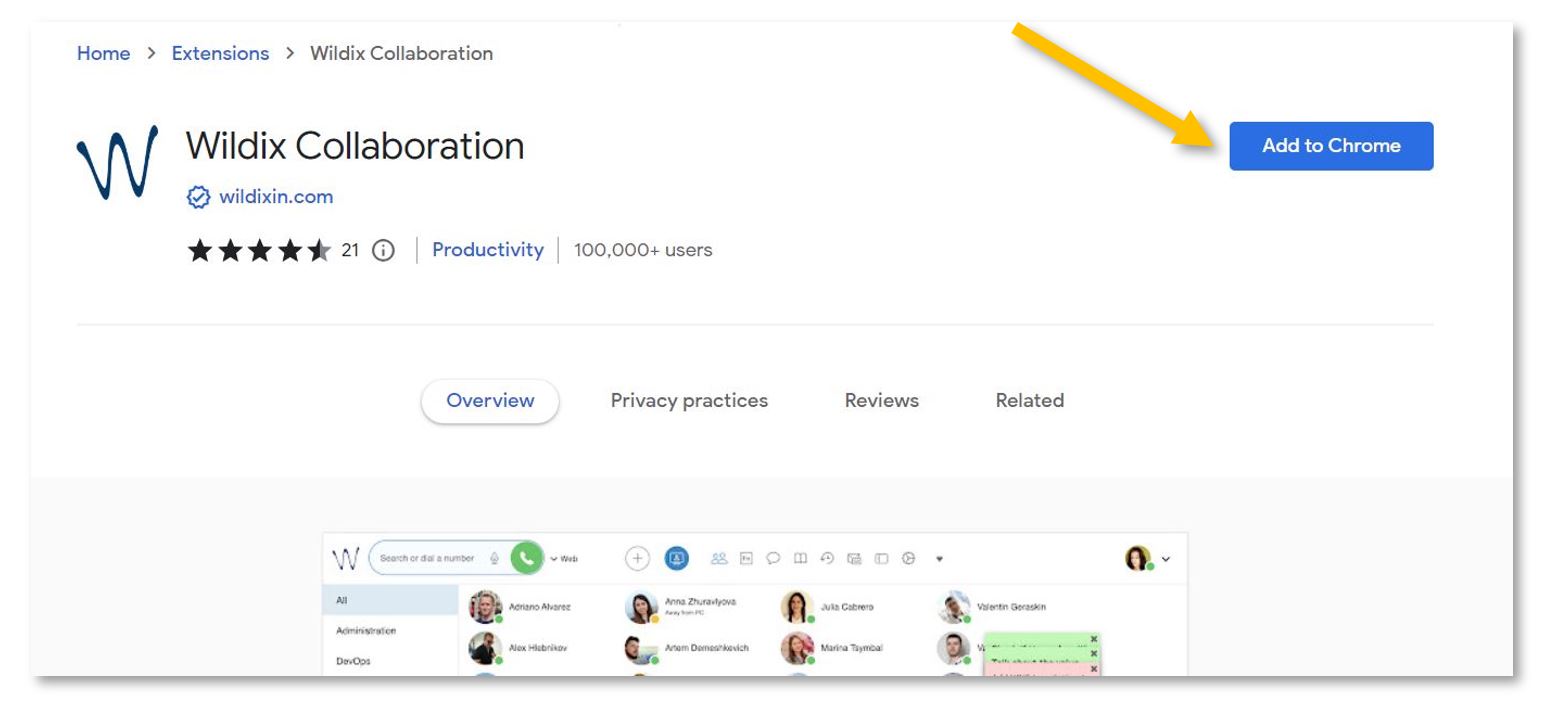](https://docs.isb.be/uploads/images/gallery/2023-12/uCTTBuAINeohPipc-instal-extension-a.JPG)**
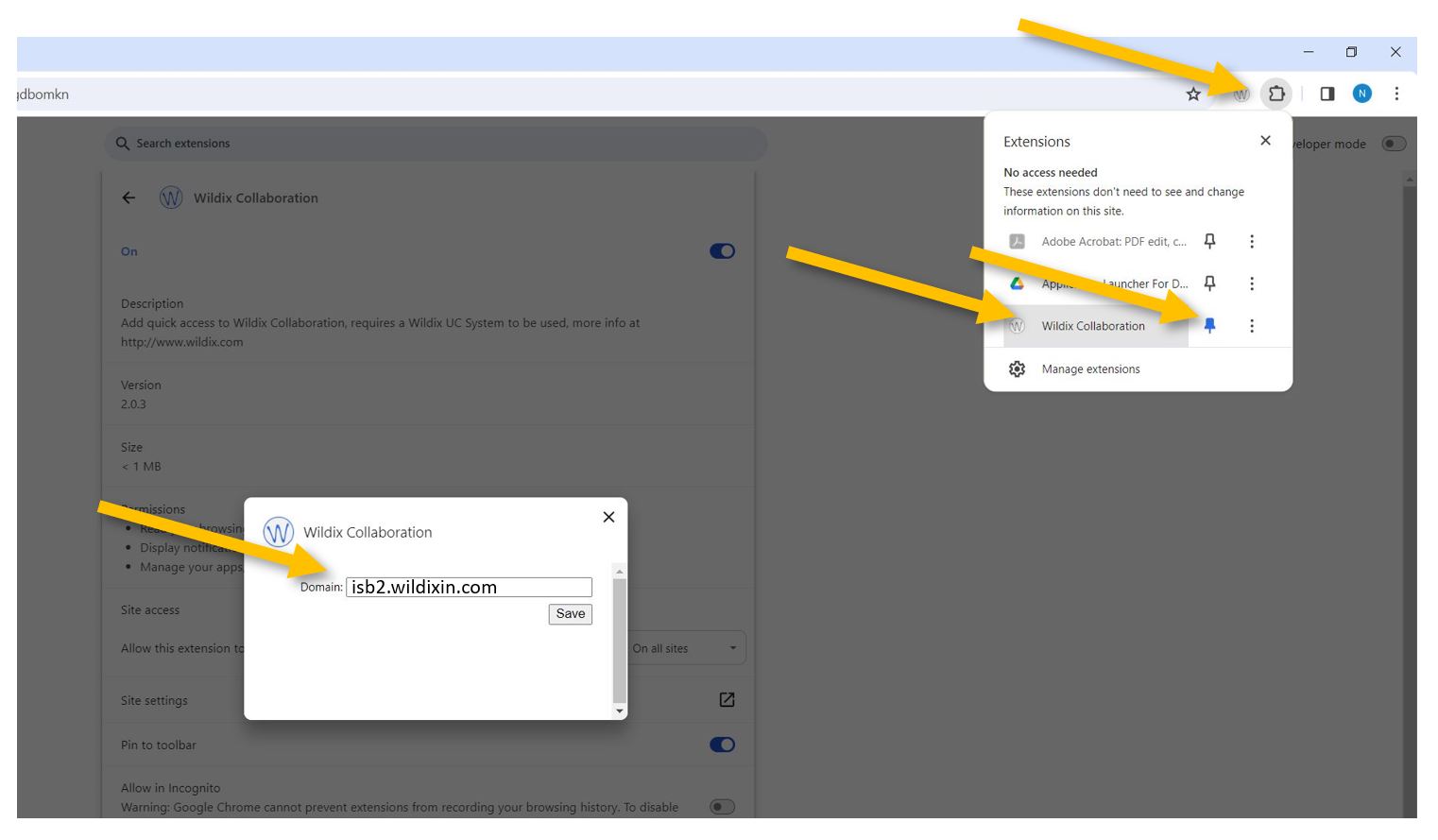
Next, click on the puzzle piece in the upper-right Chrome corner, pin, and select the Wildix extension. In the new pop-up window, under Domain, please insert **isb2.wildixin.com** and Save.
[](https://docs.isb.be/uploads/images/gallery/2023-12/d4XoT22zHde82kFb-open-pin-domain-a.JPG)
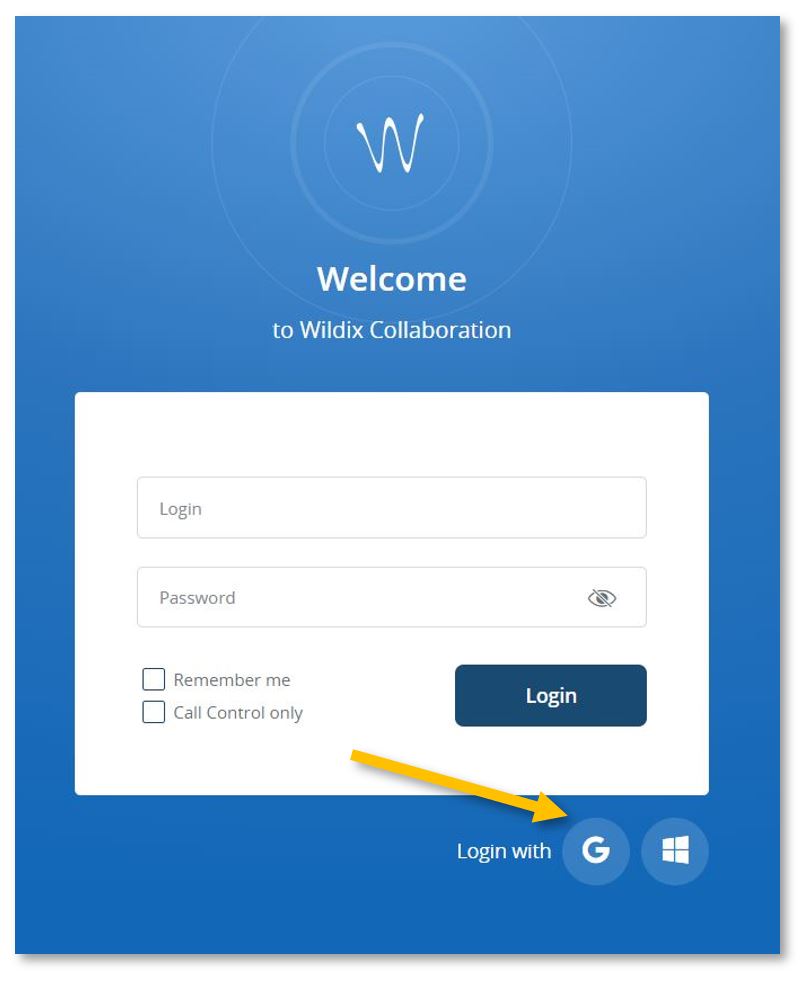
Chrome will automatically open [https://isb2.wildixin.com/authorization/](https://isb2.wildixin.com/authorization/). Please log in using the Google or Microsoft buttons.
[](https://docs.isb.be/uploads/images/gallery/2023-12/Klqn06YOI5HLCEBP-login-a.JPG)
You are now ready to go. While logged in, you can answer your extension calls from your computer - a pop-up will appear on the screen.
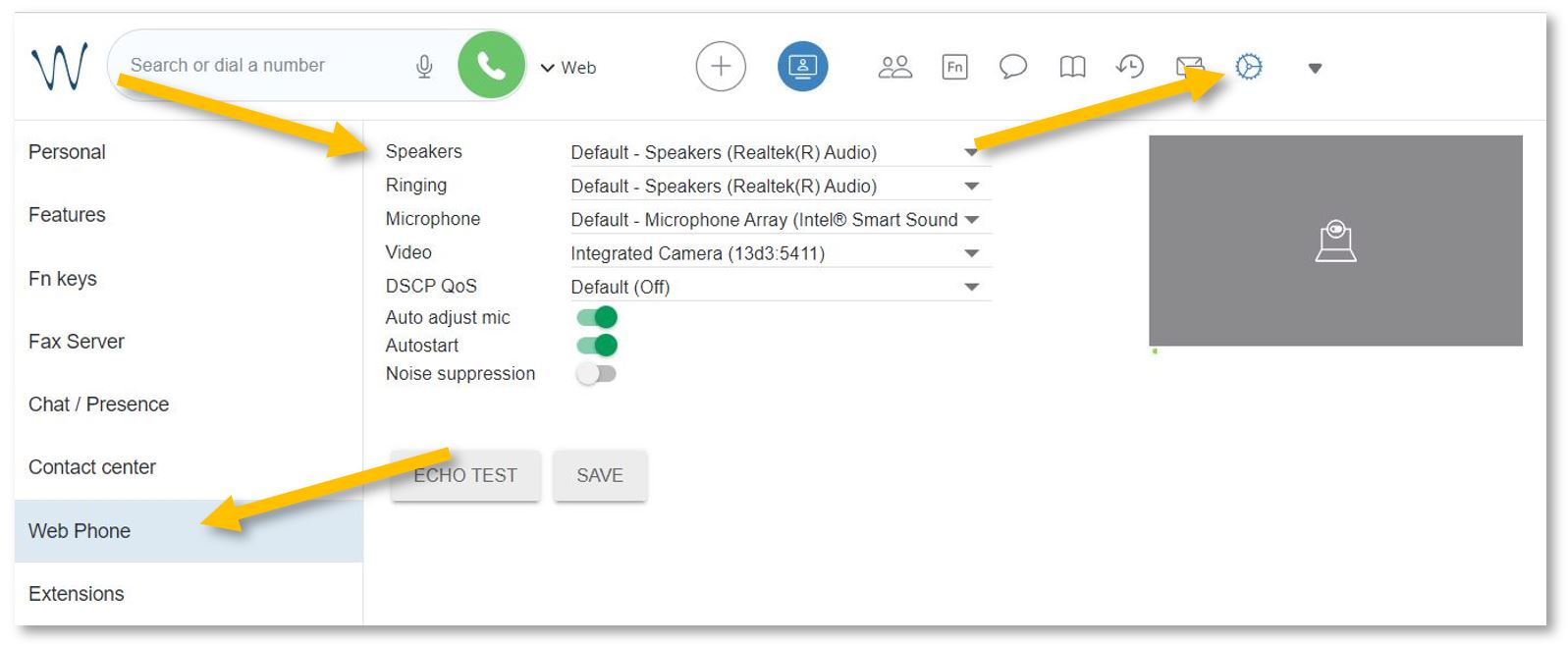
If your microphone or sound does not work correctly, you can test and change the options by going into Settings and the Web Phone menu that can be found in the left panel.
[](https://docs.isb.be/uploads/images/gallery/2024-01/8NyK7LxKMsQRaw4a-web-phone-b.JPG)
If you close the portal, you can reopen it by clicking on the Wildix extension or by following this **[link](https://isb2.wildixin.com/collaboration/)**.
From the portal, you can:
- - [Forward calls to your mobile phone – immediately, after a while, etc.](https://docs.isb.be/books/isb-repository/page/forward-calls-to-your-mobile)
- [Forward calls to your replacement – when on leave or at a different desk.](https://docs.isb.be/books/isb-repository/page/forward-calls-when-away)
- [Redirect calls to your voicemail when you cannot answer, in a meeting, etc.](https://docs.isb.be/books/isb-repository/page/redirect-calls-to-your-voicemail)
- [Setup the function keys (speed dial) for fast calling.](https://docs.isb.be/books/isb-repository/page/setup-the-function-keys-speed-dial)
- [Send a fax.](https://docs.isb.be/books/isb-repository/page/send-a-fax)
- [See the ISB telephone list (phonebook) – search for and call any of the users/extensions.](https://docs.isb.be/books/isb-repository/page/see-the-isb-telephone-list)
- [See the history of your calls / missed calls.](https://docs.isb.be/books/isb-repository/page/see-the-history-of-your-calls)
- [Listen/manage/download your voicemails.](https://docs.isb.be/books/isb-repository/page/voicemail-listen-delete-save-etc)
- [Call any of the ISB extensions from your mobile phone. Check your missed calls, voicemails, and the ISB telephone list.](https://docs.isb.be/books/isb-repository/page/wildix-on-your-mobile)
# Forward calls to your mobile
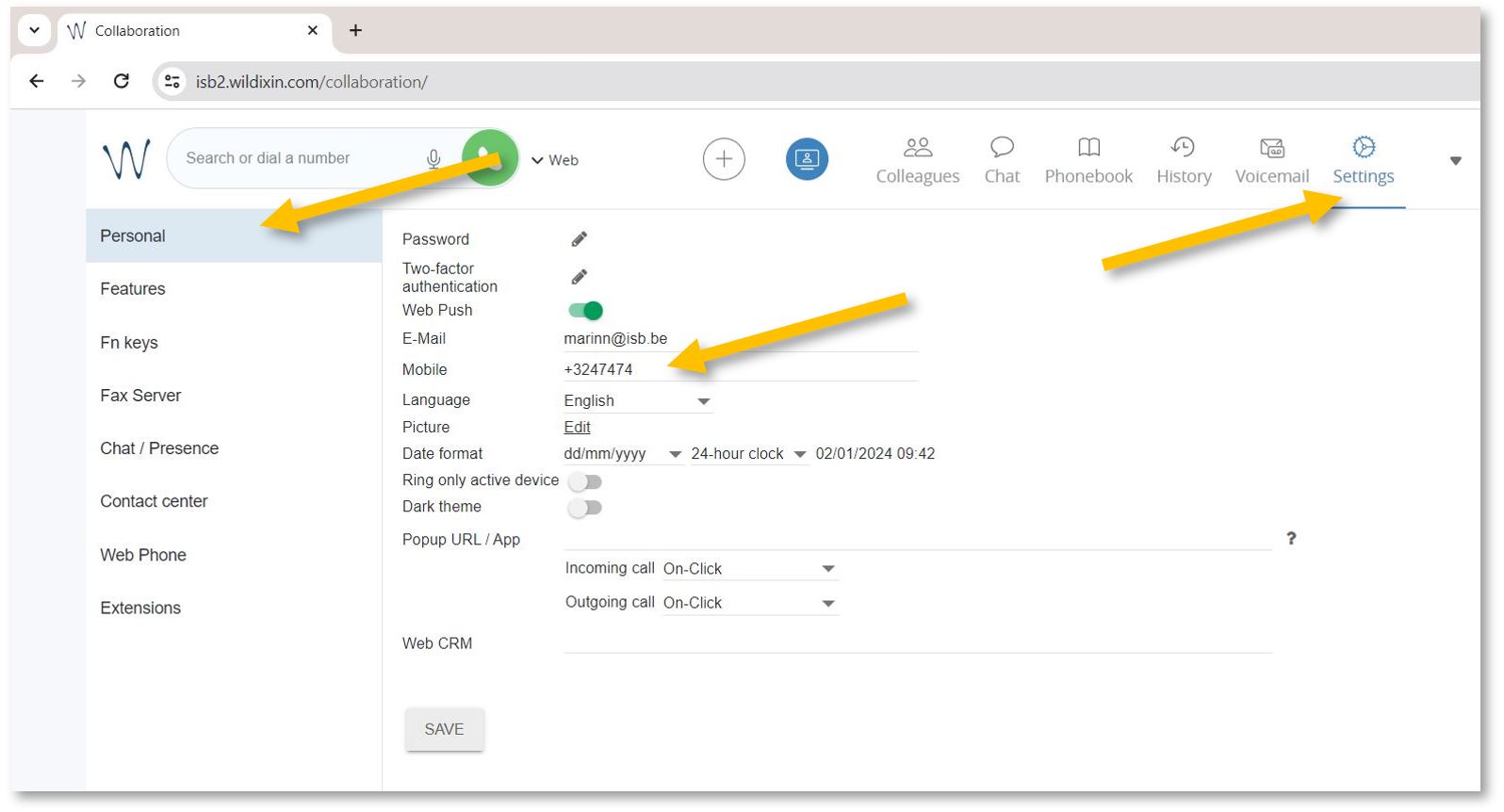
To activate the forwarding function, open **[https://isb2.wildixin.com/collaboration/](https://isb2.wildixin.com/collaboration/)** login and go to Settings.
Under Personal, add your mobile phone. +32 format
[](https://docs.isb.be/uploads/images/gallery/2024-01/i6h7RAizzUfqqSdC-settings-personal-b.JPG)
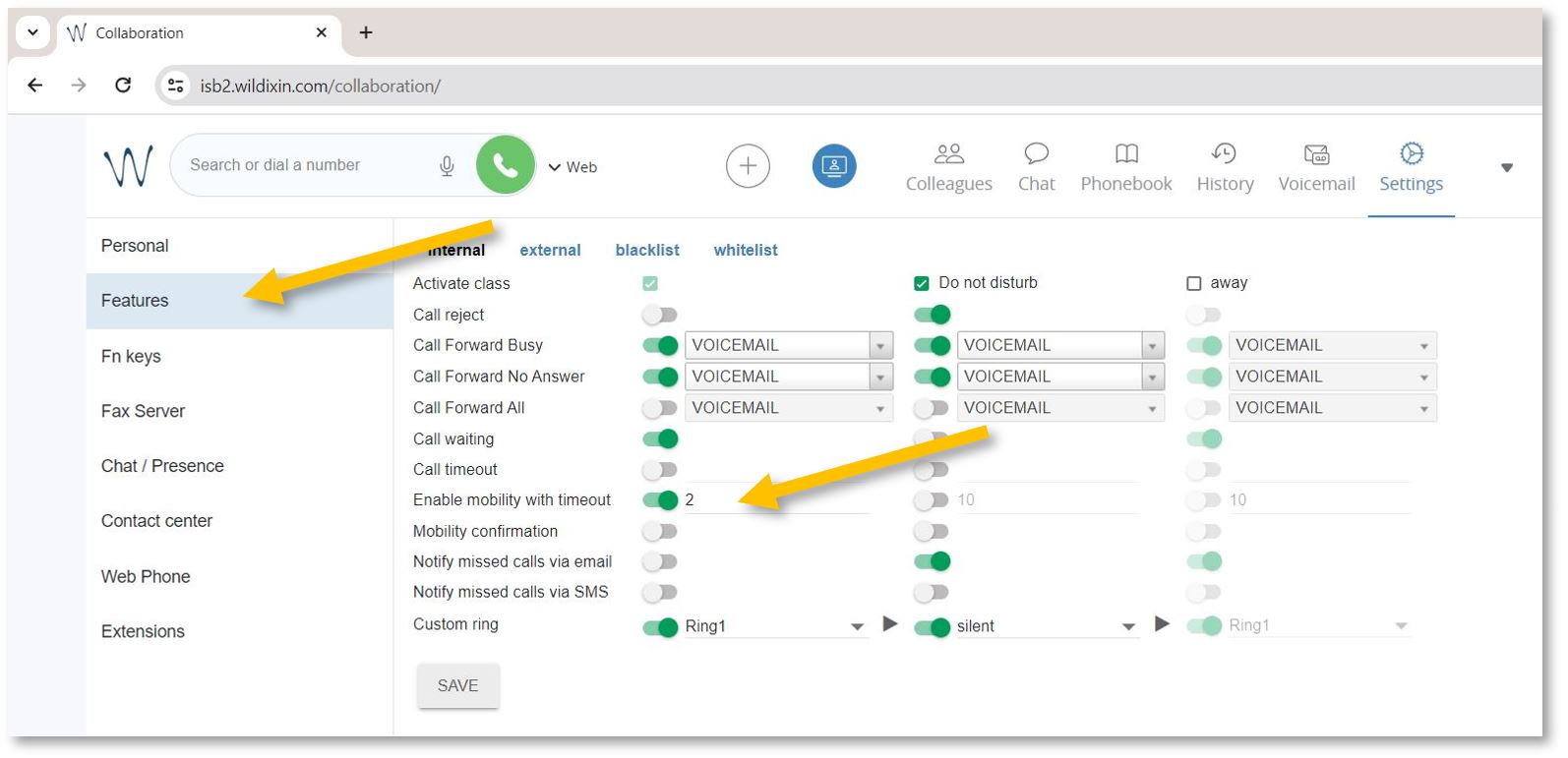
Then select the Features tab and activate the Enable mobility with timeout. In the example underneath, the default (10) was changed to 2, meaning that after 2 seconds, the mobile phone and the computer (if logged in to Wildix) will also ring.
[](https://docs.isb.be/uploads/images/gallery/2024-01/v7OausrowexpUndX-settings-features-b.JPG)
If you want to forward external calls - please click on *external,* Activate calls, and Enable mobility as above - or as needed.
[](https://docs.isb.be/uploads/images/gallery/2024-01/X0GpMqOPWa6TFnhe-settings-features-external-b.JPG)
You are now ready to go.
# Forward calls when away
To forward calls to another extension, your mobile phone, or your voicemail.
To activate the forwarding function while away from your office or on vacation, open **[https://isb2.wildixin.com/collaboration/](https://isb2.wildixin.com/collaboration/)** login and go to settings.
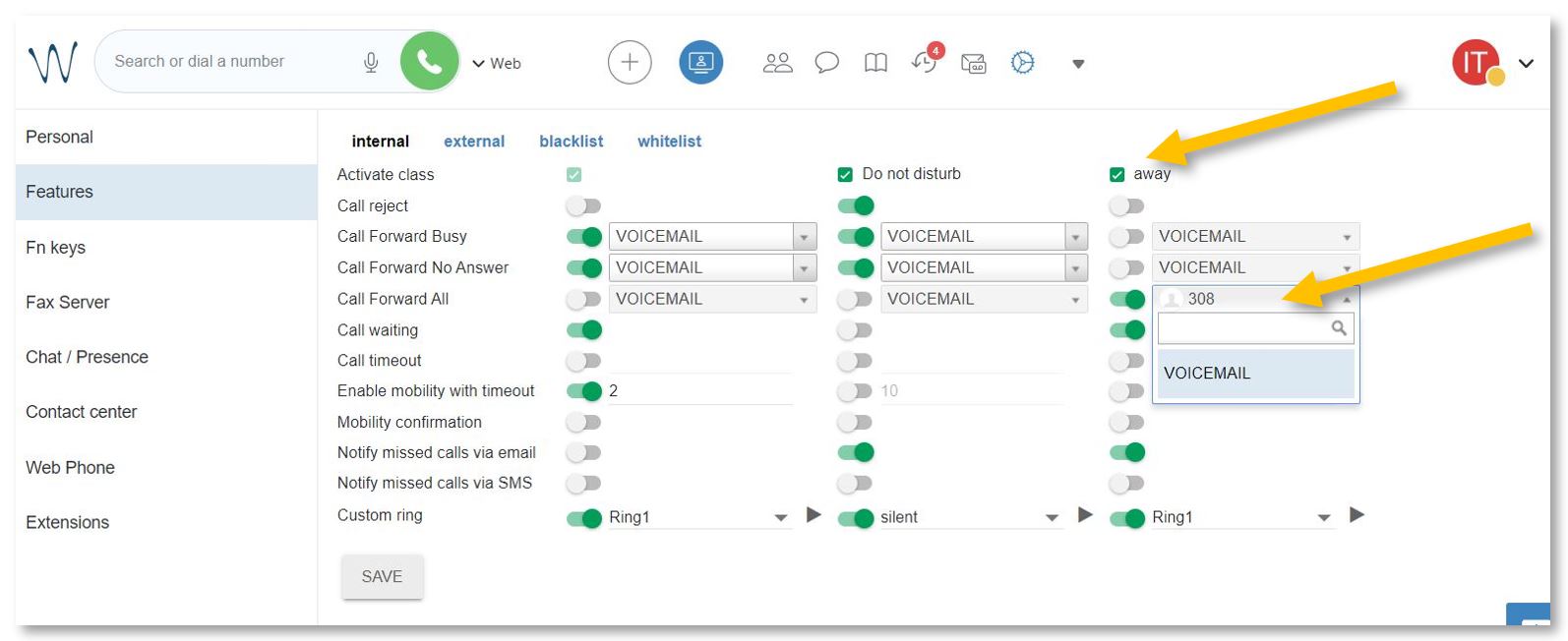
Select the Features tab and activate the ***away*** class. Make sure that **Call reject** is off, turn on **Call Forward All**, and choose the destination. If **Voicemail** is selected, everybody who calls will be redirected to your voicemail; input an extension or even your mobile phone, and all your calls will be forwarded to it. Do not forget to press **Save**.
[](https://docs.isb.be/uploads/images/gallery/2024-01/cPNF3NQGkRXA0vFt-activate-away-b.JPG)
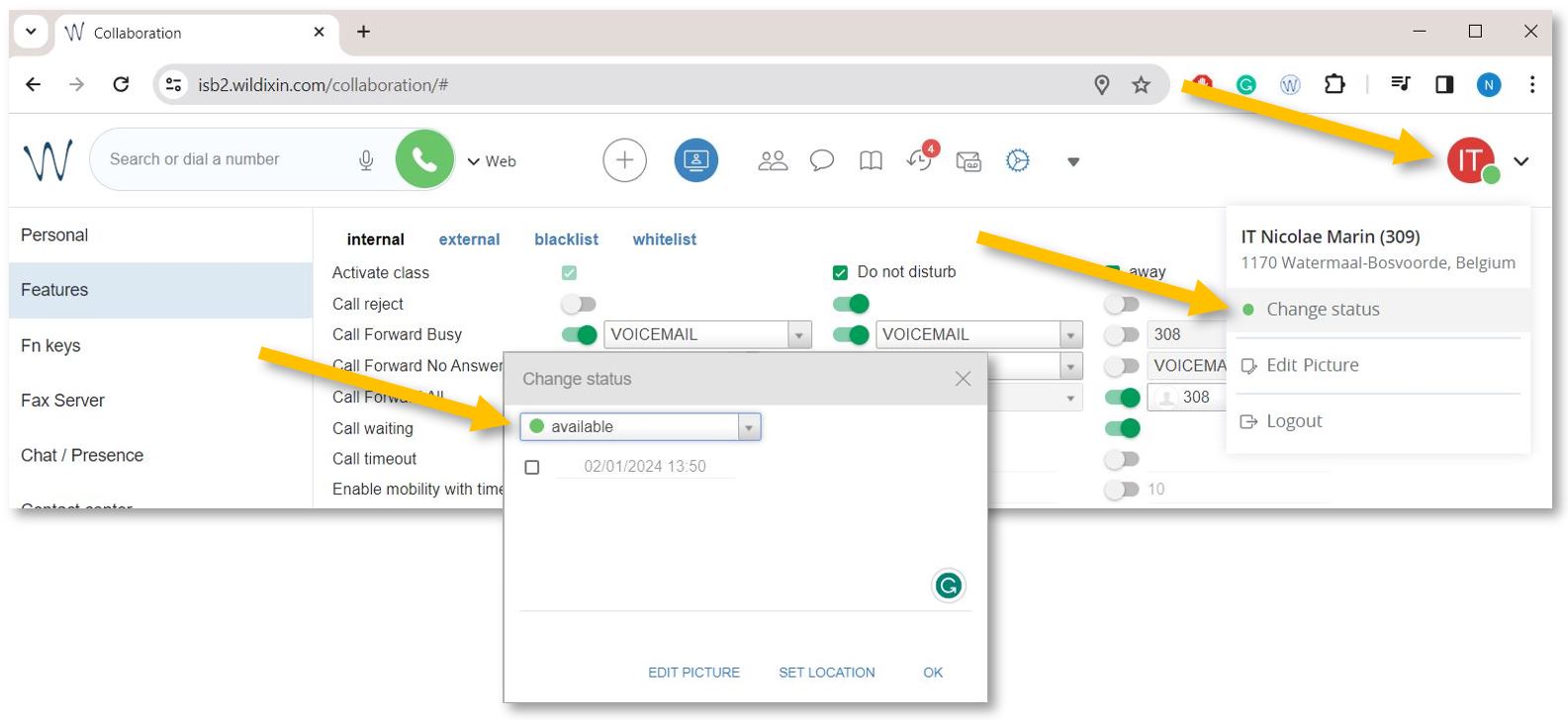
**Important step.** Change your status to *away* to activate the new settings.
Click on your account bubble in the upper right and select **Change Status**. In the pop-up window, change your status to away. Press **OK**. You can also set up the end date and your status and settings will change automatically back to available.
[](https://docs.isb.be/uploads/images/gallery/2024-01/QXmhSz1UtRRLvMTo-change-busy-b.JPG)
# Redirect calls to your voicemail
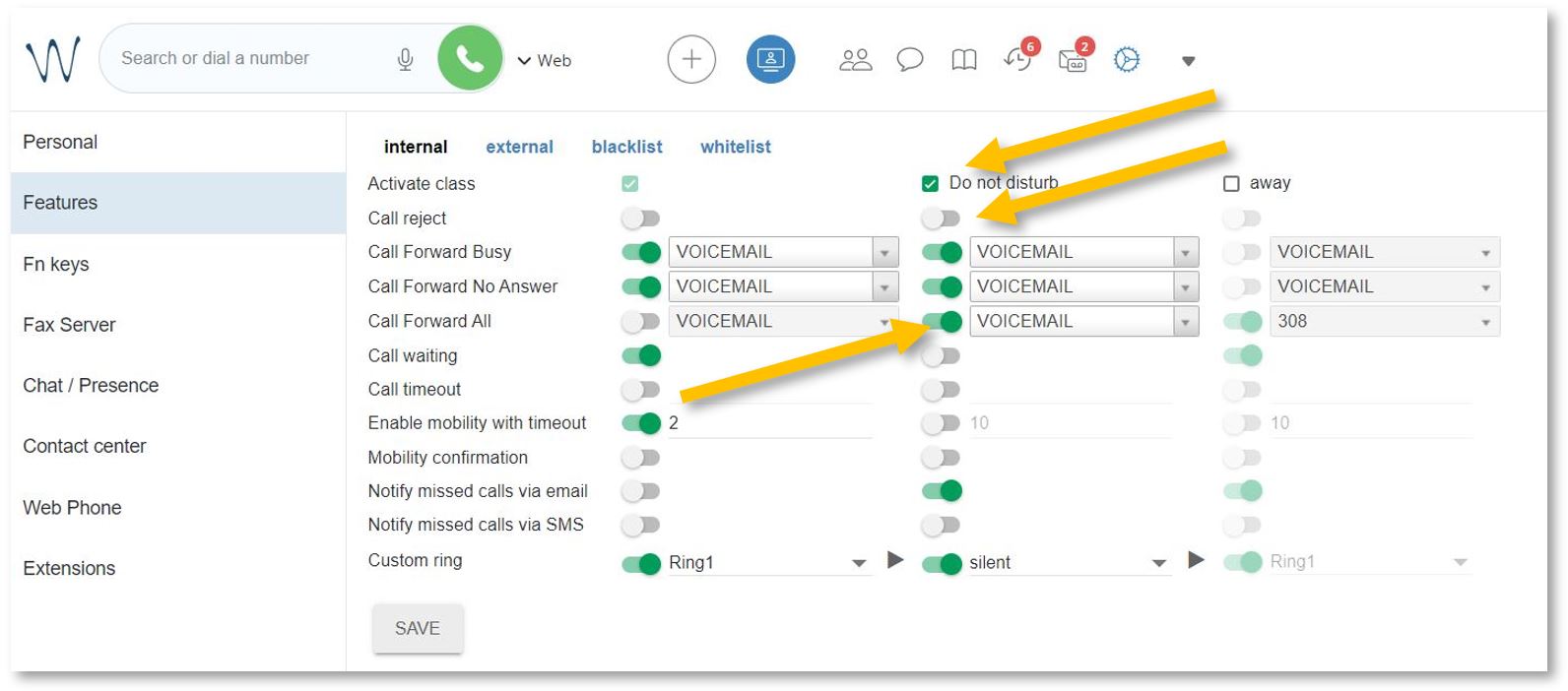
To activate the forwarding function while away from your office or on vacation, open **[https://isb2.wildixin.com/collaboration/](https://isb2.wildixin.com/collaboration/)** login and go to settings.
Select the **Features** tab on the left and activate the ***Do not disturb*** class. Make sure that **Call reject** is off and turn on **Call Forward All** - **Voicemail** should be the default destination. Do not forget to press **Save**.
[](https://docs.isb.be/uploads/images/gallery/2024-01/RbQevEvbObYABzF0-dnd-b.JPG)
**Important step.** Change your status to ***Do not disturb*** to activate the new settings.
Click on your account bubble in the upper right and select **Change status.** In the pop-up window, change your status to ***do not disturb***. Press **OK**.
[](https://docs.isb.be/uploads/images/gallery/2024-01/QXmhSz1UtRRLvMTo-change-busy-b.JPG)
Click **[here](https://docs.isb.be/books/isb-repository/page/voicemail-listen-delete-save-etc "Voicemail options")** to learn how to listen to, manage, and/or set up your voicemail[.](https://docs.isb.be/books/isb-repository/page/voicemail-listen-delete-save-etc "Voicemail options")
# Voicemail (listen, delete, save, etc.)
You can listen to, delete, sort, save, and forward your voicemails by logging into **https://isb2.wildixin.com/collaboration/** and accessing the Voicemail tab or using the landline phone. Recording your unavailable or busy message is only possible using the landline.
(Please scroll down if you want to manage your voicemail via the web interface.)
On the phone, dial **\*81** to reach the Voicemail menu.
1\. Press **1** to listen to your messages.
After listening to your messages, you can press **1** again to reply or
You can press **2** to hear the phone number that left the message and the time and date the message was left.
Press **3** for advanced options.
Press **5** to repeat the current message.
Press **6** to listen to the next message.
Press **7** to delete the current message.
Press **8** to forward the message to another user.
Press **9** to save the message.
Press **\#** to exit.
2\. Press **2** to move the saved messages into folders
3\. Press **3** for advanced options
Press **5** to send a voicemail message
4\. Press 0 for mailbox options
Press **1** to record your unavailable message - what people hear when you do not answer the phone before the bip.
Press **2** to record your busy message - what people hear when you are on the phone and cannot pick up before the bip.
Press **3** to record your name - if you do not want to record an unavailable or busy message, the operator can add your name to the automated greetings.
\_\_\_\_\_\_\_\_\_\_\_\_\_\_\_\_\_\_\_\_\_\_\_\_\_\_\_\_\_\_\_\_\_\_\_\_\_\_\_\_\_\_\_\_\_\_\_\_\_\_\_\_\_\_\_\_\_\_\_\_\_\_
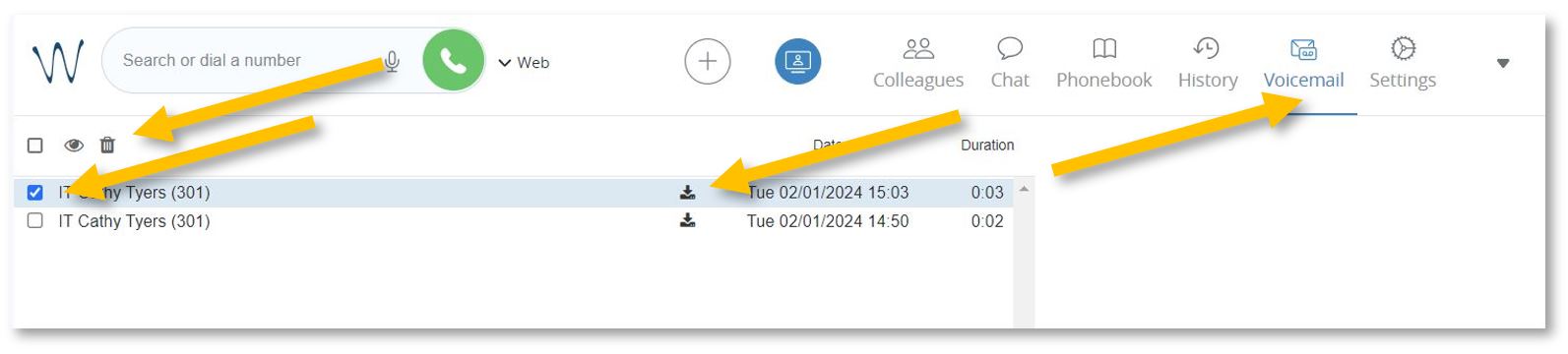
If you want to use the web interface to manage, listen to, delete, or forward your voicemails, please go to https://isb2.wildixin.com/collaboration/, log in, and select the Voicemail tab.
You can select a message to delete it or download it to listen to it, archive it, or forward it to an email.
[](https://docs.isb.be/uploads/images/gallery/2024-01/clmv3LGxeFdQV1JK-voicemail-b.JPG)
# Setup the function keys (speed dial)
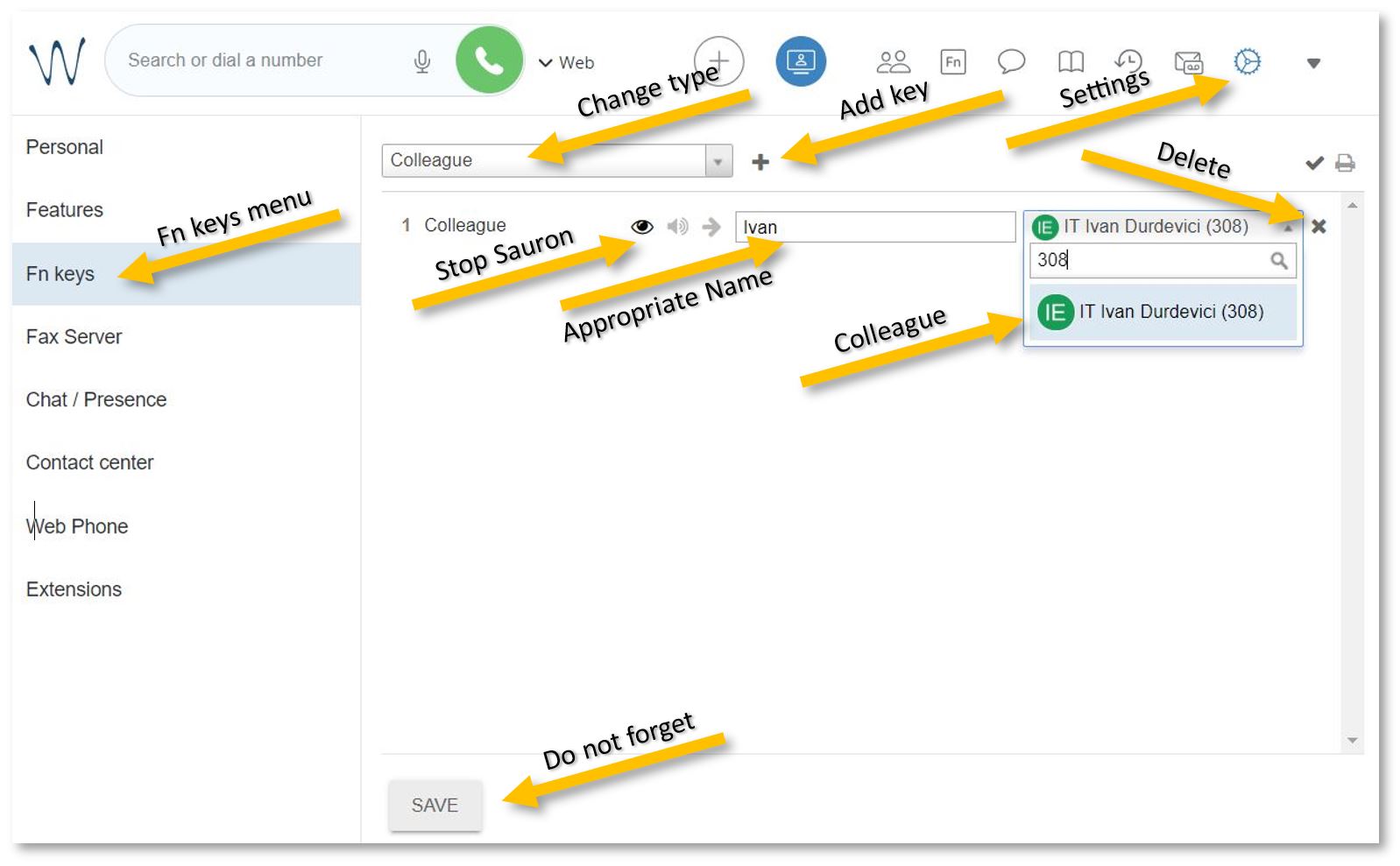
To configure the white buttons adjacent to the phone screen, open **[https://isb2.wildixin.com/collaboration/](https://isb2.wildixin.com/collaboration/)** login and go to **Settings**. Select the **Fn keys** menu from the left-hand side.
You can remove Lines 1 and 2 - the default setup - and add a Colleague.
Change the type of function to **Colleague**, add an appropriate name (it will be visible on the phone), and search by name or input the extension. Do not forget to click on the eye to stop the notifications from popping up whenever your colleague is on a call and press **Save** at the end.
[](https://docs.isb.be/uploads/images/gallery/2024-01/cGbXienTjC30PWtj-fn-keys-c.JPG)
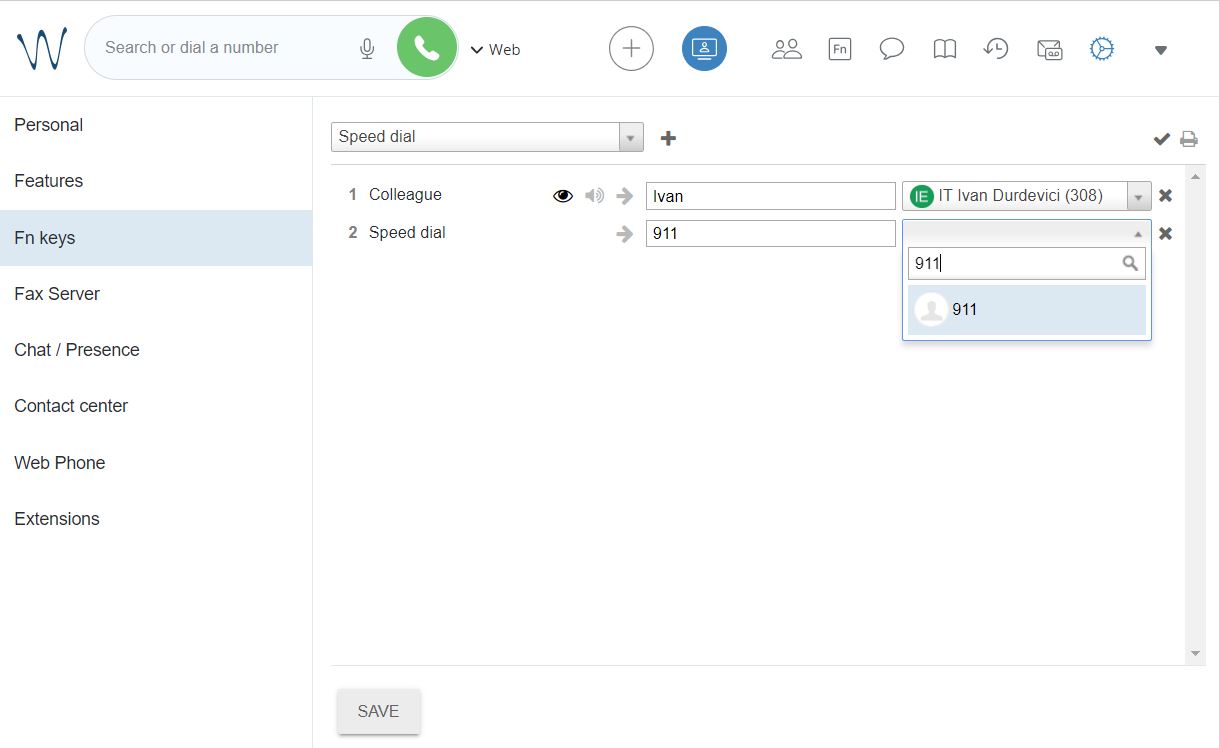
If you want to add a non-colleague phone number, change the type to **Speed dial** and add an appropriate name and the number. Do not forget to press Save.
[](https://docs.isb.be/uploads/images/gallery/2024-01/774Sf6ua7O0HfR3S-spped-dial.JPG)
# Send a fax
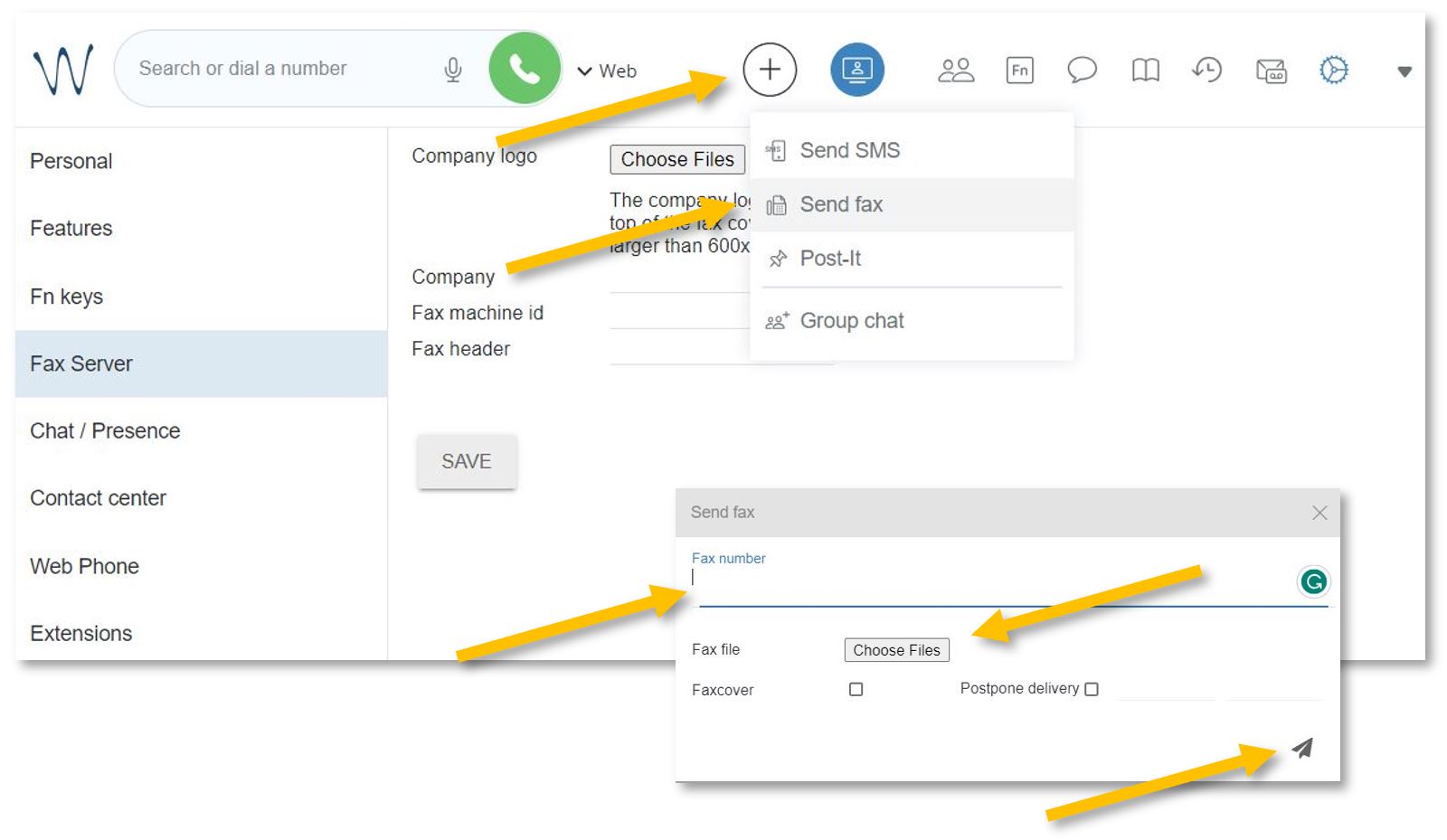
If you need to send a fax, open **[https://isb2.wildixin.com/collaboration/](https://isb2.wildixin.com/collaboration/)** login and click on the big **+ bubble**. Select **Send Fax**.
In the pop-up window, insert the fax number in +32 format, choose the file you want to send (pdf format), and press the **send icon**.
[](https://docs.isb.be/uploads/images/gallery/2024-01/Yj4sjElnrUnGWAPf-send-fax.JPG)
You will receive a confirmation email with your attachment and a full report.
\_\_\_\_\_\_\_\_\_\_\_\_\_\_\_\_\_\_\_\_\_\_\_\_\_\_\_\_\_\_\_\_\_\_\_\_\_
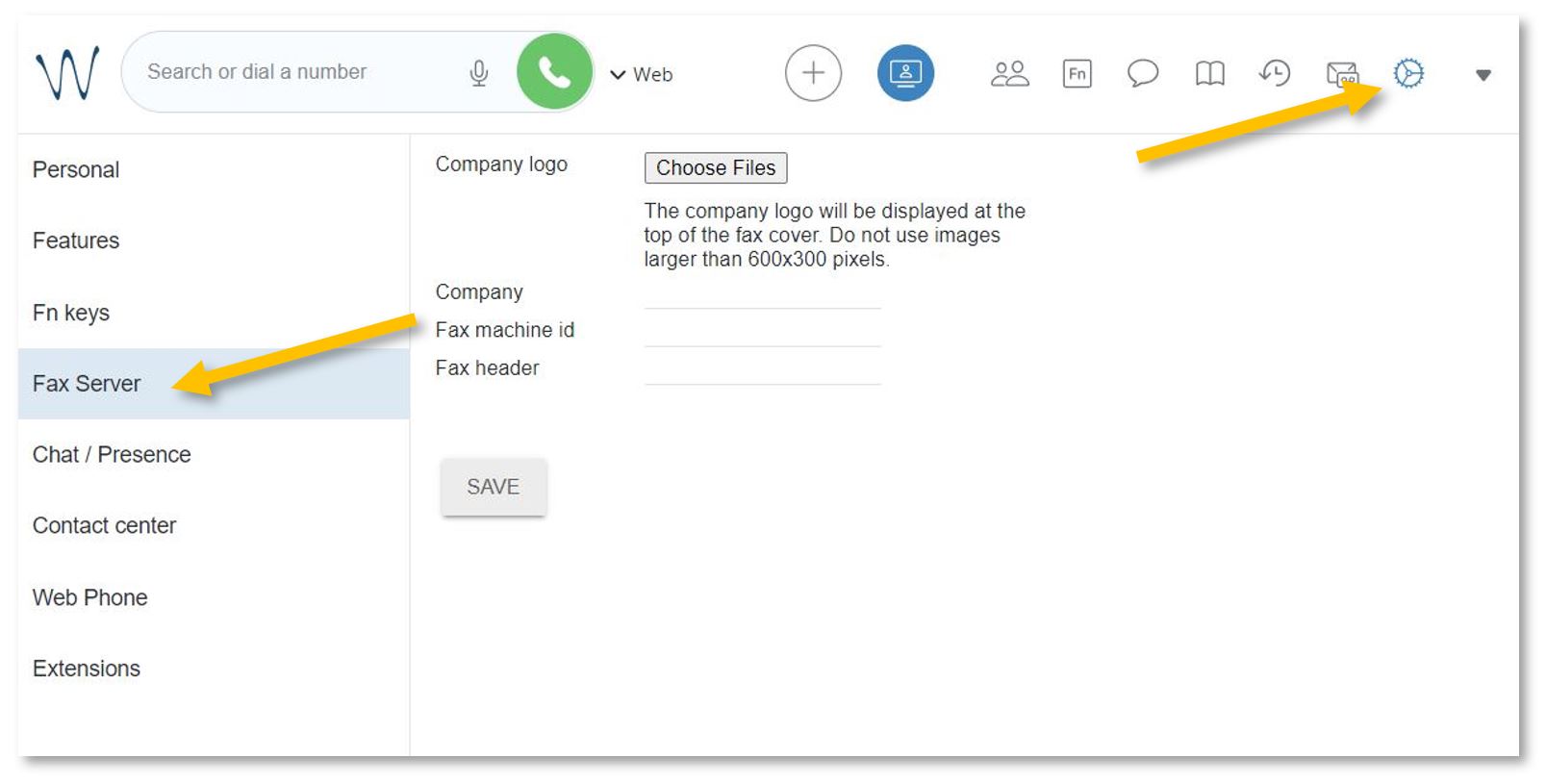
To set up a **Faxcover**, please go to **Settings** and select the **Fax Server** menu from the left panel.
Add the ISB logo and name;
Under **Fax machine id**, you can add the school's fax number, +3226614200;
Under **Fax header**, you can add your name or other important data relevant to the receiver.
Do not forget to press **Save**.
[](https://docs.isb.be/uploads/images/gallery/2024-01/IhoHwfhOoSXw5TRt-faxcover-b.JPG)
# See the ISB telephone list
To search for and call any of the users/extensions.
Open **[https://isb2.wildixin.com/collaboration/](https://isb2.wildixin.com/collaboration/)** login and click on the **Phonebook** **icon**.
You can search by family name, title, or extension number or select the phone from the list for more details. You can also call any of our extensions directly from this menu. If Web is selected next to the green call button/bubble, your call will be made using the browser - from your computer. If you change it to WorkForce, your phone will dial the selected number. [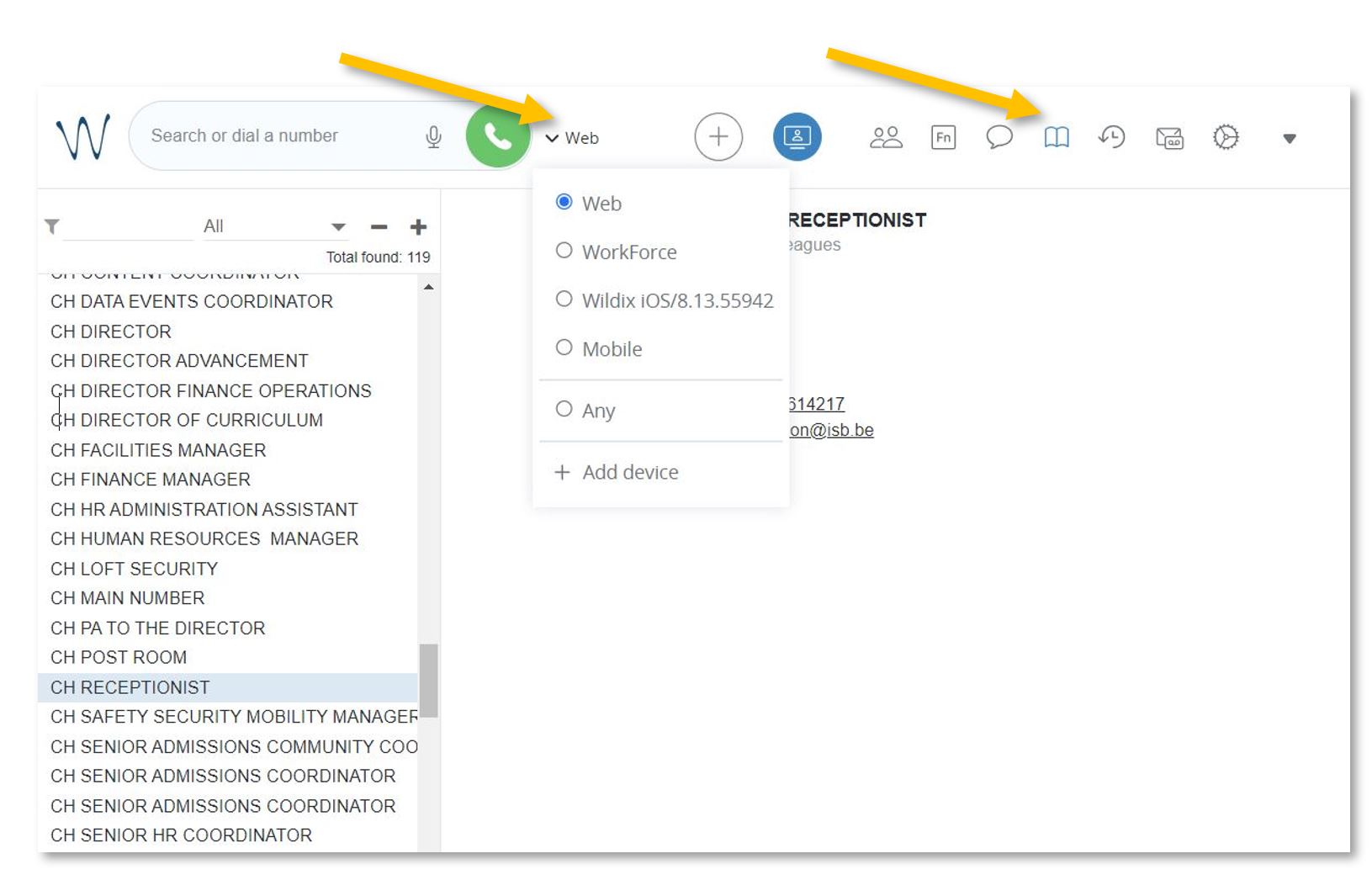](https://docs.isb.be/uploads/images/gallery/2024-01/p7WIVv5Gsocmxvb8-phonebook-b.JPG)
The Mobile and Wildix functions, if visible, do not work, but if you install the Wildix Collaboration app on your mobile and sign in, you can call any of the ISB extensions from the app. You can also check your missed calls, voicemails, and the ISB telephone list.
[Wildix Collaboration Mobile](https://play.google.com/store/apps/details?id=com.wildix&hl=en&gl=US) - for Android
[Wildix Collaboration Mobile](https://play.google.com/store/apps/details?id=com.wildix&hl=en&gl=US) - for Apple
Open the app, add **isb2.wildixin.com** under Domain, and use Google or Office to sign in using your school credentials.
# See the history of your calls.
Missed calls / received / rejected / etc.
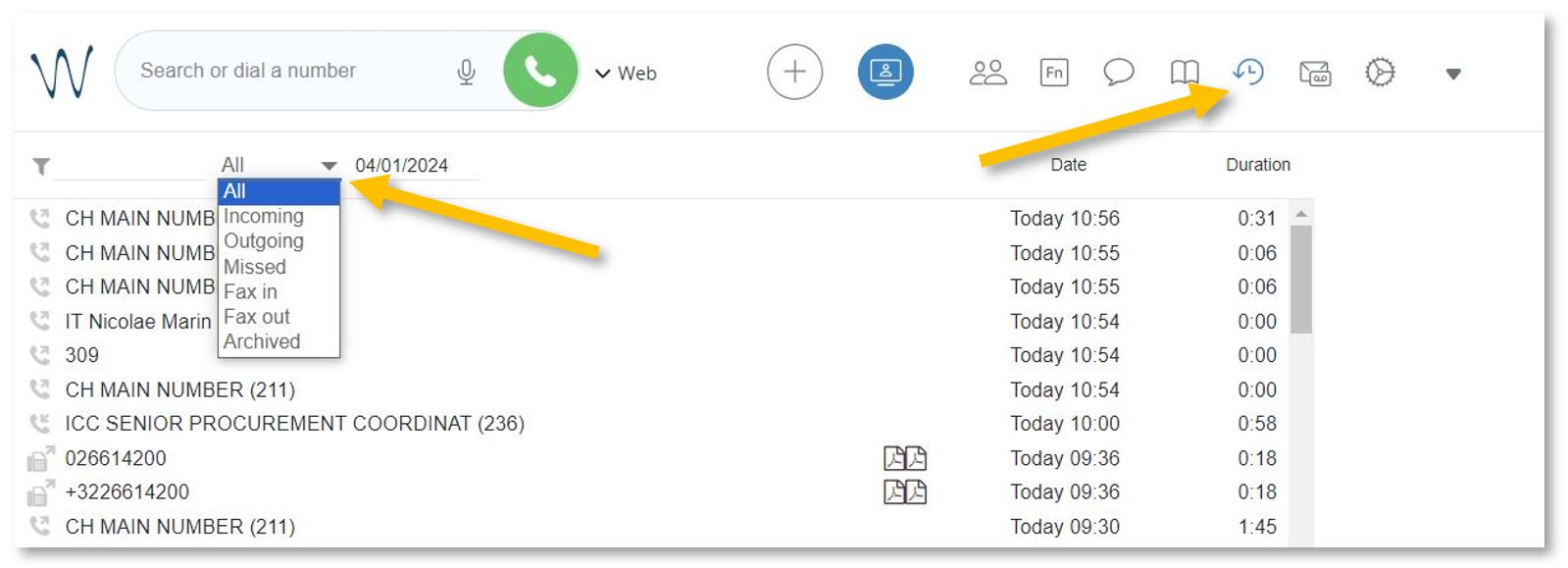
Open **[https://isb2.wildixin.com/collaboration/](https://isb2.wildixin.com/collaboration/)** login and click on the History icon.
If you want to sort the calls, you can change **All** to **Incoming**, **Outgoing**, **Missed**, Etc. You can select any of the numbers and call back. If **Web** is selected next to the green call button/bubble, your call will be made using the browser from your computer. If you change it to **WorkForce**, your landline will dial the selected number.
[](https://docs.isb.be/uploads/images/gallery/2024-01/Vy95Kk5fCYwXpnqx-history-b.JPG)
# Wildix on your mobile
Call any of the ISB extensions from your mobile phone. Check your missed calls, voicemails, and the ISB telephone list.
Install the:
[Wildix Collaboration Mobile](https://play.google.com/store/apps/details?id=com.wildix&hl=en&gl=US) - for Android
[Wildix Collaboration Mobile](https://play.google.com/store/apps/details?id=com.wildix&hl=en&gl=US) - for Apple
Open the app, add **isb2.wildixin.com** under Domain, and select Google or Office to sign in using your school credentials.