# Schedule a Teams meeting
If you are here for a refresher, please [**click here to jump**](https://docs.isb.be/link/140#bkmrk-%C2%A0) directly to the Google-Teams calendar schedule options. If this is your first time scheduling a meeting, please continue reading.
**Initial checks before scheduling.**
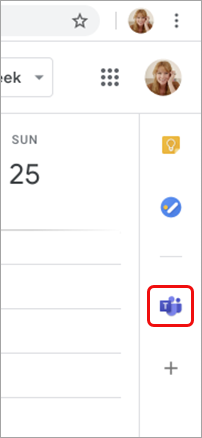
In your Google calendar, please ensure the Teams add-on is present in the right panel.
If the panel is hidden, select the chevron at the bottom of the screen to show it.
[](https://docs.isb.be/uploads/images/gallery/2023-03/vF45Gbe9WGLXuLSe-teamsgoogleaddoninstalled.png)
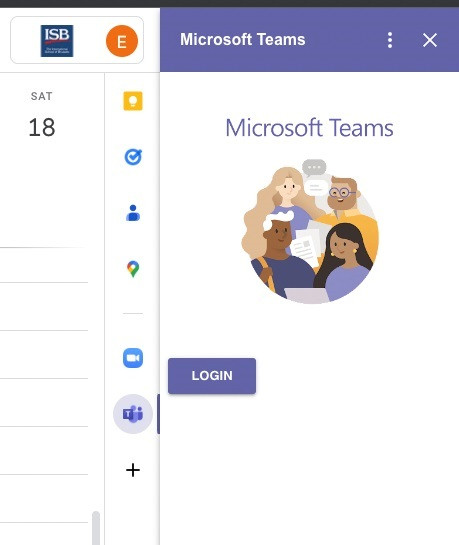
If you have never used the Teams add-on before, please click on it, log in, and Authorize Access.
Refresh the webpage if needed.
[](https://docs.isb.be/uploads/images/gallery/2023-03/5bTu7YAjhEj8Uwid-loginto-teams.jpg)
If you can't find the Teams add-on on the right panel, please follow this **[how-to](https://docs.isb.be/books/isb-repository/page/install-the-google-calendar-teams-add-on "Install the Google Calendar Teams add-on")** to install it.
**Schedule a Teams meeting from Google Calendar.**
You can: **Begin with the meeting time, Begin with the participants,** or **View, edit, and join your meetings**
If you chose to:
Begin with the meeting time:**
1. Select a meeting time directly in your Google calendar.
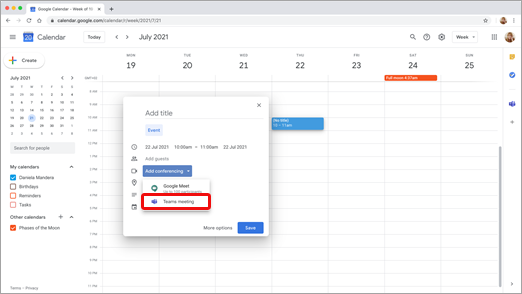
2. In the pop-up, add a meeting title and then select Add conferencing > Teams meeting.
[](https://docs.isb.be/uploads/images/gallery/2023-03/4pGkRBVgNLyL6Q19-13eb4b57-e1e2-403a-add6-5499c70c3b1b.png)
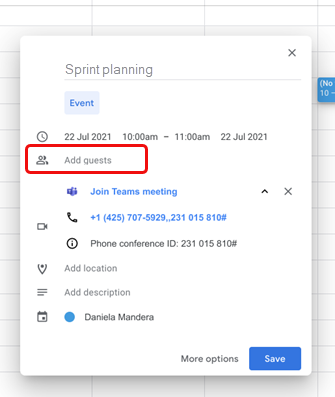
3. In the Add guests space, enter the people you invite to the meeting.
You can also add a location, meeting description and change the date and time.
[](https://docs.isb.be/uploads/images/gallery/2023-03/OKlMqSaMfIMdoRsx-2bff2efb-3064-4abd-ba62-e57e6d546a85.png)
4. Select More options if you want to add more info, such as whether guests can invite other people or when you wish to receive meeting notifications.
5. When you're done, select Save.
The meeting now appears in your Google calendar.
**Begin with the participants:**
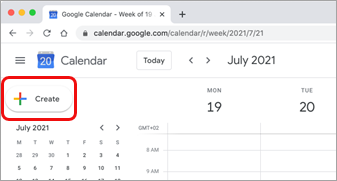
1. On the left side of your Google calendar, select Create.
[](https://docs.isb.be/uploads/images/gallery/2023-03/4jYV6KQ8Mo0hsQg5-7f63c5c9-4af7-4713-9d25-c524df764078.png)
2. At the bottom of the box that opens, select More Options.
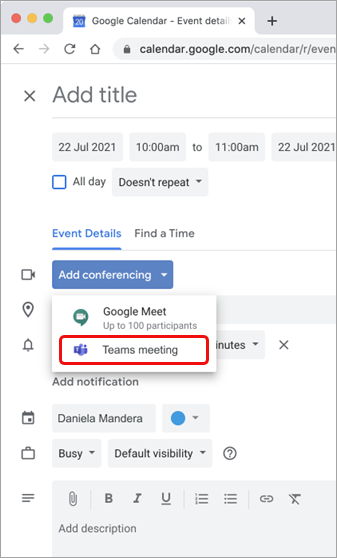
3. Select Add conferencing > Microsoft Teams meeting.
[](https://docs.isb.be/uploads/images/gallery/2023-03/Wjd5C6gehk3VK1cX-7cb2ff85-17e9-4424-9004-c9565dea790e.png)
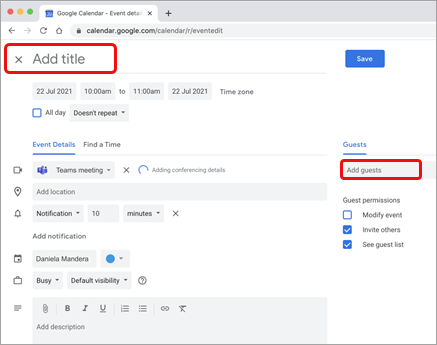
4. Give your meeting a title, and in the Add guests space, enter the people you're inviting to the meeting.
[](https://docs.isb.be/uploads/images/gallery/2023-03/qvEAs2AnWSNmcAhS-0b9330fe-85db-4b39-8a4f-8a082ee2116b.png)
5. Under the title, select a day and time for the meeting. You can also select Find a Time (under Doesn't repeat) to help determine a time.
6. Enter any other details you want, such as whether guests can invite other people or when you wish to receive meeting notifications.
7. Select Save.
The meeting now appears in your Google calendar.
**View, edit, and join your meetings:**
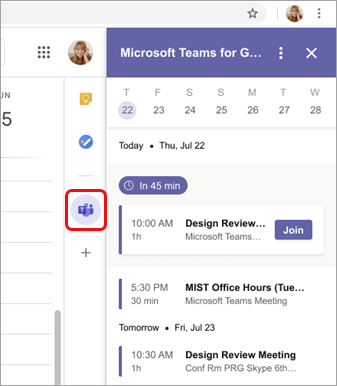
To view today's and tomorrow's Teams meetings**, open the right panel in Google Calendar** and select the Teams add-on.
If the panel is hidden, select the chevron at the bottom of the screen to show it.
[](https://docs.isb.be/uploads/images/gallery/2023-03/ugjNnvkTTqWMOiP6-eed763df-190d-48e9-8aed-714561dfa903.png)
Select Join to join a meeting.
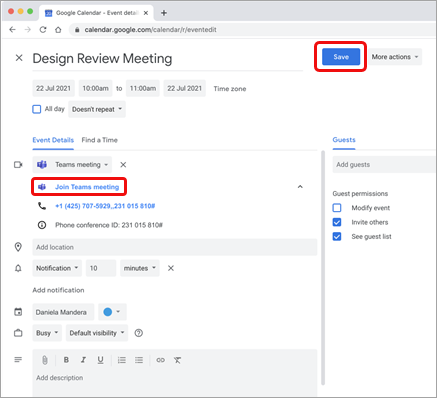
To **view or edit meeting details**, double-click the meeting in the calendar.
The details view opens.
[](https://docs.isb.be/uploads/images/gallery/2023-03/ZXz4uQqaAhBDvldx-ed4dcb7f-6257-4d86-a0ca-39d137310f39.png)
You can make any changes here. When you finish, select Save. If it's meeting time, select **Join Teams** meeting.