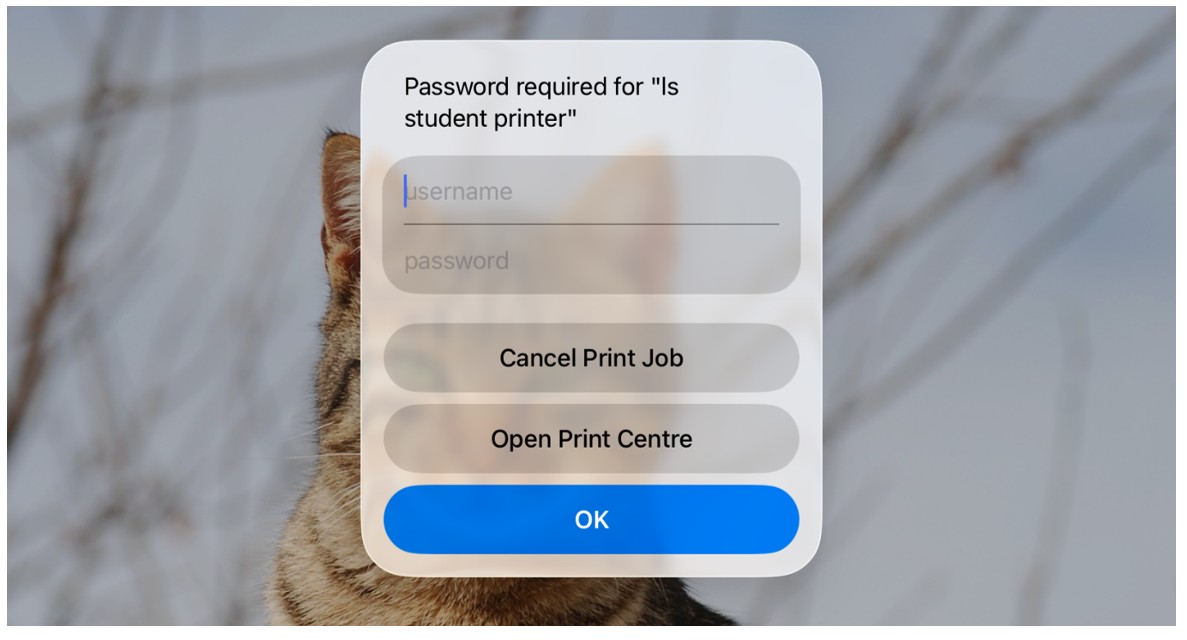
LS Student Printer - iPad - how to
To print from an iPad to the Lower School student printer, find and click Share (1). Then, tap View More (2) and Print (3)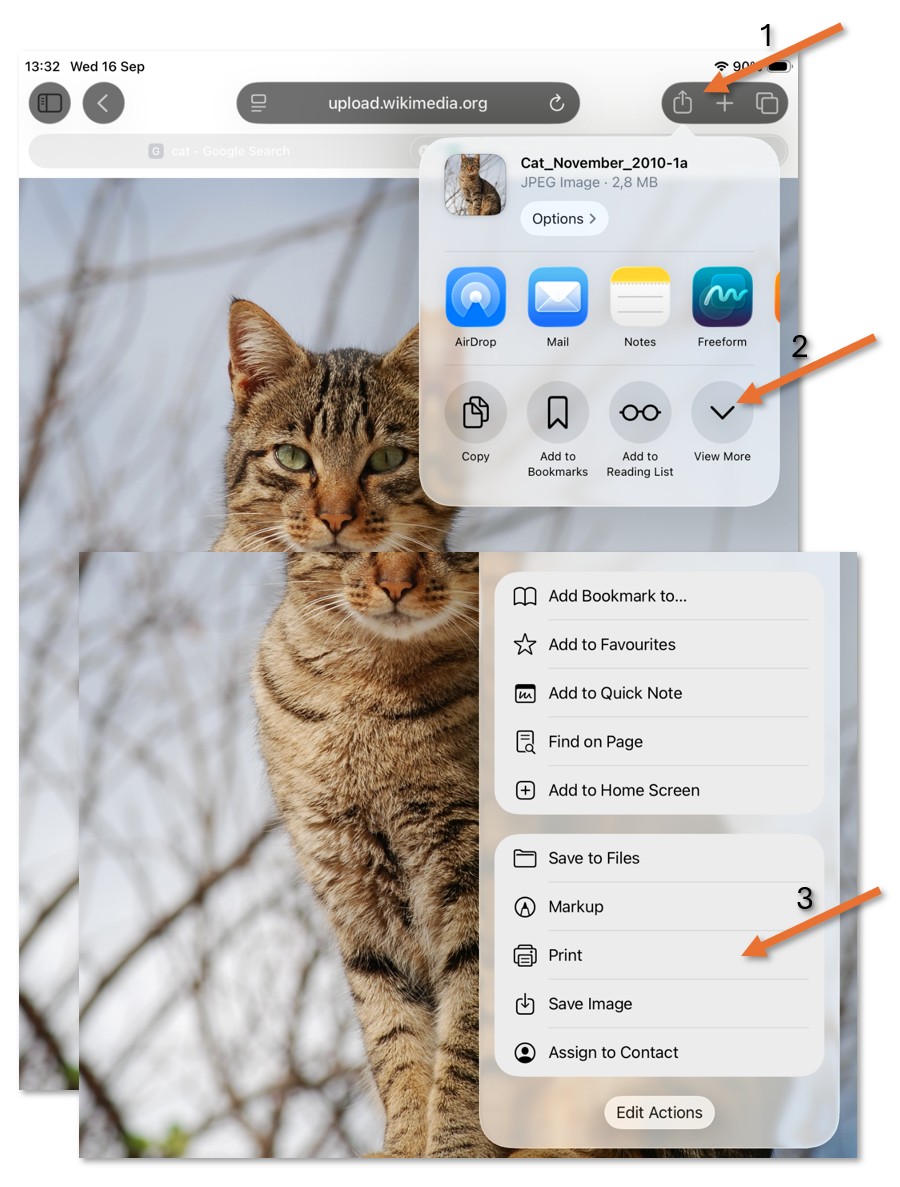
Make sure that the ls student printer is selected (1), and check the settings. How many Copies do you need? Do you need to print all the pages or only some (Range)? Disable Print in Color if you don't need it; the black toner is much cheaper. Save paper by leaving Double-sided On when possible. Make sure that the selected Paper Size is A4. If you print a different size, the printer will present an error - it only has A4 paper in its trays. If you think the data will fit better in landscape; change the Orientation when needed. Sometimes a photo is too big; adjust the Scaling so it will fit on the same page.
When ready, press the Print button (3) 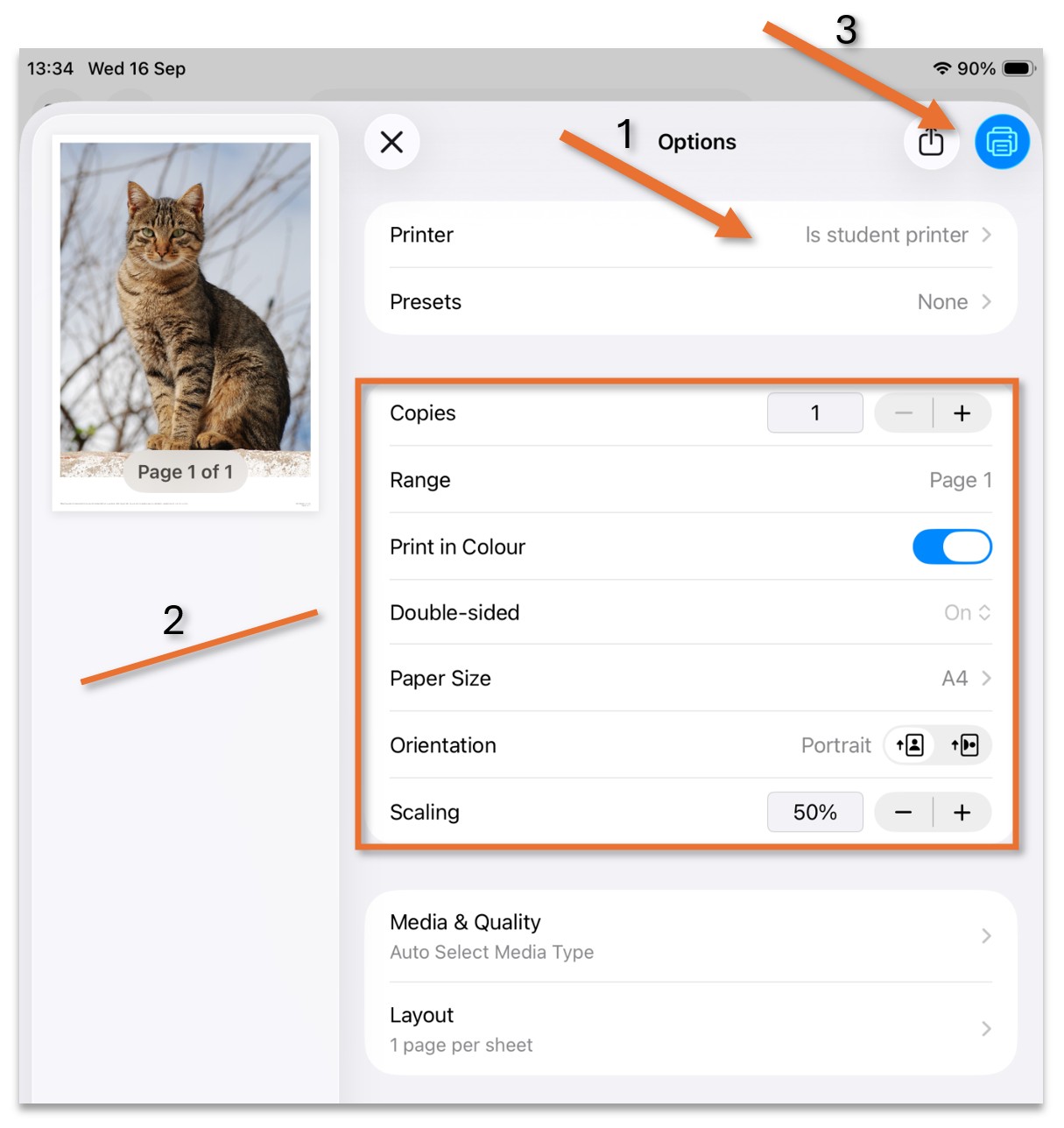
The first time you print, you will be asked to enter a user and a password.
The username is: student
The password is: printprint