LS Student Printer - Mac - installation and tips
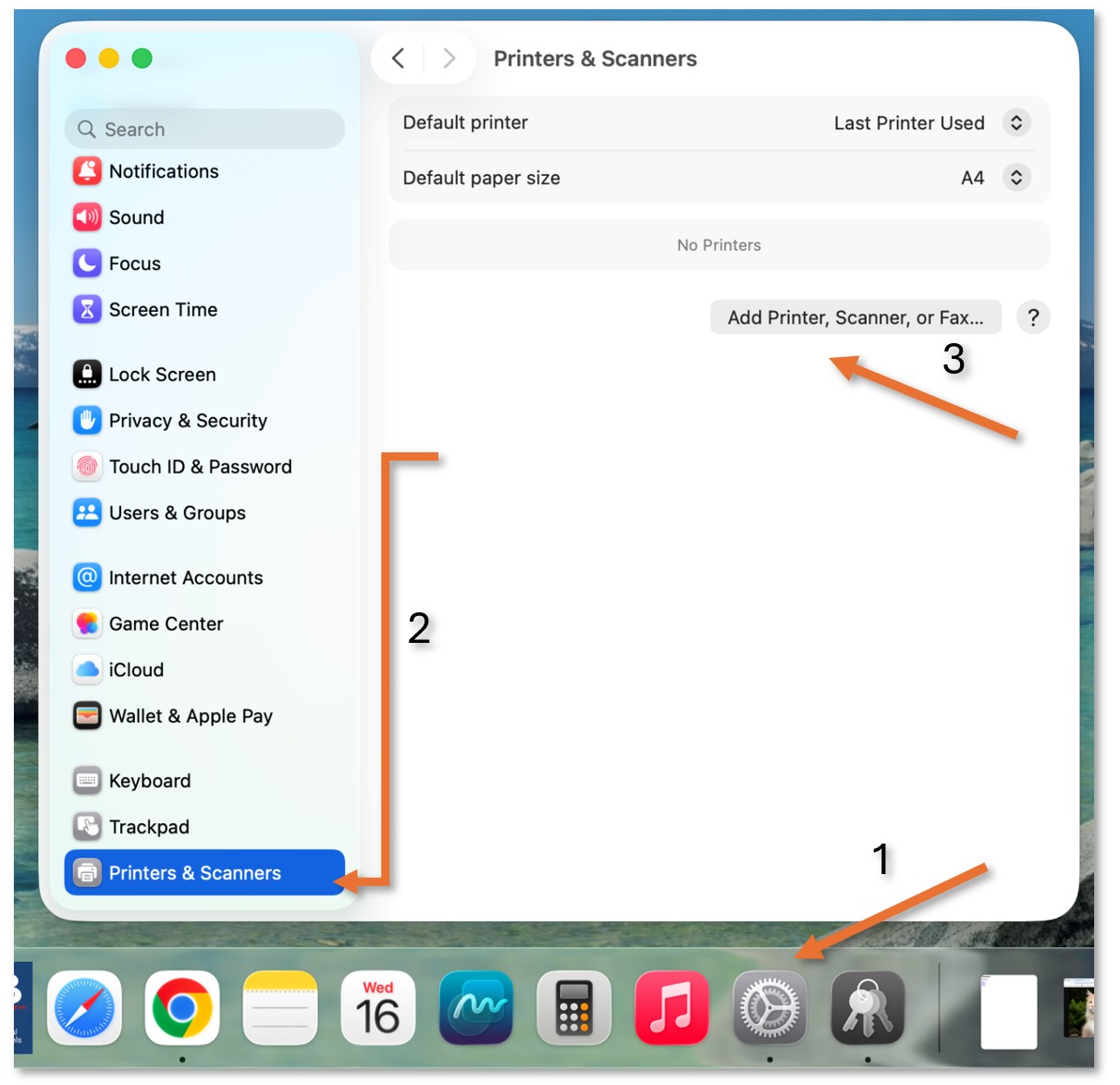
To print from a Mac, we first need to install the printer. Open System Settings (1), then scroll down to the end of the left option panel and select Printers & Scanners (2). Click on Add Printer (3)
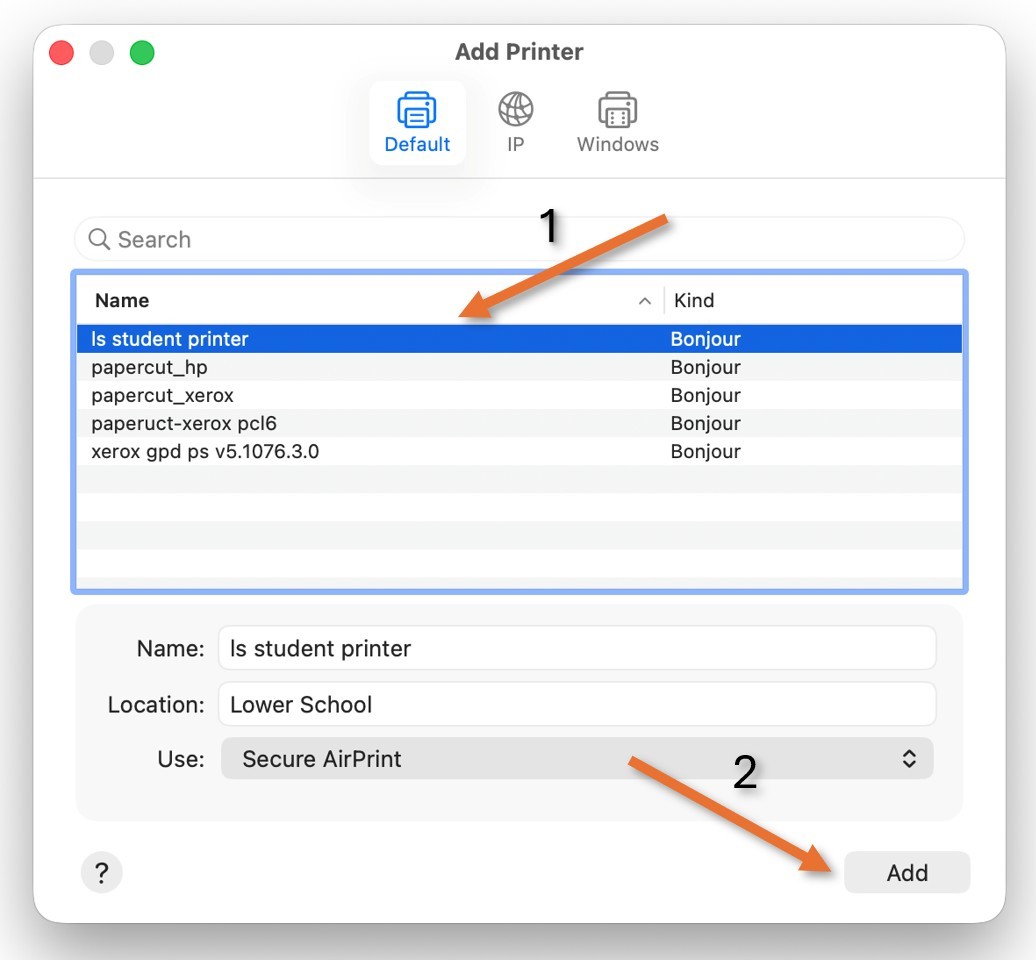
Select the ls student printer (1), and then Add (2)
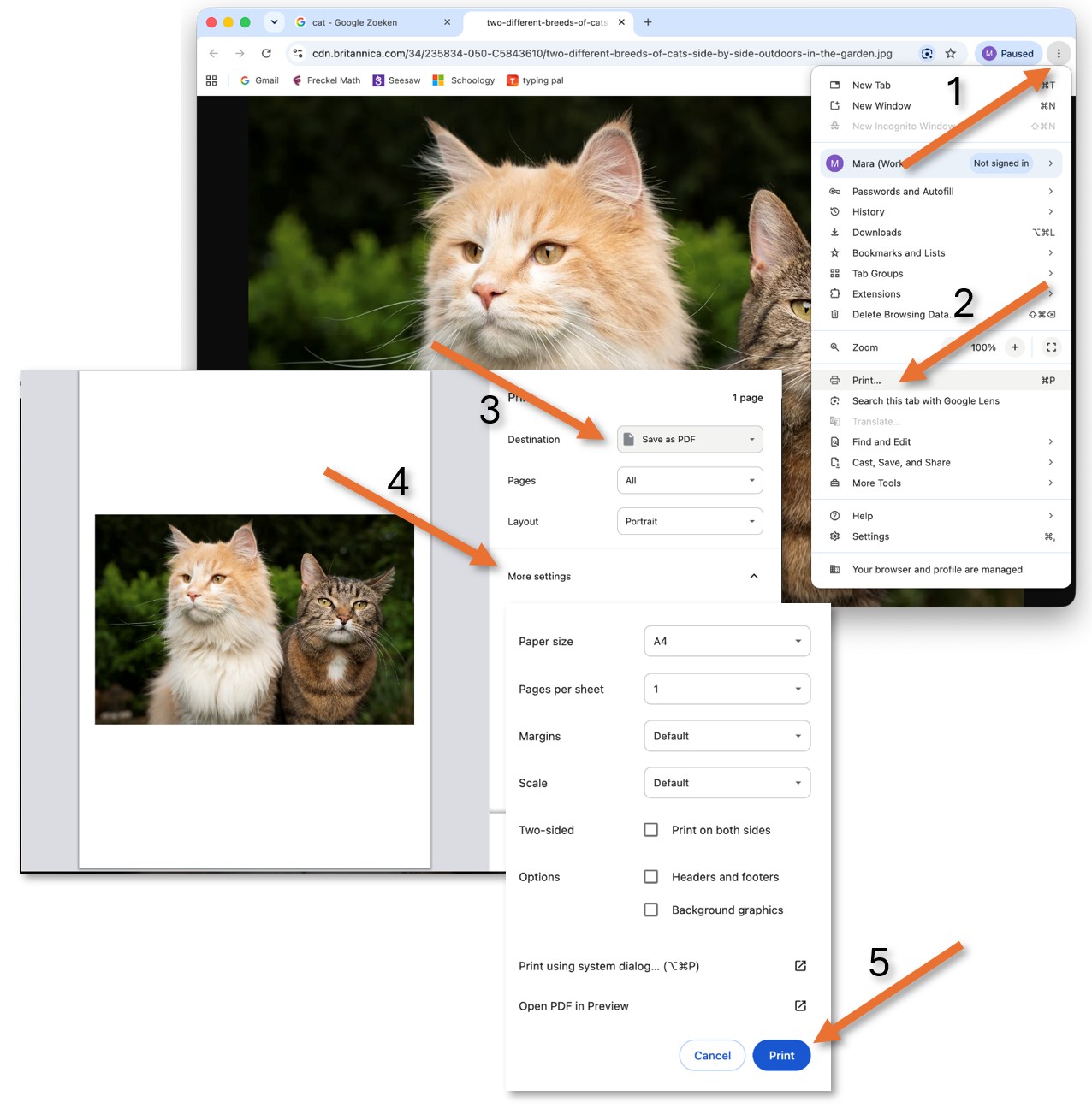
Now that the printer is installed, we can open Chrome, for example, find the print menu (1,2), select the new printer, and print.
Chrome remembers what you adjusted last time - make sure to check your settings for every print; not all prints are the same.
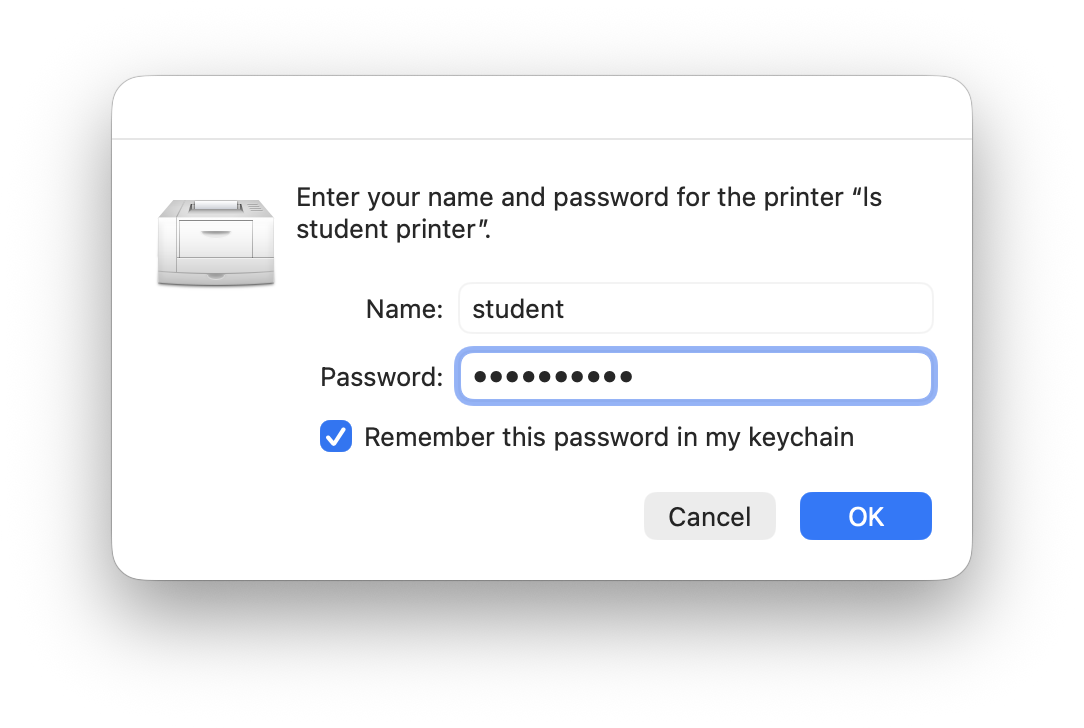
The first time you print, you will be asked to enter a Name and a Password.
The name is: student
The password is: printprint
Make sure to check "Remember password" before pressing OK.