Chrome - Clear Cache
If Chrome displays a page incorrectly or it fails to sign you in, clear the cache and try again.
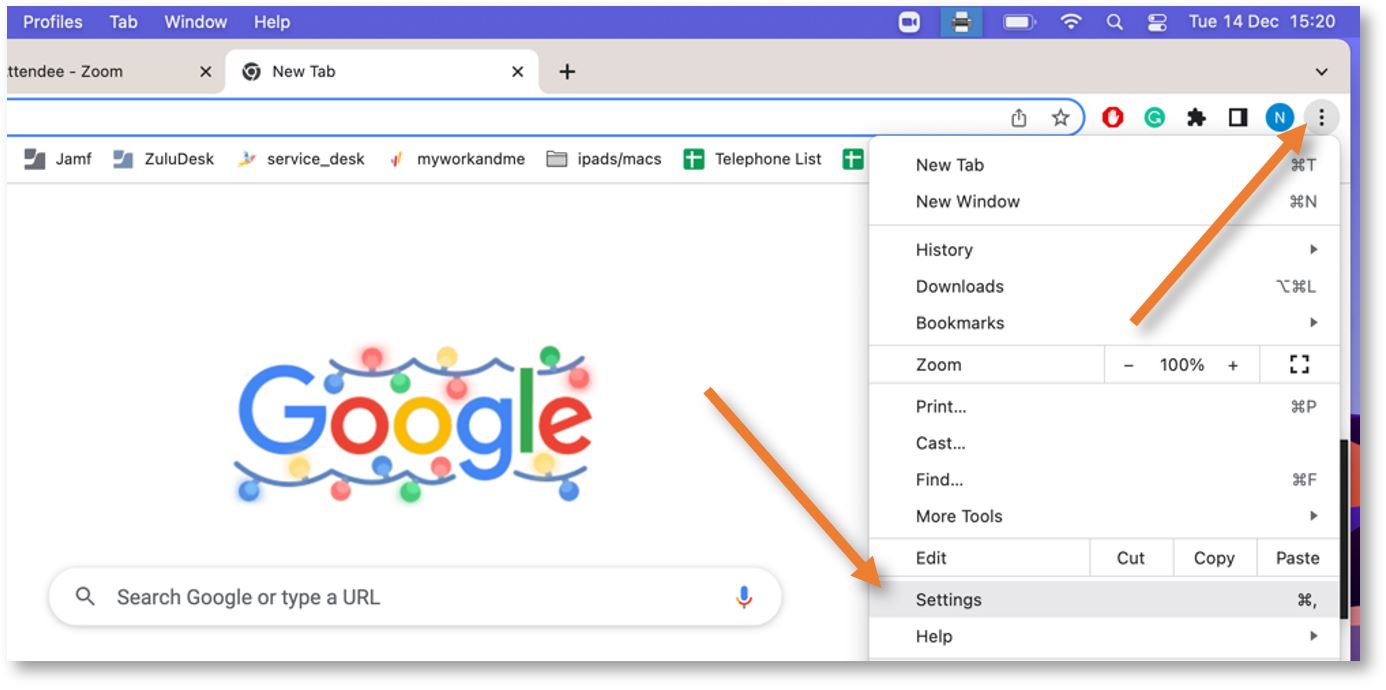
Click the 3 vertical dots from the upper-right corner and select Settings.
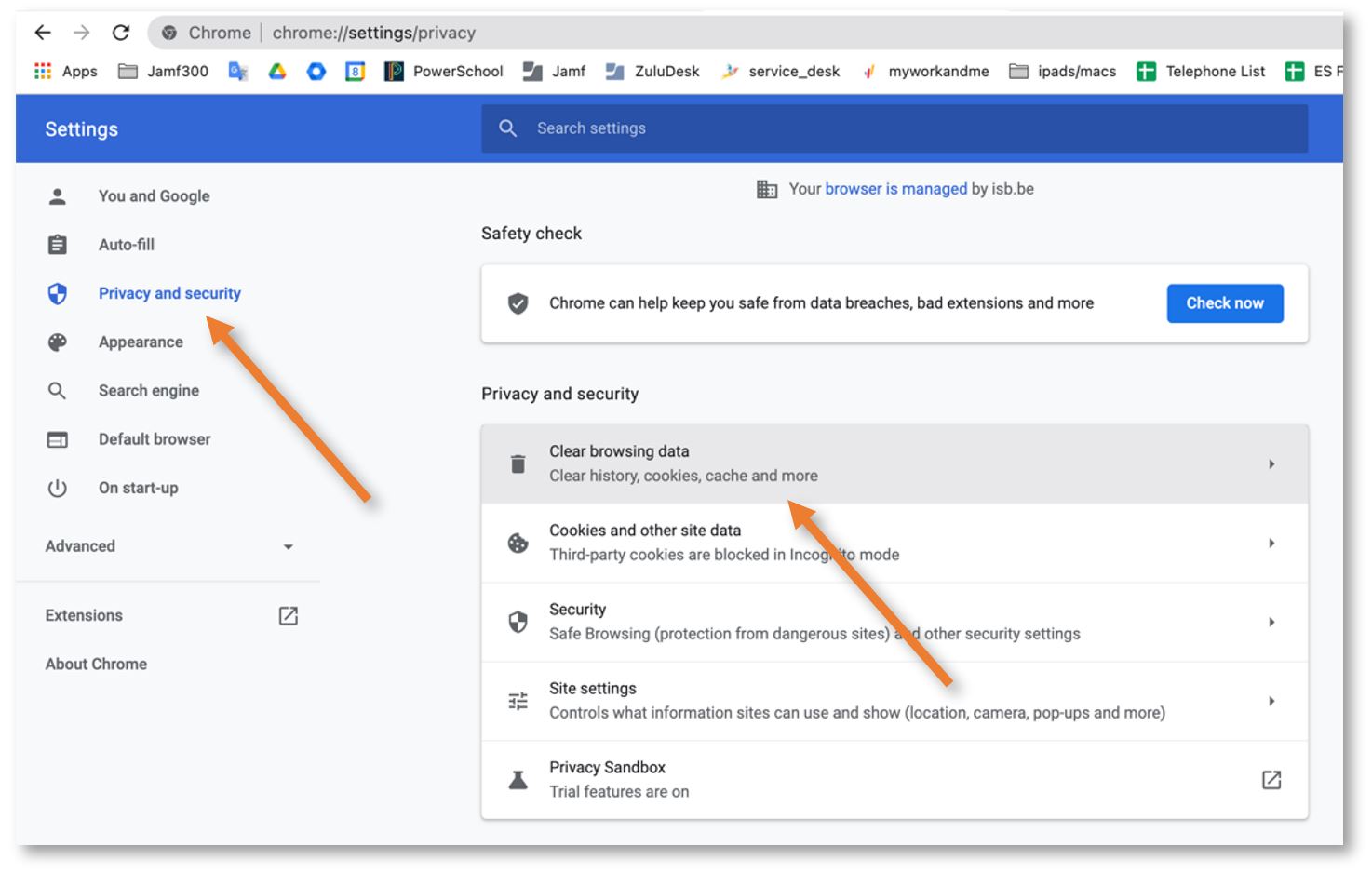
Click on Privacy and security in the left panel and select Clear browsing data.
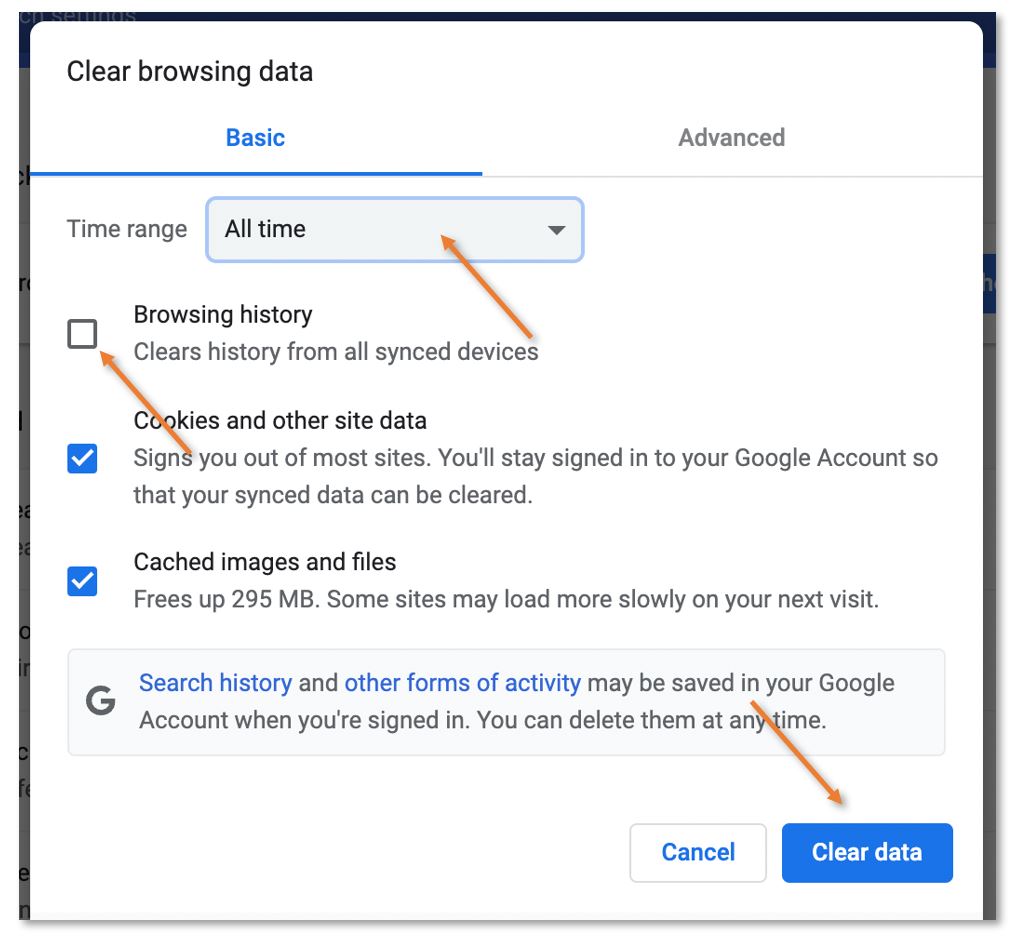
Uncheck Browsing history, choose All Time under Time range, and click Clear Data.
Reload the page and try again.
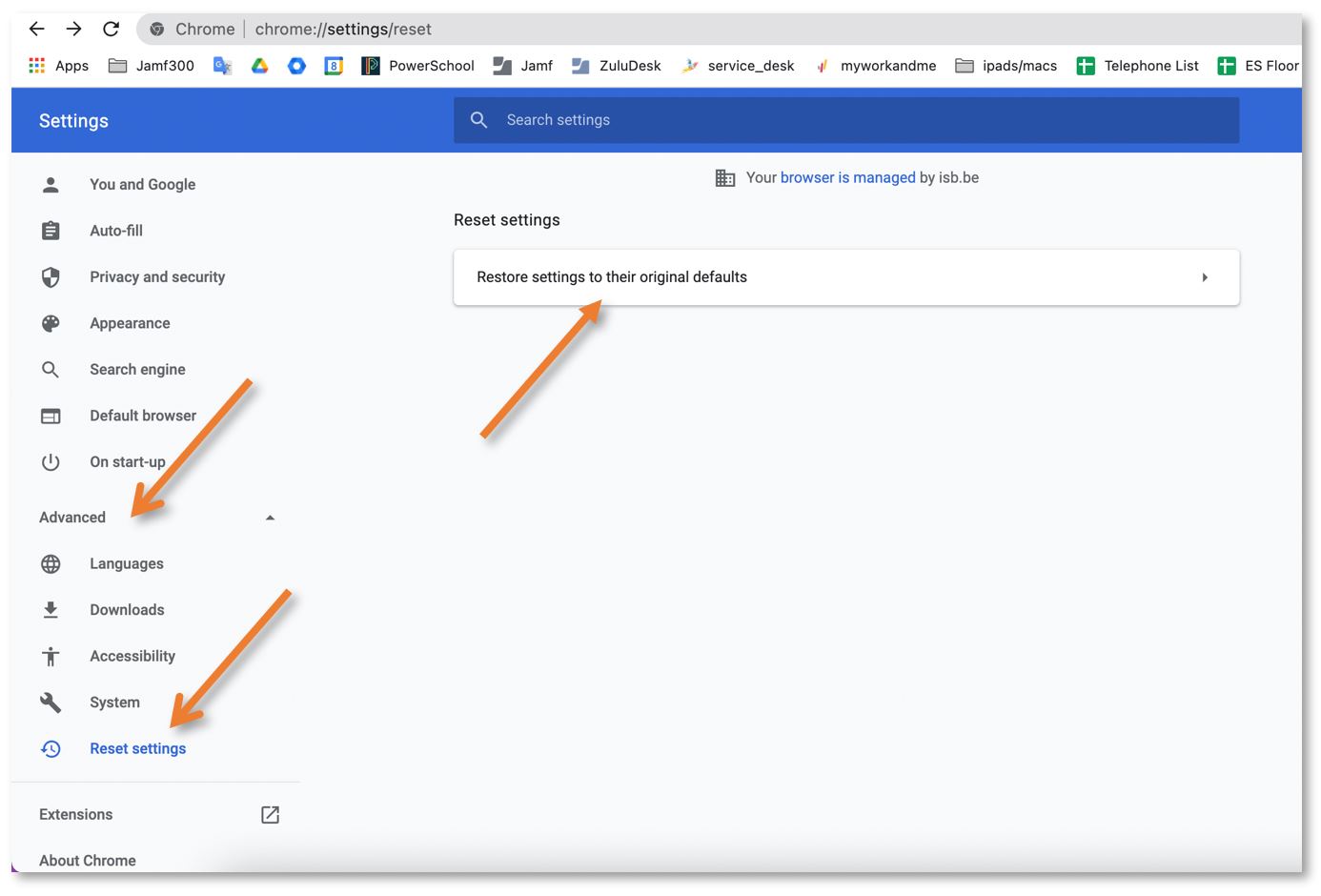
If everything fails, please go back to Settings, extend the Advanced menu in the left panel, and select 'Reset Settings'. Then click on 'Restore settings to their original defaults', and finally in the window that pops up, select 'Reset Settings'. Your Favourites and Passwords will not be erased, but Chrome will disable all of your Extensions.