Shared iPads ES
Initial setup and other essential things that you need to know.
Please assign an iPad to each student and ask them to try to use the same one every time.
We numbered them 1 to 15 on the left and 1 to 15 on the right:
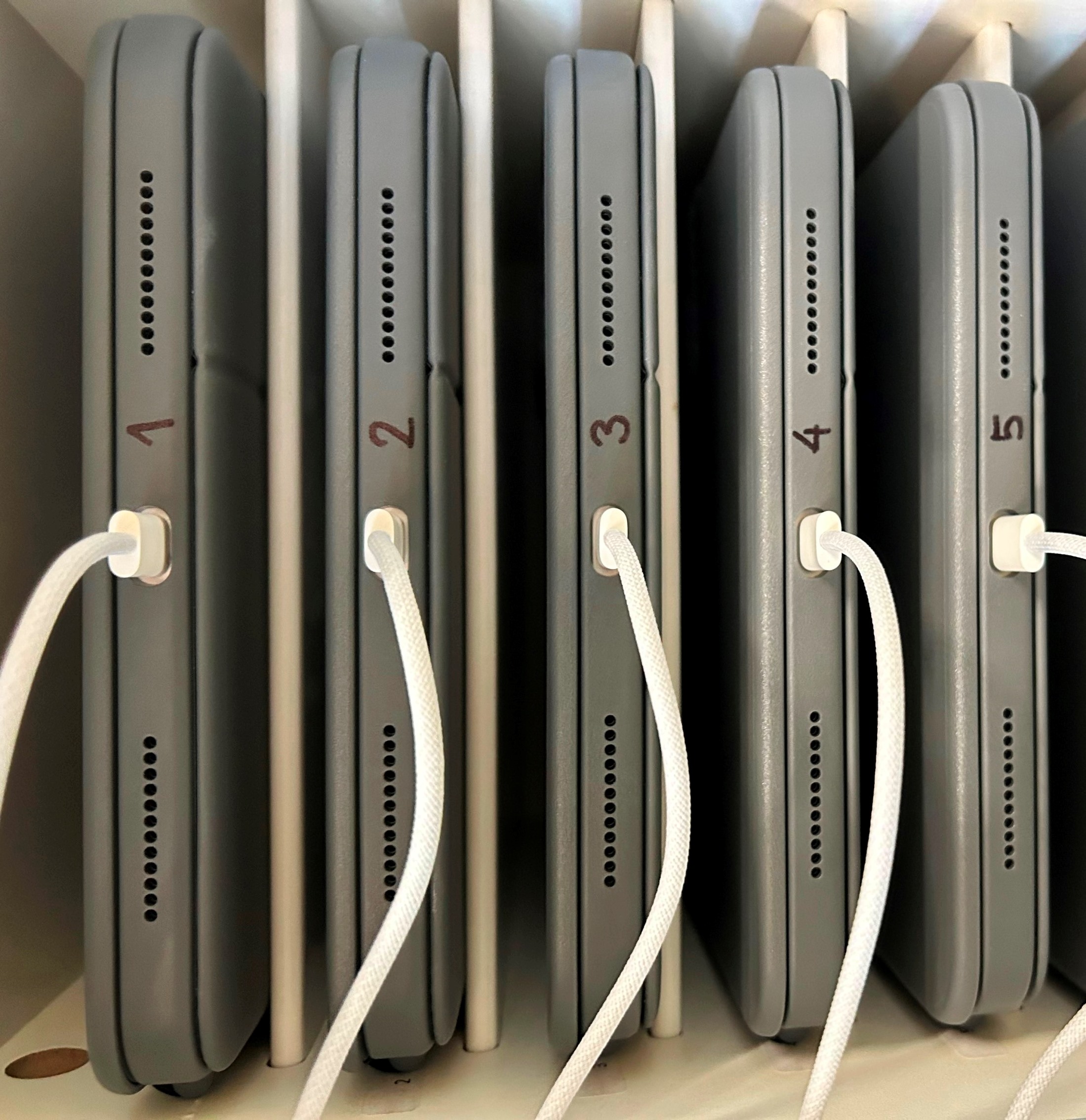
The benefits of using the same iPad are:
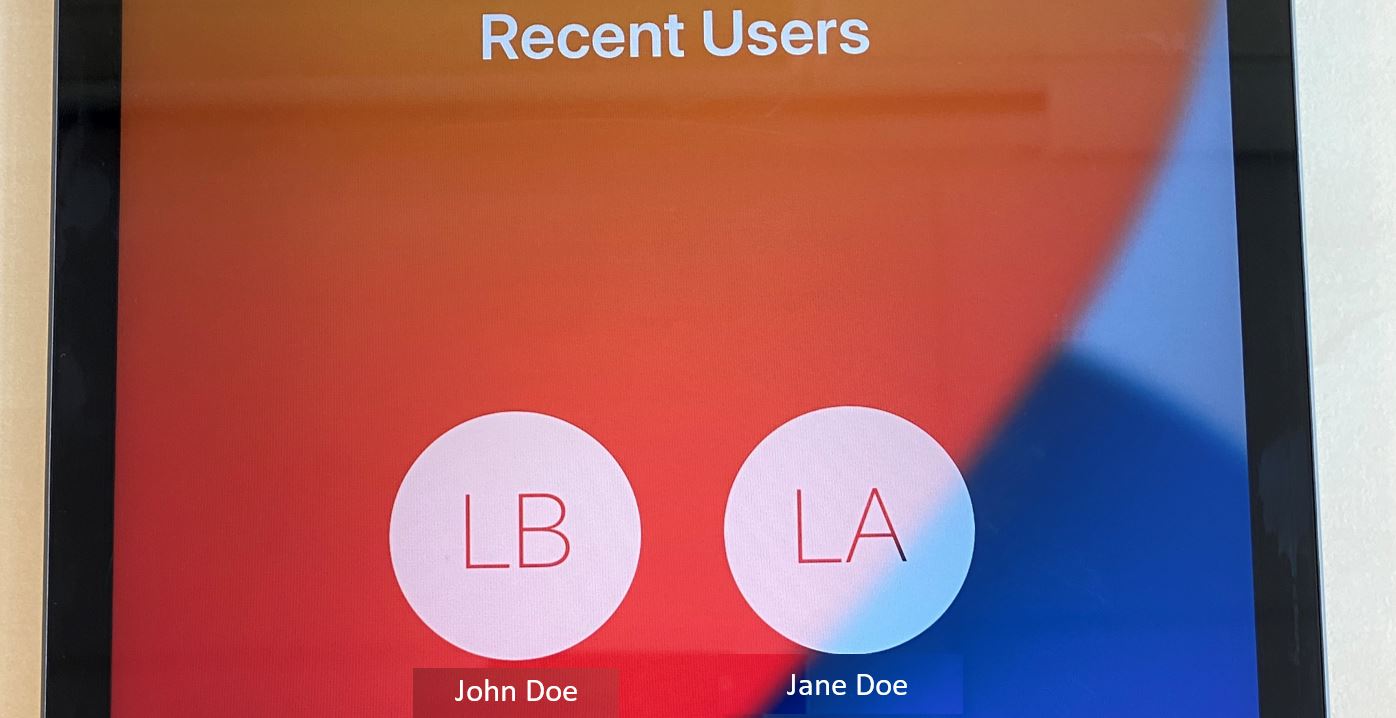
- Fast login. Instead of going through the initial setup on a new iPad, the students can select their names from the list and enter their passwords.
- After logging in, they will not have to wait for the server to move and apply all their photos, documents, and settings from their last iPad.
First, Sign in.
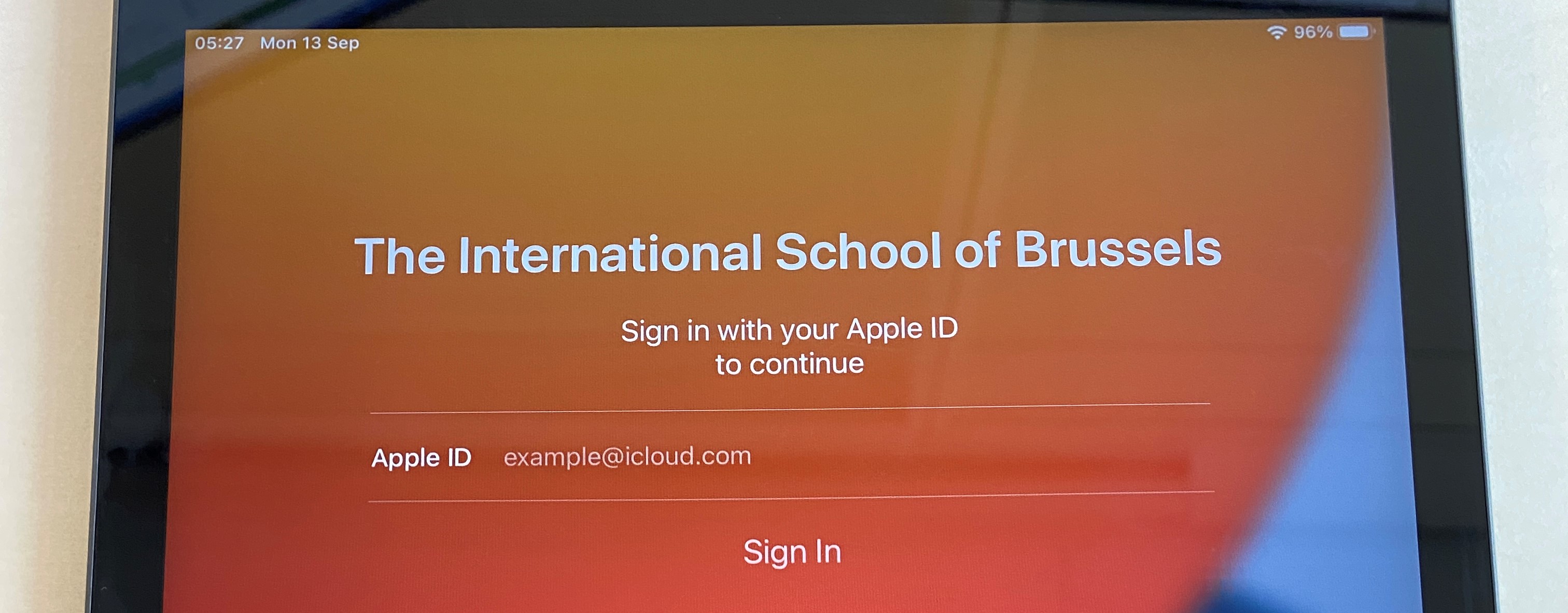
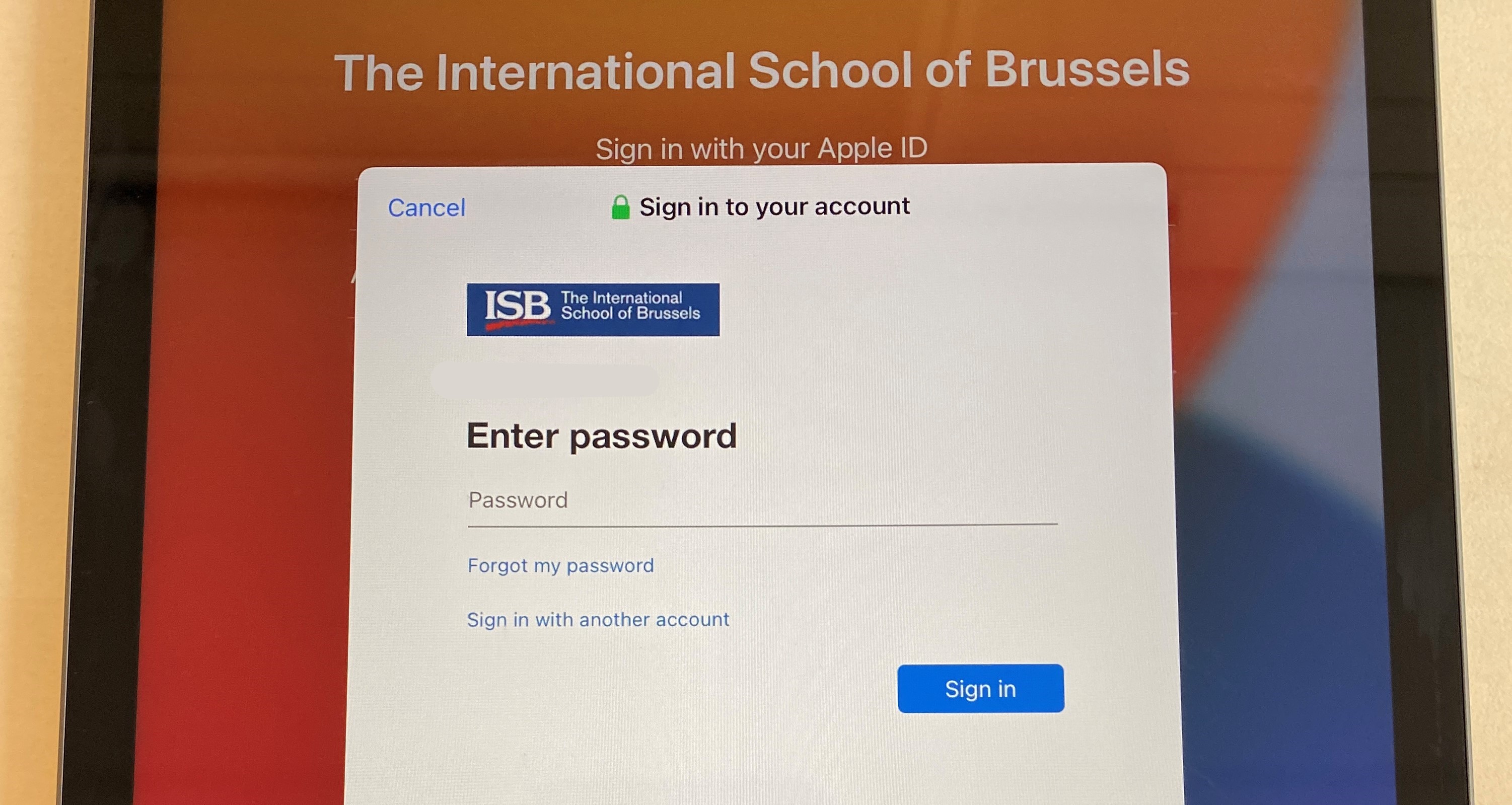
- Please ask the students to enter their email address and press Sign in. example@isb.be
- Enter the email password.
- Ask them to select their preferred language in the next window – usually English- and the location – Belgium.
- Press Continue when asked to change the settings for Written and Spoken languages.
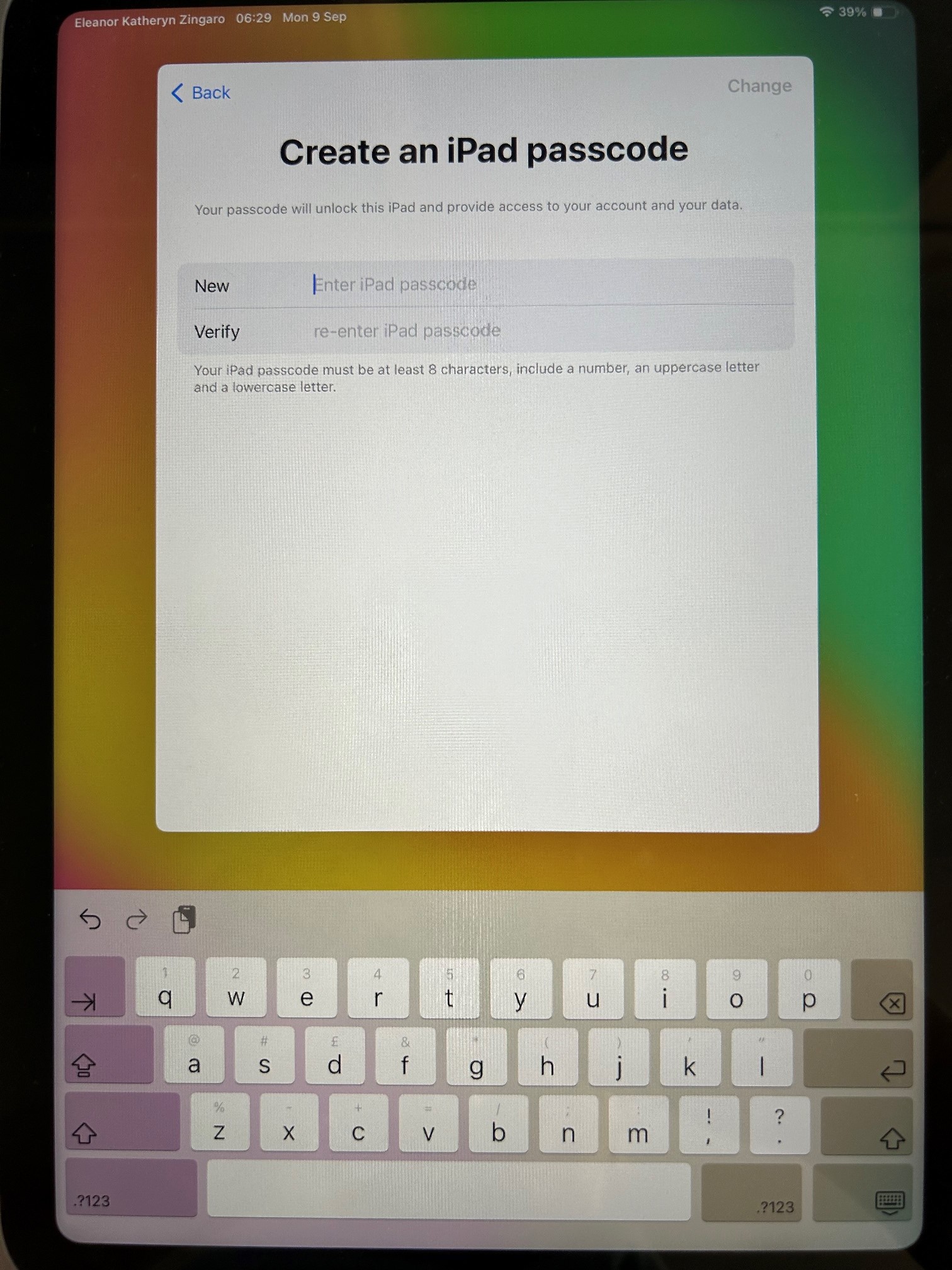
- The iPad will then ask the students to create a password. Please ask them to use the same password that they use to log in to their laptops, but capitalize the first letter and add a 0 at the end if not present. (The password requirements ask for a capital letter and a number)
- In a few seconds, the iPads will create their accounts and log them in.
- Important step – when they are done working on the iPad, please ask the students to log out.
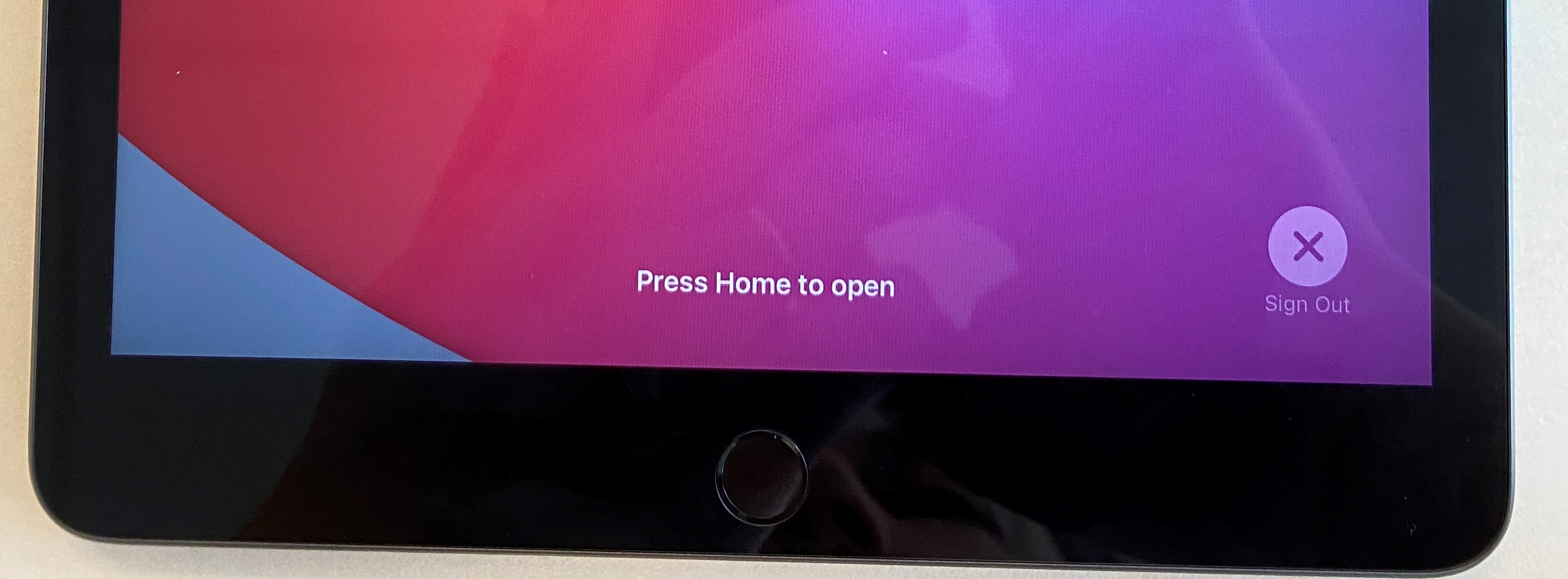
- Press the power button twice; the screen will go into standby and come back. Press Sign out in the lower-right corner.