
Take Your Google Data With You - for Teachers and Staff
Google Data
If needed, it is possible to export all of your Google data. Your ISB account will be deactivated in December after you leave. Your content will be deleted. We cannot help you recover data once you have departed from ISB.
Before you begin, please become familiar with these guidelines on removing sensitive information.
There are three ways to export your data; please read the Option's intro and choose what works for you.
Option 1 - Copy to new drive
If you would like to copy your data from your ISB Google Drive to a personal Google Drive, the process outlined below is recommended. But first... please make sure that you have enough space on your personal drive which is limited to 15GB by default.
In your ISB Google Drive:
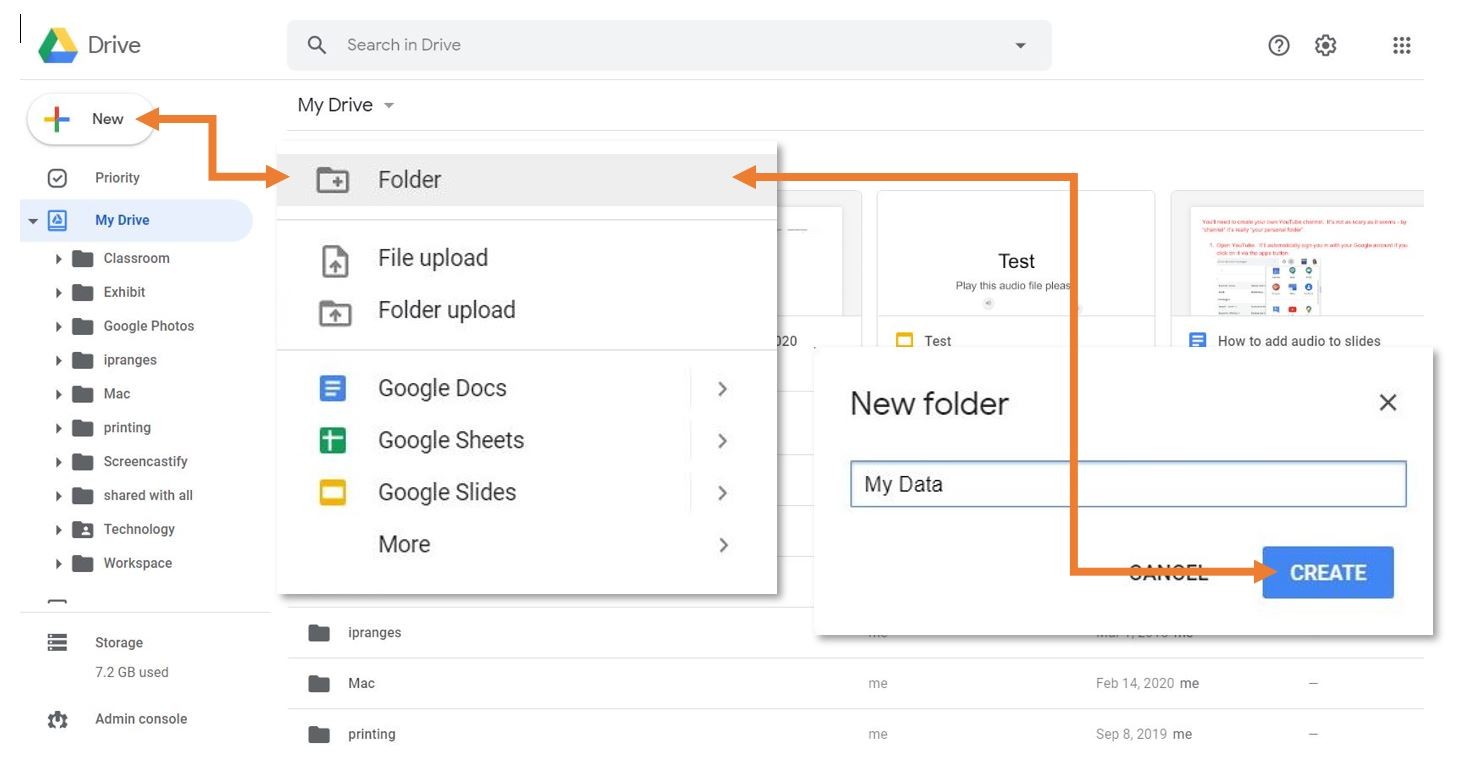
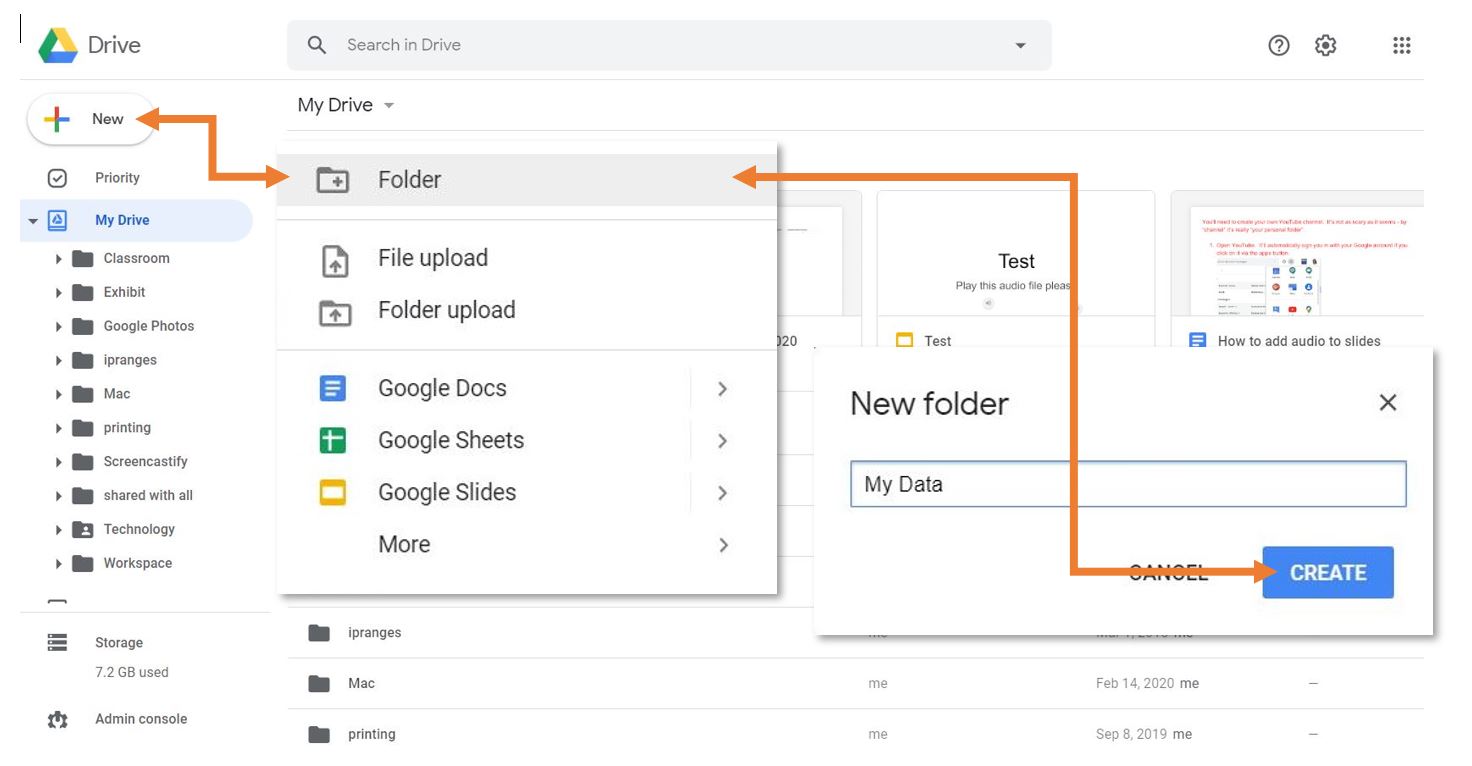
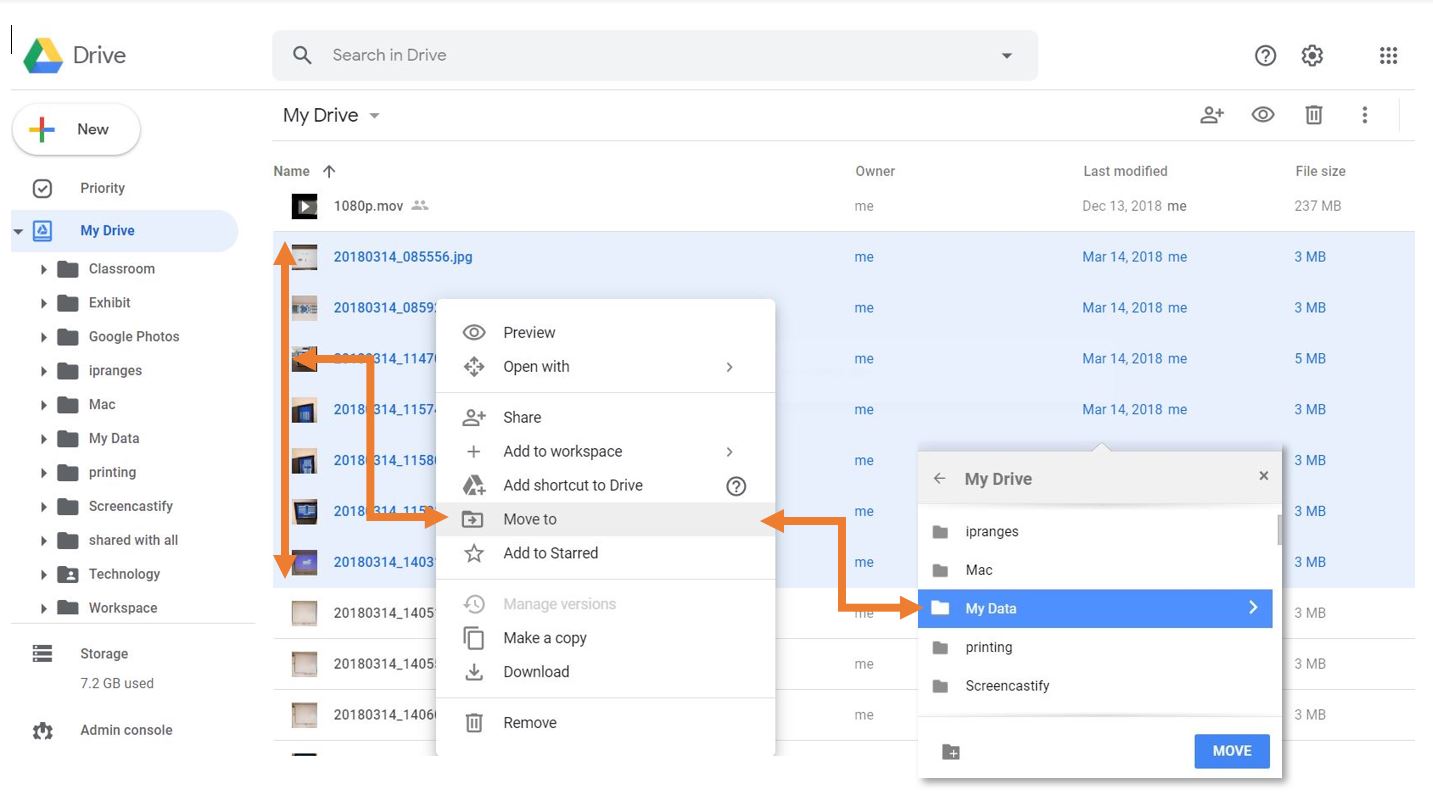
- Create a folder where you will place all the files you would like to move.
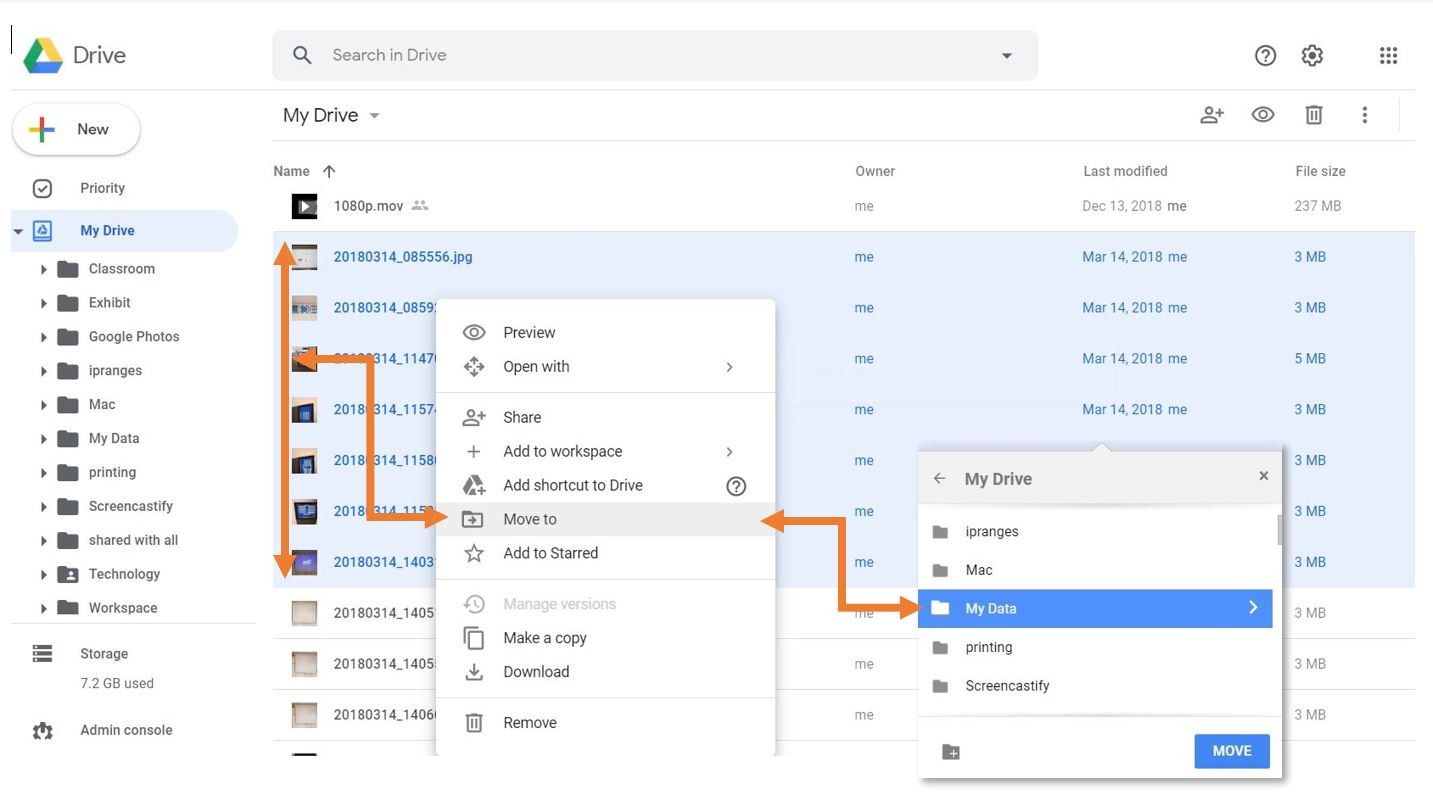
- Move the files you want to keep into the new folder. You can add folders as well, but that might make the next steps more tedious.
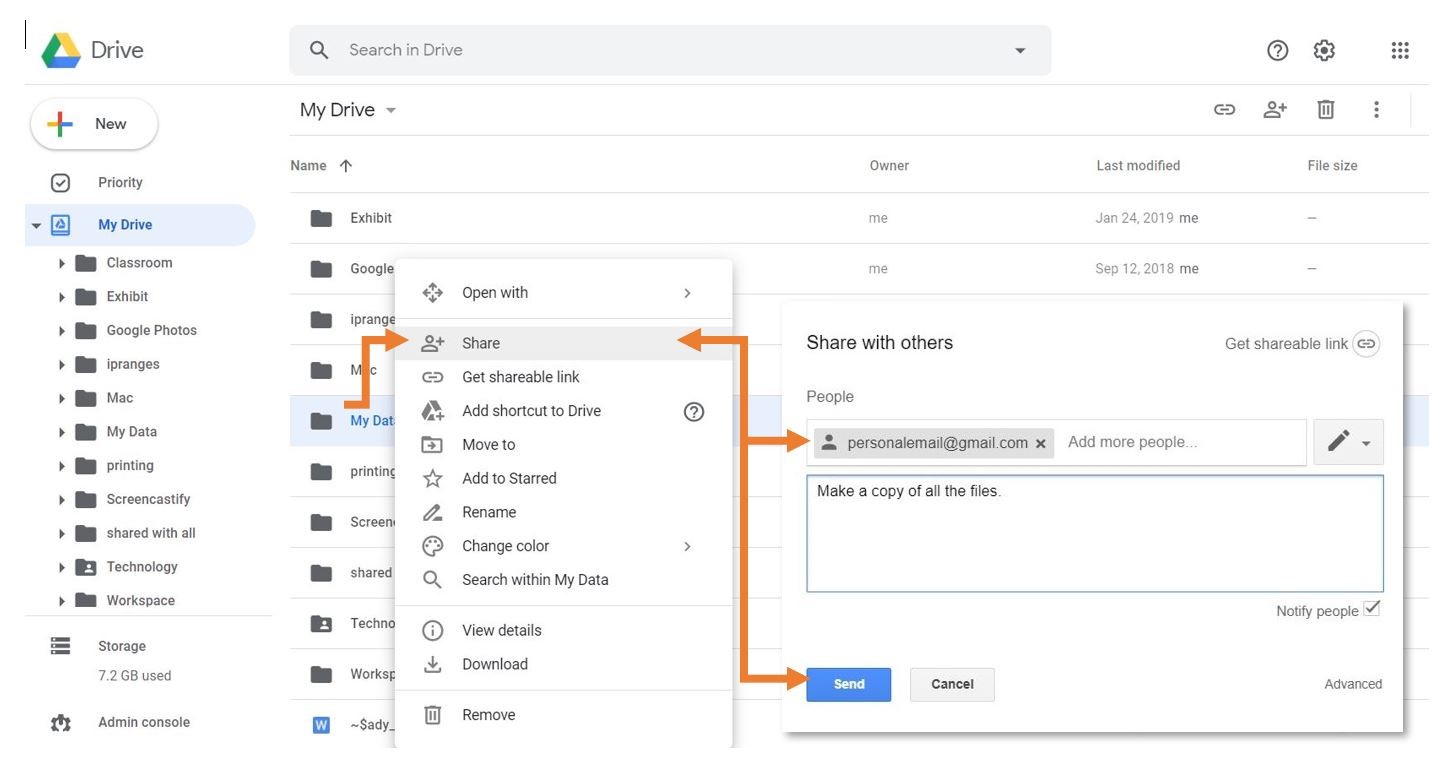
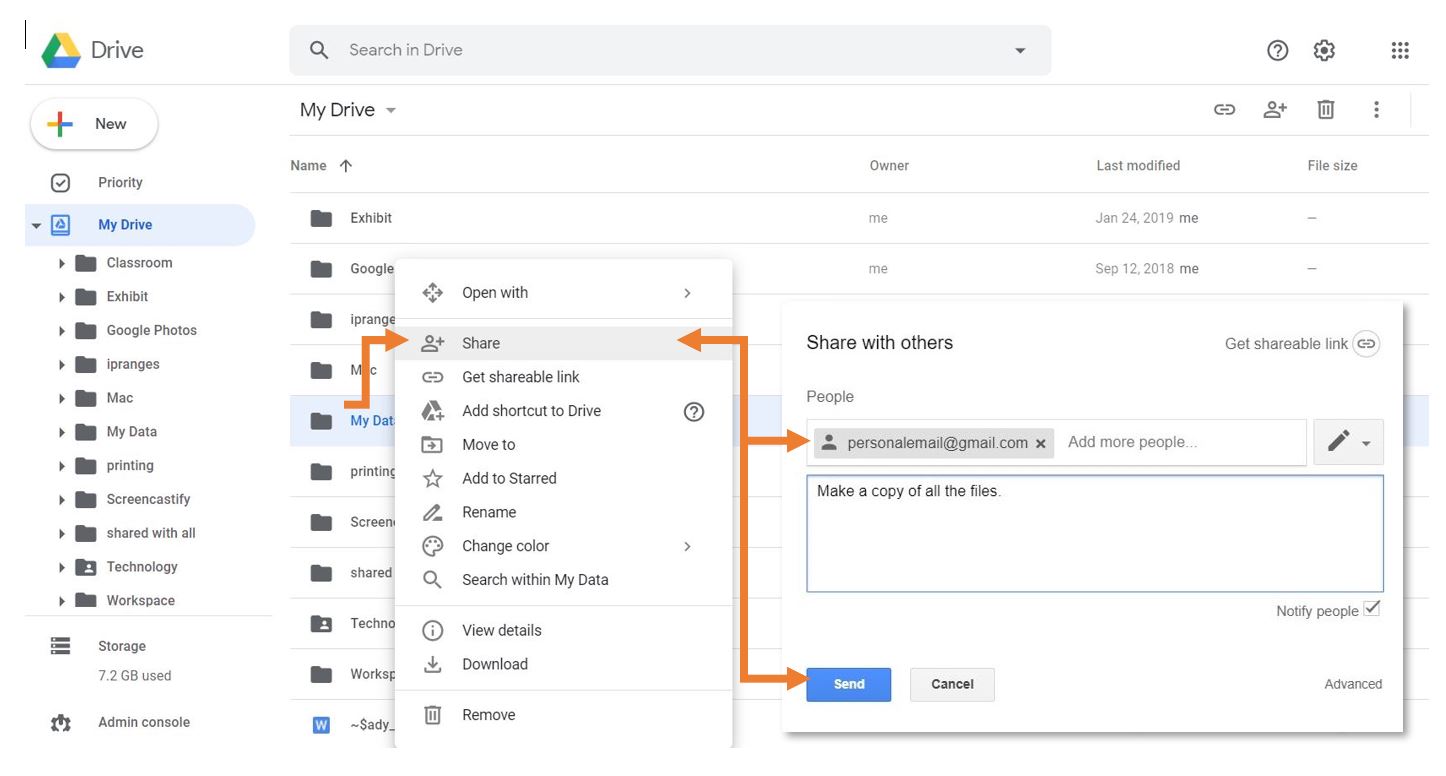
- Share the folder you created with your personal account.
In your personal Google Drive:
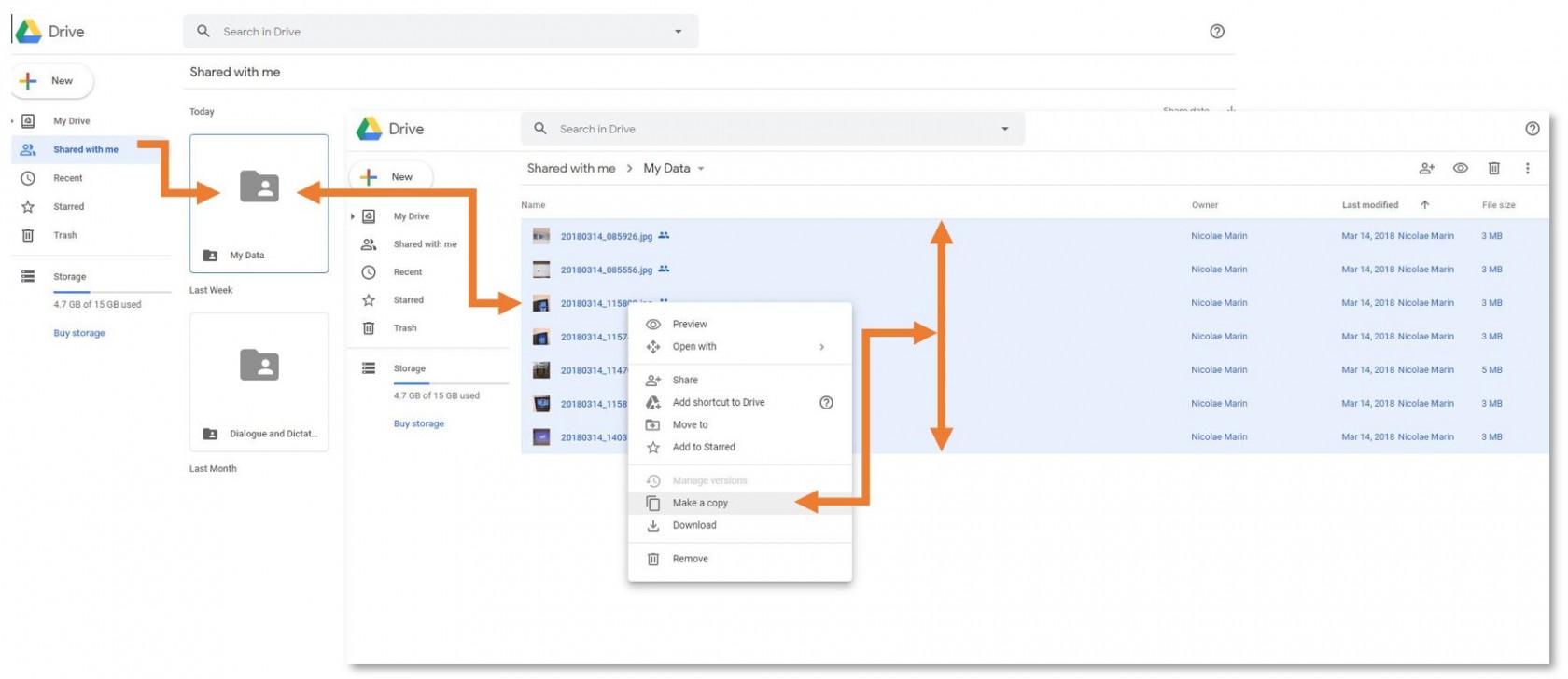
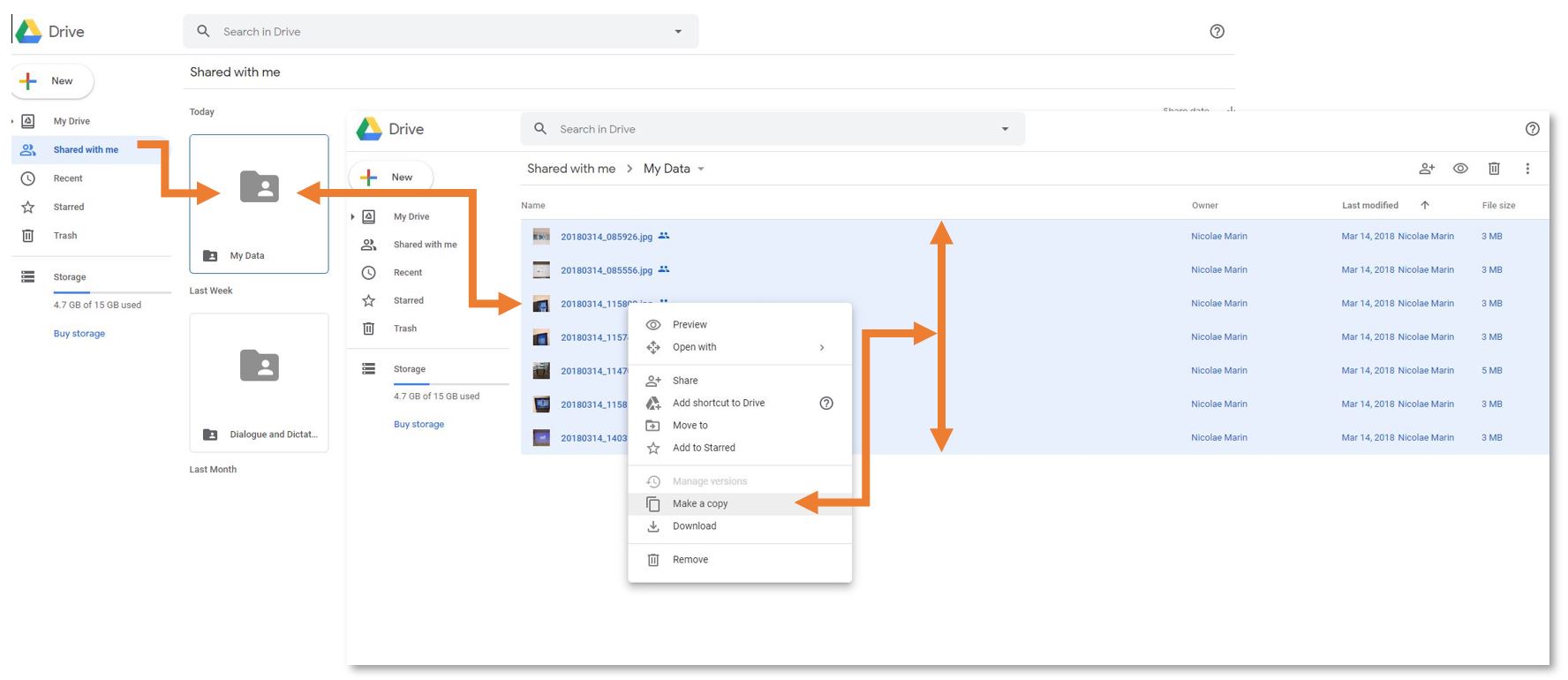
- Open the folder that you shared with your personal account.
- Select all the files inside the folder (Ctrl+A (select all) OR Shift+left click) *FILES ONLY, NOT FOLDERS*
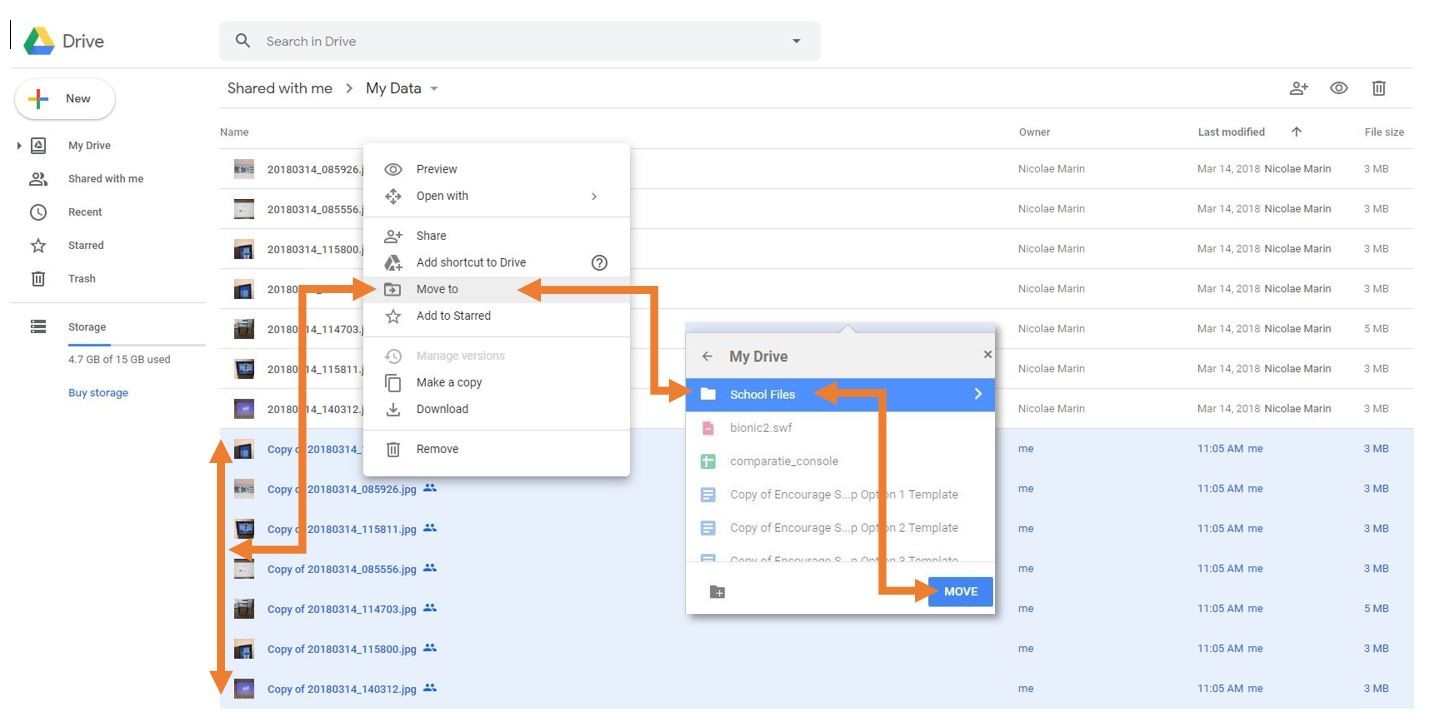
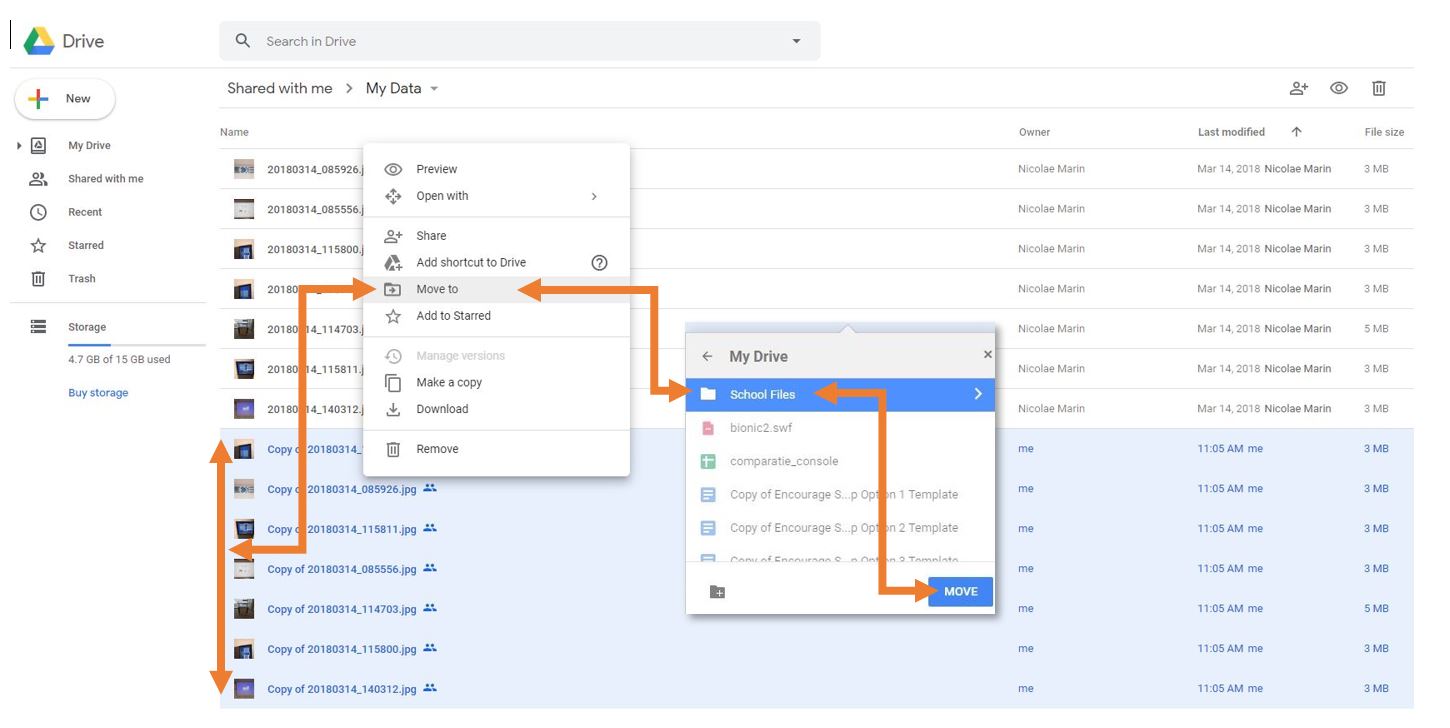
- Right-click on one of the files you selected and choose “Make a copy.” This will create a copy of all the files. Your personal account will be the owner of the copies. The copies will have the name “Copy of…”
- Move the files with the name “Copy of…” to another location on your personal Google Drive.
Option 2 - Download your Data:
You can choose to download an archive of your files as well. This process is easier than the copy method, but Google Apps documents (docs, sheets, slides…) will be converted to Microsoft-compatible files (Word, Excel, PowerPoint…).
- In your ISB Google Drive, right-click on a file or folder that you would like to download.
- Select “Download” from the list of options.
- Save the downloaded archive to an external hard drive or a personal cloud storage service (a personal Google Drive, Dropbox, etc.).
Option 3 - Google Takeout option:
This option provides maximum flexibility and allows you to easily use your files on almost any computer anywhere in the world. It takes some prep time, and Google takes its time creating the archives, but the only requirement is for your computer or drive to have enough free space to hold the files. The files can also be uploaded to a Cloud provider such as a Google account, used with DropBox, Office 365, or Amazon Cloud.
The process takes only a few minutes to start. Please make sure you have:
Your Google username and password ready.Your mobile phone for 2-step verification.Approximately 30-60 minutes to attend to this process.This typically only takes about 5 minutes to initiate.It may take several hours to download the content once it is ready.
A computer you own or an external storage device with a minimum of 2GB of free storage.
Follow this link to initiate a Google Takeout for download:Start Here.Sign in as necessary with your @isb.be account and password.Select the data you wish to include in your "Takeout" box."Uncheck" the box to exclude the content.
Click the "NEXT" button at the bottom of the page.Customize archive format:Most users will want to leave these settings alone and click "CREATE ARCHIVE" at the bottom of the page.
It can take up to several days for Google to create your Takeout Archive. You will receive an email when it is completed.Alternatively you can check on the status of your takeout archive atthis link.
After your Google Takeout Archive is created open theGoogle Takeout page.Download all of your prepared archives ona device/computer you own. You may have multiple archives that must be downloaded.You can download the files to your ISB computer, butyou must copy them to a USB Drive before you depart.All of your documents will have a portable format. For example, your Google Docs will be converted into Microsoft Word documents, Google Slides will be converted into PowerPoint Presentations. Your PDFs, video files, PhotoShop documents, etc. will remain in their original format.